
The Configuration tab contains several areas where you can set configuration options for your Web App.
|
Area |
Description |
|---|---|

|
Path: Here, you can enter a path that appears as part of the URL in the browser. |
|
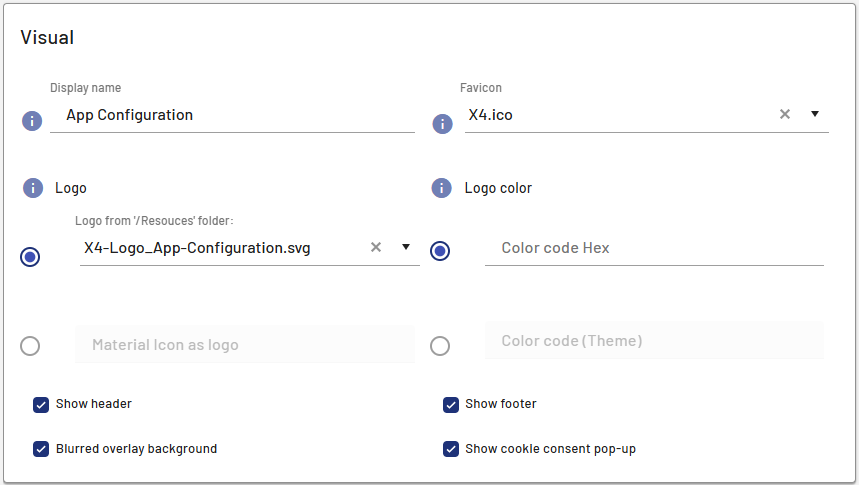
Display name: Enter the display name of the Web App in this field. The display name of the Web App is displayed in the browser tab or title bar. Favicon: Path to the graphics file (.gif, .ico, .png, or .svg) used as the favicon of the Web App. The file must be in the Logo: Path to a graphics file (.gif, .png or .svg) or a material icon that is used as the logo of the Web App. To do this, select the appropriate radio button. Note:
Logo color: Using this field, you can only change the color of a logo that you have added via logoURL with a Material Icon. You can enter a hexadecimal color value (e.g. You cannot set the color for image files. Note:
Show header: Select/clear this checkbox to show or hide the header of the Web App. By default, the checkbox is selected. Show footer: Select/clear this checkbox to show or hide the footer of the Web App. By default, the checkbox is selected. Note: If actions are available in the displayed component, the footer is displayed in mobile view independent of the checkbox value. Blurred overlay background: Select/clear this checkbox to make the background blurry or clear when displaying overlay structure elements. By default, the checkbox is selected. This means that the part of the Web App that is still visible in the background when opening an overlay becomes blurry. Show cookie consent pop-up: With this checkbox, you define whether the pop-up message for cookie consent is displayed. By default, the checkbox is selected. |
|
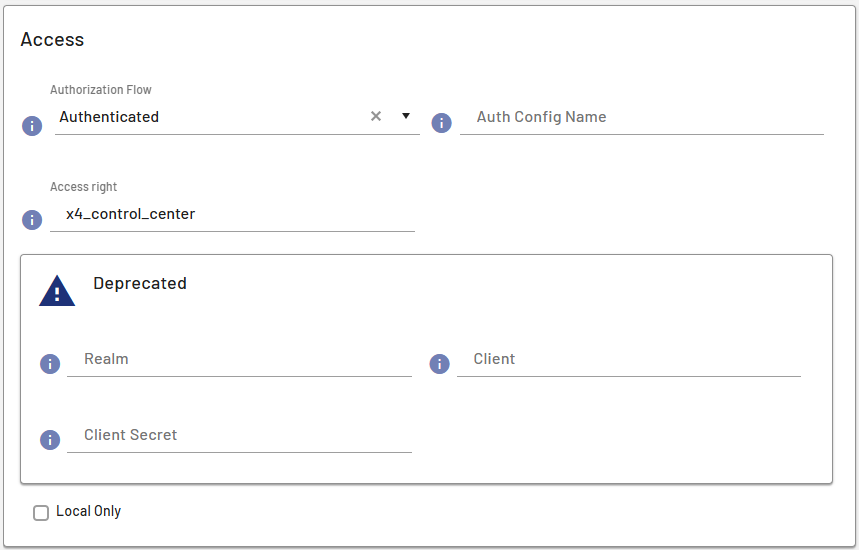
Authorization Flow: With this drop-down list, you define which authorization flow is used. Available options: Public:
Authenticated:
Note: To use the single-sign-on functionality, you need to use the Authenticated authorization flow. Note: If you have opened Web Apps and have been inactive for a while, the refresh token for your session expires. In this case, the following message is displayed: 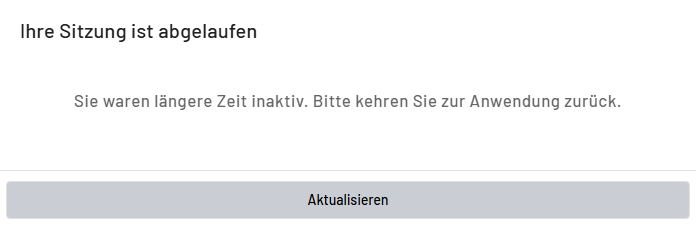
Auth Config Name: This field is only active if you select Authorization Flow Authenticated. Here you enter a configuration that you have defined in the Access right: With this field, you define which role can access the Web App. You can enter the name of a previously defined role. Note: The roles are managed in the identity provider used. ⚠️ Deprecated
Note: Previously, in X4 BPMS, it was possible to specify the Realm, Client ID and Secret parameters in The current implementation supports the use of multiple identity providers (IdP) at the same time. Each secured Web App is protected by default with an authentication configuration marked as the default. If an endpoint or Web App is to be secured with another IdP or another realm of the same IdP, the desired authentication configuration is now specified instead of dynamically overwriting the realm, client ID, and secret per call. Access right: With this field, you define which role can access the Web App. You can enter the name of a previously defined role. Note: The roles are managed in the identity provider used. Local Only: With this checkbox, you define whether the project is only to be deployed locally. By default, the checkbox is cleared. Note: If this option is enabled, the web application can only be viewed in the browser on the local system.
|
|
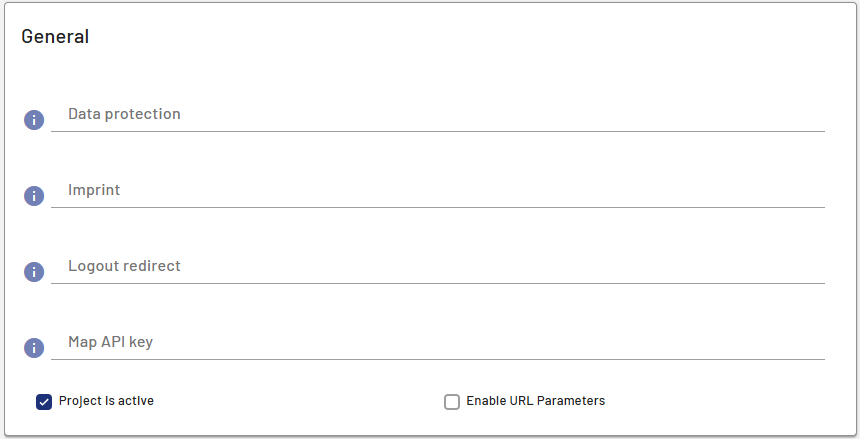
Data protection: This field allows you to link external pages as a privacy statement. Imprint: This field allows you to link external pages as imprint. Logout redirect: This field allows you to redirect users to the specified URL after logging out. You can enter any valid URL with any valid protocol ( Map API key: If Google Maps is used as the map provider, the following APIs must be enabled:
Project is active: With this checkbox, you define whether the project is activated. By default, the checkbox is cleared. Note: If the project is not active, the web application cannot be displayed in the browser.
Enable URL Parameters: With this checkbox, you define whether data is to be transmitted to a Web App when it is called. |
|
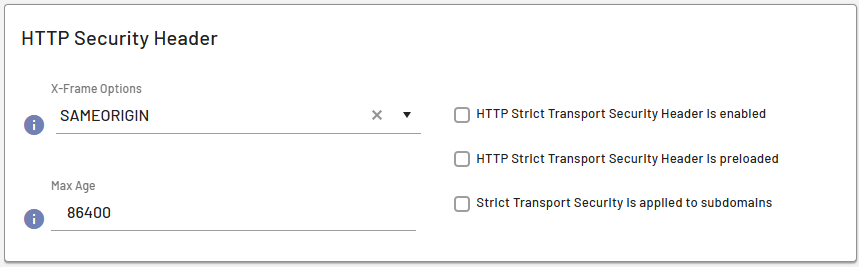
X-Frame Options: With this drop-down list, you define whether a browser calling the target page is allowed to embed the page in a Available options:
Max Age In this field, you define the time in seconds the browser is supposed to remember that the Web App can only be accessed via HTTPS. HTTP Strict Transport Security Header is enabled Specifies whether the HTTP Strict Transport Security Response Header is enabled or disabled. HTTP Strict Transport Security Header is preloaded Specifies whether the HTTP Strict Transport Security Response Header is preloaded. Strict Transport Security is applied to subdomains Determines whether the HTTP Strict Transport Security Response Header settings also apply to the subdomains of the Web App. |