

|
|
To select the adapter type and set parameters, double-click the adapter icon in the drawing area. The specific meaning of the adapter properties listed below is described in the respective adapter reference.
Properties
|
|
Name of the adapter |
|
|
Set component parameters, see Using Component Parameters |
|
|
Path to the linked adapter in the repository |
|
|
Designation of the adapter in the technical process (free text) |
|
|
Determines which operation will be executed by the adapter. The values and functions vary depending on the adapter. |
Creating and using adapters
Adapters can be created within an ESB project in the Adapters folder. There are two options available for this purpose:
-
via the Project > Add Adapter menu
-
via New > Adapter in the context menu
To create and parameterize an adapter, proceed as follows:
-
In an ESB project, right-click the
Adaptersfolder to display the context menu. -
In the context menu, select New > Adapter.
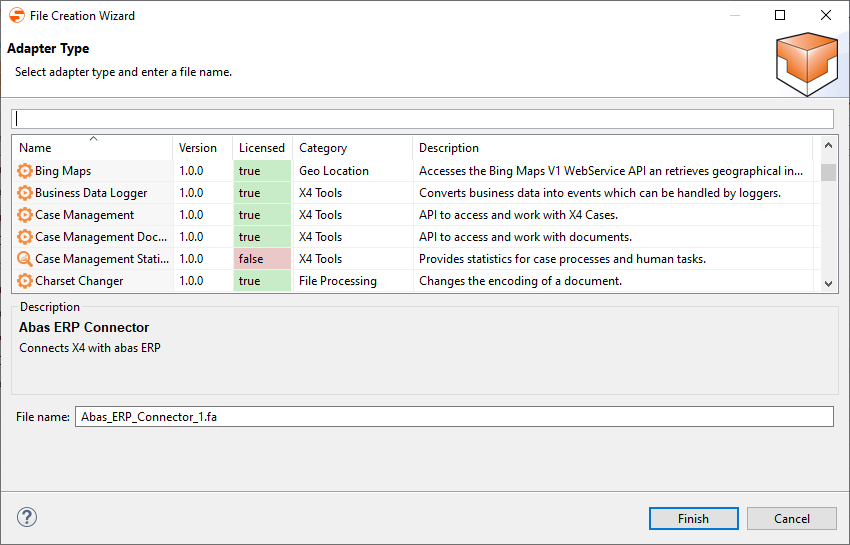
The File Creation Wizard for creating adapters opens.
-
Select the desired adapter from the list.
The search box allows you to search for adapter names and descriptions, and to filter the displayed adapters. You can also sort the adapters by category by clicking the
Categorycolumn title.
-
In File name, enter the adapter name.
-
Click Finish to create the adapter in the Projects view.
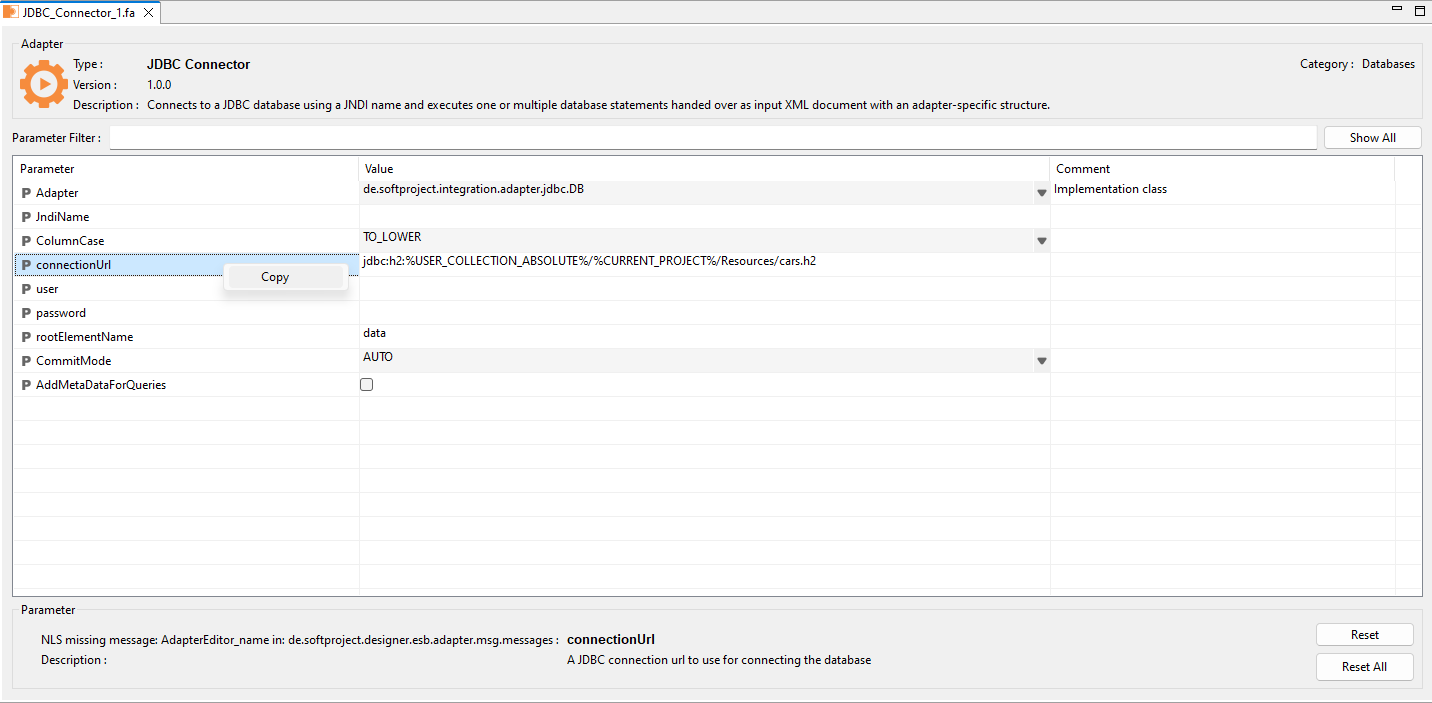
The adapter opens in the Adapter Editor to configure the parameters.If you right-click (or press
Ctrl+C) on the name of the parameter, you can copy it and use it in, for example, as a parameter in mappings, as a component parameter, or as a dynamic parameter.For more information on using parameters, see:
-
In the Adapter Editor, define the desired parameter values, but at least the mandatory parameters.
Mandatory fields are marked with the
-
Always set all adapter parameters that contain confidential information dynamically using XSL mappings, for example, the
DynamicParameterprocessing instruction.
For more information, see Using Component Parameters .
This means that the access data is not set in the adapter until the technical process runs, and the corresponding parameters do not have to be specified in the adapter and are therefore not viewable. -
For a description of the parameters for individual adapters, see Overview of the X4 Adapters.
-
-
Save the adapter.
-
Insert the adapter into the technical process using drag and drop from the Projects view.
-
In the Properties view, select an adapter operation for the selected adapter in the
Operationproperty.
The adapter is now ready for use. -
Save the Technical Process.