
In this step, you add anothher exclusive gateway to your process. After the human task has been perrformed, ththat is, a user has manuallyy approved an i invoice,voice, the process can follow one of two paths: The invoice is manuallyy accepted and then automatically forforwarded, or the invoice is manuallyy rejecteded and thushus not forforwarded.
Previous step: (7.4.4-en) Creating and Defining a Human Task
Insertinng an exclusxclusive gatateway
-
Drag the
Exclusive Gateway (Forking)elementt fromom thePaletteview nextext to the
ApproveOrDeclineInvoice.humantaskelement element in the bottom lane of the pool. -
Click on the lowerr right
ApproveOrDeclineInvoice.humantaskelement,t, hold down the mouse button,on, and drag a connectioon to theExclusive Gateway (Forking)element element. -
Click on the lowerr right
Exclusive Gateway (Forking)element,t, hold down the mouse button,ton, and drag a connection to theheCreateTransferRequestelement element.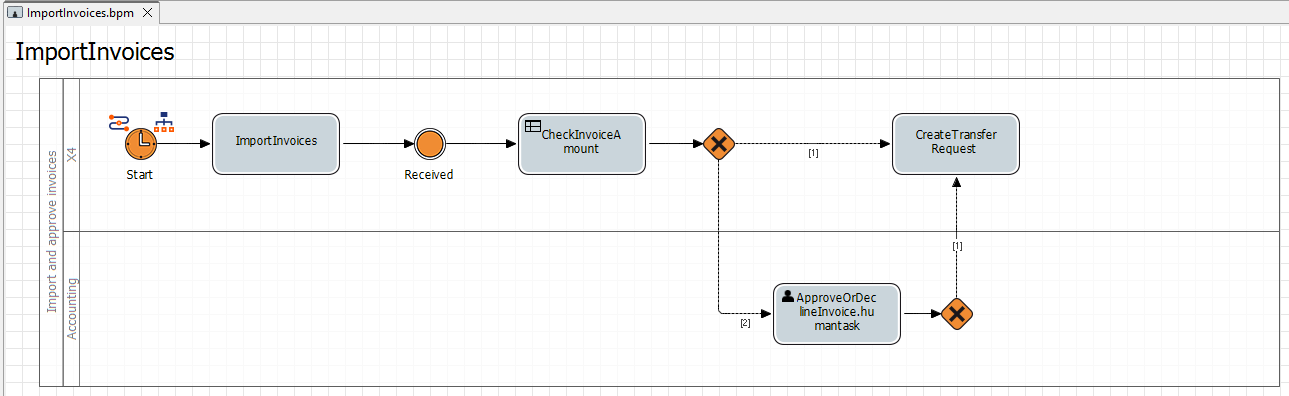
Setting exec executiotion conditionss
-
Double-click the
Exclusive Gateway (Forking)element
TheCondition Editoropens. The connection between theheExclusive Gateway (Forking)element anand theCreateTransferRequestactivity activity is automatically selected and highlighted in red in tthe Condition Editor.
-
Enterr the following condition in thee Edit Condition ssectctioon:
If result ofCASE_STATEis= Approved - manually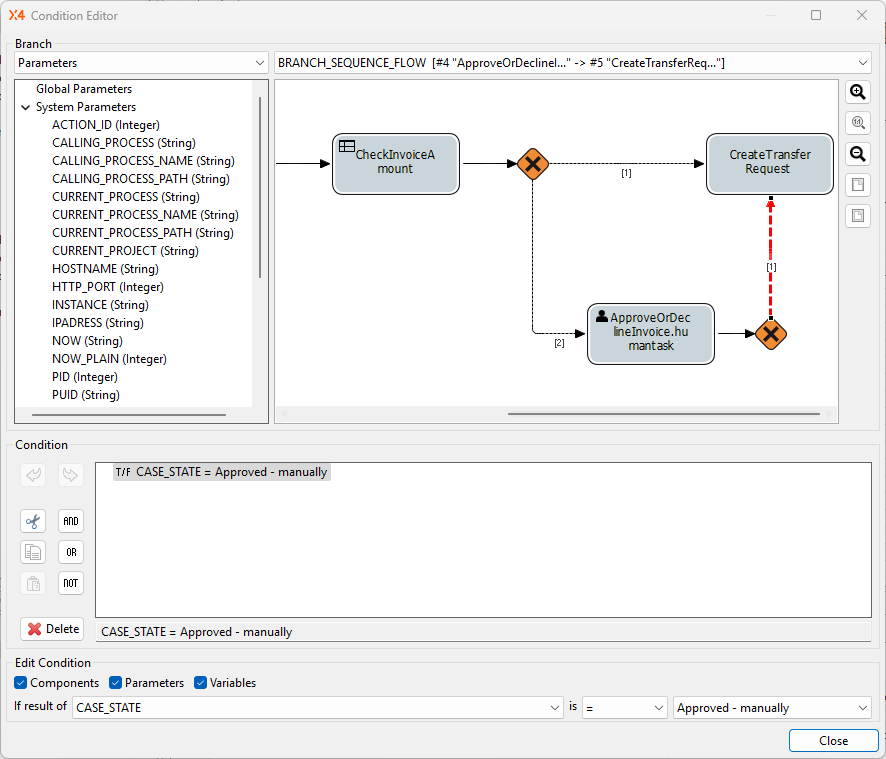
-
Click Close.
-
Click