
How to start the Update Tool
A backup is automatically created during the update.
However, we recommend that you back up your entire X4 installation before the update.
-
Download the Update Tool from https://www.softproject.de/de/x4-bpms/downloads/ to a folder outside your X4 BPMS installation.
-
Open the folder where you saved the Update Tool.
-
Open the command line interface by typing
cmdinto the address line of the file explorer. -
Start the Update Tool
de.softproject.x4.update-<Version>.jarwith the commandjava -jar de.softproject.x4.update-x.x.x.jar.
ExamplePfad_zum_Update_Tool> java -jar "de.softproject.x4.update-x.x.x.jar"
If the path or file name contains spaces, paste the path or file name into "...".
How to start the Update Tool if Java is not installed
If Java is not installed, you have two options:
-
Download and install Java :
You can install a Java Development Kit (JDK). We recommend at least Java 11. You can download JDKs at https://adoptium.net/de/temurin/releases/?version=11.
After the installation, Java is available in the Windows environment variables and can be used in the command line.If you use this option, run the Update Tool using the
java -jarcommand:
java -jar "de.softproject.x4.update-x.x.x.jar"Example with Java installed via download
Pfad_zum_Update_Tool> java -jar "de.softproject.x4.update-x.x.x.jar"
-
Running Java via
java.exe:
You can use the Java Development Kit that we supply with X4 BPMS.
To do this, copy thejdkfolder with thejava.exefile from the<server_directory>\jdk\bin\java.exefolder to another folder outside your X4 BPMS installation, e.g. to the folder where your Update Tool is located.If you use this option, you must run the Update Tool with the following command:
path_to_update_tool>"folder\jdk\bin\java.exe" -jar "de.softproject.x4.update-x.x.x.jar"
Example with java.exe
Pfad_zum_Update_Tool>"Ordner\jdk\bin\java.exe" -jar "de.softproject.x4.update-x.x.x.jar"
If the path or file name contains spaces, paste the path or file name into "...".
The Update Tool guides you through the update process.
The Update Tool starts and guides you through the update process:
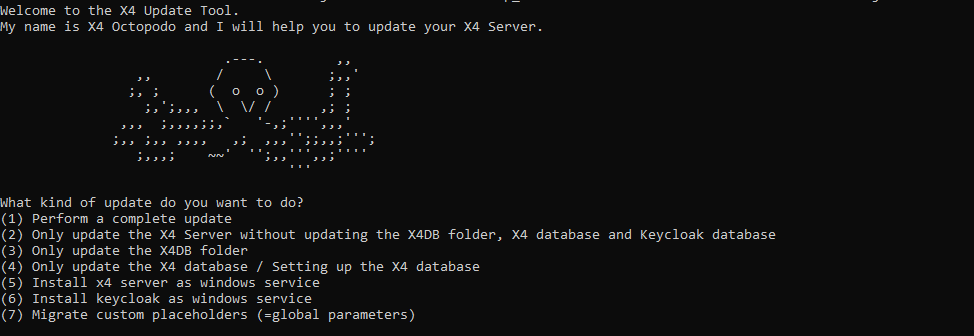
-
Enter the number of the update you want to perform, for example, 4.
-
The Update Tool guides you through the process.
Note on updating custom files
Custom files (e.g. adapters, extensions, modules) that are NOT included in
<server_directory>\wildfly\modules\system\layers\base\de\softproject\x4\extensions\main\module.xml
will NOT be migrated!
You need to manually migrate these files by changing them at the new location
<server_directory>\Server\wildfly\modules\de\softproject\extensions\main\module.xml.
.