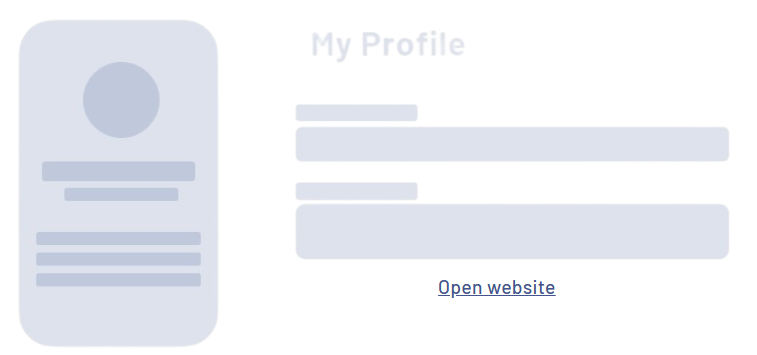
<Link> controls can be used to create hyperlinks. The hyperlink can be placed freely in the Web App.
Instructions for use
A <Link> control is created with the <Link> element.
<Link>
...
</Link>
<Link> controls can be used in all available layout types: For more information, see Layouts.
Attribute
You can define the following attributes for <Link> controls.
Note:
All other attributes for the hyperlinks are defined in the respective action.
|
Attribute |
Description |
|---|---|
|
|
Specifies whether the user can interact with the control.
Possible values:
Note: The |
|
|
Specifies whether the user can interact with the control.
Possible values:
|
|
|
The direction in which the elements flow. The order of the elements corresponds to their declaration. Possible values:
|
|
|
Specifies what should happen when the control is full. Possible values:
|
|
|
Defines if the control is visible.
Possible values:
|
Actions
The <Link> element can contain the following elements: For more information, see Actions.
-
<CustomAction/> -
<DeleteAction/> -
<DownloadAction/> -
<ForgotPasswordAction/> -
<LogoutAction/> -
<NewAction/> -
<ReloadAction/> -
<SaveAction/> -
<SaveViewAction/> -
<UploadAction/>
Example