Showing/Hiding Columns
-
Click on the three dots between two columns.
A sub-menu is opened. -
Select Column.
A list of all available columns is opened. -
Select the column(s) you want to hide/show.
-
Select Apply.
To show hidden columns, mark the checkbox before the respective column name.
This feature is not available in all views. Showing or hiding columns is only valid for the current session.
Changing the Column Order
The order in which the columns are displayed can be changed by drag-and-drop.
-
Click on the column title and keep the mouse button pressed.
-
Move the selected column to the desired position.
The changed column order is only valid for the current session.
Changing the Sort Order
The sort order of the values in the columns can be changed.
-
Click on the column title.
The sort order is changed, and the new sort direction is indicated by an arrow in the column header:
The values are sorted in ascending order.

The values are sorted in descending order.
Alternatively, you can select the three dots between two columns and choose Sort Ascending or Sort Descending in the submenu.
The changed sort order is only valid for the current session.
Filtering Columns
You can use a filter to specify which columns should be displayed in a view.
-
Click on the three dots between two columns.
A sub-menu is opened. -
Select Filter.
The filter selection boxes open. -
Select the filters you want to use.
-
Select Filter.
The column filters are only valid for the current session.
Navigating through Lists
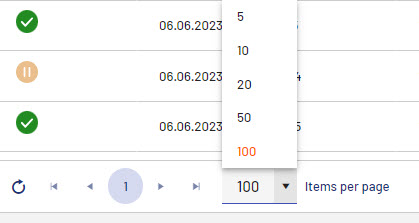
The number of items displayed in a list is limited to a certain number per page. If there are more items to be displayed, a navigation is displayed below the list with which you can scroll through the list.

|
|
Update list |
|
|
Navigate to the individual list and page to the first/last list. |
|
|
Define number of items to be displayed. |
|
|
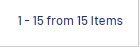
Total number of items. |