
With Rule process components, you map decision rules within a Business Process. The rules to be applied are defined within decision tables (.rule) according to DMN 1.1. The rules can be checked automatically and the results are returned to the Business Process for further processing.
Note:
DMN is a standard for modeling decisions in Business Processes. The DMN standard also defines the Simple Expression Language (S-FEEL), a formal expression language used to define decision logic.
DMN 1.1 with S-FEEL is available online at https://www.omg.org/spec/DMN/1.1/.
Properties
|
|
Label of the icon in the process diagram |
Creating and defining rules
Warning:
-
Default
IntegerandDecimalvalues cannot be empty. -
For
IntegerandDecimaltypes, it is not possible to check whether the value is empty.
To map rules for decisions in Business Processes, you use Rule process components when modeling the Business Process. You can then link these Rule process components with a decision table (.rule) in which you define the rules.
Note:
You can concatenate any number of decision tables in a Business Process. Output values of one table are thus converted into input values of the following table. This allows complex decision trees to be modeled with corresponding branches.
Creating decision tables (.rule)
You create decision tables (.rule) below the Business Process using the context menu New > Rules or the toolbar 
After creation, the decision table is opened in the X4 Designer.
Defining rules
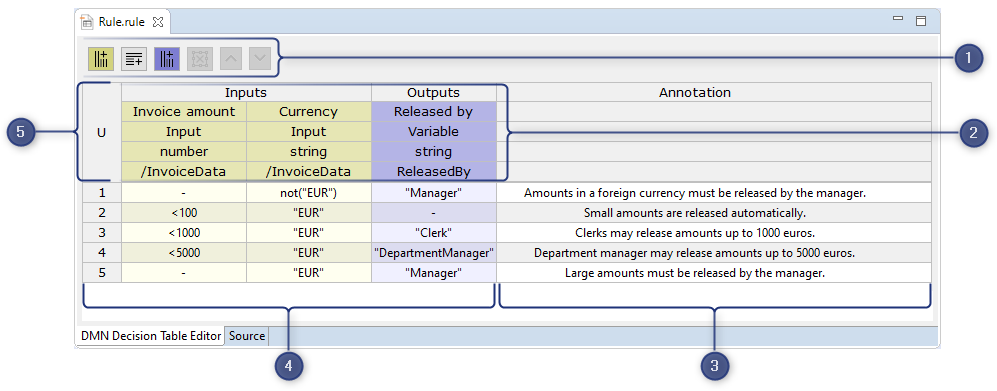
You define rules in the decision table (.rule) using the following sections of the editor.
|
No. |
Element |
Description |
|---|---|---|
|
1 |
Toolbar |
Functions for editing decision tables, depending on context and selection |
|
2 |
Header area |
Settings for defining input and output. Multiple inputs and outputs are possible. The following cells are available for defining the input and output:
|
|
3 |
Annotation |
Free annotation that is not issued in the output |
|
4 |
Rules |
Rules for transforming inputs to outputs. Rules are defined per line, with the order of the rows determining the order in which they are checked. A rule has at least one column for processing the input values (input) and at least one decision result (output). The rules in the decision table are specified in the S-FEEL notation. This allows the decision logic to be described in natural, "business-friendly" language. At the same time, as a formal markup language with defined semantics, grammar and rules, it allows the interpretation and execution of values. S-FEEL can interpret strings, numbers, simple arithmetic operations, and simple comparison checks. Please note:
|
|
5 |
Hit Policy |
Setting for selecting the results. This setting determines how many rules of a decision table can apply and how the results are output. Note: Rules can be defined so that the number and selection of results violates the Hit Policy. In this case, the rules or Hit Policy must be corrected, depending on the use case. U (Unique): Only one rule can apply and exactly one result is returned. Possible Hit Policy violation:
F (First): One or more rules may apply, but only the first result is returned. Please note the order of verification! Possible Hit Policy violation:
A (Any): One or more rules with the same result may apply, but only one result is returned. Possible Hit Policy violation:
C (Collect): All applicable results are output without a fixed output order. Possible Hit Policy violation: No applicable rule |
Decision table results
The finished BPMN process with the decision table can be validated in the X4 Designer, checked for errors, and run on the X4 Server.
Decision tables can produce three results:
|
Icon |
Description |
|
|
The Rule process component returns one or more results. The intermediate result can be displayed. |
|
|
The Rule process component does not return any results. Possible causes:
|
|
|
The Rule process component returns an error because the decision table is not compliant with S-FEEL. A report with an explanation of the error is available. |


S-FEEL expressions for defining rules
|
|
Operator / expression |
Description |
|---|---|---|
|
Comparison |
|
Checks whether the input value is equal to the specified value, e.g. |
|
Performs a check based on a variable, feature, parameter, or case state
|
|
|
|
Checks if the input value is less than the specified value, e.g. |
|
|
|
Checks if the input value is less than or equal to the specified value, e.g. |
|
|
|
Checks if the input value is greater than the specified value, e.g. |
|
|
|
Checks whether the input value is greater than or equal to the specified value, e.g. |
|
|
|
Checks whether the input value is not less than or equal to the specified value, e.g. |
|
|
Interval |
|
Checks whether the input value is greater than or equal to the start value and less than or equal to the end value |
|
|
Checks whether the input value is greater than the start value and less than or equal to the end value |
|
|
|
Checks whether the input value is greater than or equal to the start value and less than the end value |
|
|
|
Checks whether the input value is greater than the start value and less than the end value |
|
|
Disjunction |
|
Checks whether the input value is 3.5 or 7 |
|
|
Checks if the input value is less than 2 or more than 10 |
|
|
|
Checks whether the input value is either 10 or between 20 and 30 |
|
|
|
Checks whether the input value is either Meier, Müller or Weber |
Note:
You can find an extensive reference for the syntax of the S-FEEL notation in the current DMN 1.1 specification (chapter 9) of the Object Management Group.https://www.omg.org/spec/DMN/1.1