
To map processes in X4 BPMS, you need to define the required data structure for the Business Process in a so-called domain model file (.domainmodel).
With the Data Objects plugin, you extend domain model files in the X4 BPMS with the Data Object tab. On this tab, you can define a complex XML structure that models your business data.
For more information on domain model files, see Managing Domain Models.
For more information on how to work on the Data Object tab, see Defining Data Objects .
Setting up the database
If you want to use the supplied H2 database, no further configuration is required. If you want to use your own database, perform the following steps:
-
Start the desired PostgreSQL or MSSQL database and create the X4SERVER schema.
-
Run the provided Liquibase script to create the database tables.
Installing the plugin
The plugin is included in the standard X4 BPMS package. No further installation steps are required.
Configuring the plugin
If you want to use the supplied H2 database, you do not need the dataobjects_persistence.properties file. By default, the data objects are persistent in the H2 database.
If you want to use your own database, perform the following steps:
-
In the
<server_directory>/configurationsfolder, create thedataobjects_persistence.propertiesfile. -
Connect the plugin to the database using JDBC or a JNDI datasource.
Notes:
-
When using the JNDI datasource, a corresponding datasource must be created in the
standalone.xmlin the<server_directory>\wildfly\standalone\configurationfolder: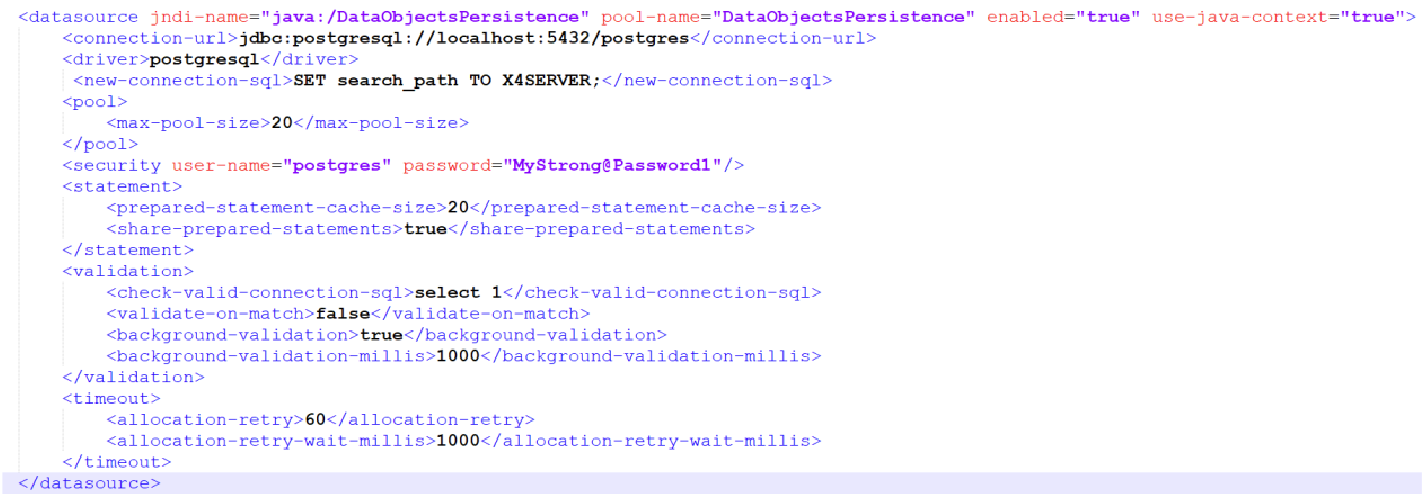
-
If both a JDBC connection and a JNDI datasource are defined in the
dataobjects_persistence.propertiesfile, the JNDI datasource is used to connect to the database.
JDBC example configuration
jakarta.persistence.jdbc.driver=org.postgresql.Driver
jakarta.persistence.jdbc.url=jdbc:postgresql://localhost:5432/postgres
jakarta.persistence.jdbc.user=postgres
jakarta.persistence.jdbc.password=MyStrong@Password1
hibernate.default_schema=X4SERVER
Example configuration of JNDI datasource
jakarta.persistence.jtaDataSource=java:/DataObjectsPersistence
Managing access rights
After installing and configuring the plugin, you need to assign the following roles to the users in the used identity provider who are supposed to work with the plugin in the respective roles.
|
Role |
Description |
|---|---|
|
|
Allows the creation and updating of data objects. |
|
|
Allows you to read existing data objects. |
|
|
Allows the deletion of existing data objects. |
Note:
Users who do not have the necessary role cannot execute the respective functions.
Automatic deletion of expired data objects
An automatic background process deletes expired data objects. This can also be configured via the dataobjects_persistence.properties file:
dataobject.deletion.enabled=true
dataobject.deletion.interval.millis=60000
If this configuration is not present, automatic deletion is turned off by default. If deletion is enabled, but no deletion interval is defined, the deletion will occur once per hour by default.
The default value of the retentionTime for data objects is 90 days. That is, by default, a data object is considered to have expired 90 days after the timestamp of the last update.
You can adjust the retention time of a data object within a Business Process by inserting the Data Object Persistence Adapter into your process. For more information about the Data Object Persistence Adapter, see Data Object Persistence Adapter.