

With Human Task process components, you can map manual, human activities. When automating the Business Process, these human tasks are linked to executable HUMANTASK files. A human task (.humantask) allows you to configure the Task Management Web App and thus interact with tasks performed by people, which are modeled as a process in the Case Management.
For more information on Task Management, see Task Management.
For more information on Case Management, see Case Management.
Properties
|
|
Path to the linked process in the X4 repository (set by the X4 Designer). If a process component icon from the palette is inserted on the drawing surface by means of drag and drop, it is merely an empty process component without reference to a file in the repository. |
|
|
Label of the icon in the process diagram |
Creating and using a Human Task
In order to better map human interactions in Business Processes, you can use human tasks when modeling the Business Process. These can then be linked to a human task file (.humantask) in which the task is configured.
Execution on the X4 Server
If a Business Process runs into a human task during execution, the process is paused and the human task is generated. The process waits for the necessary human interaction in the Task Management Web App and resumes the process once the human task is completed.
You create human tasks (.humantask) below the Business Process using the context menu New > Human Task or the toolbar 
.humantask file is opened in the Human Task Editor and can be configured there.
Human Task Editor
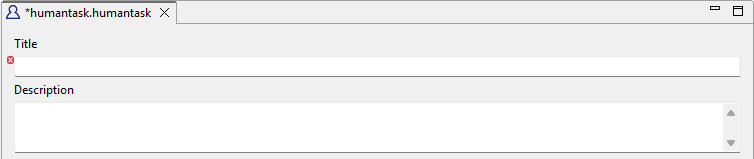
The title and description can be defined in the header area of the Human Task Editor.
|
Field |
Description |
|---|---|
|
|
Title of the task in the Task Management Web App |
|
|
Optional description of the task |
General tab
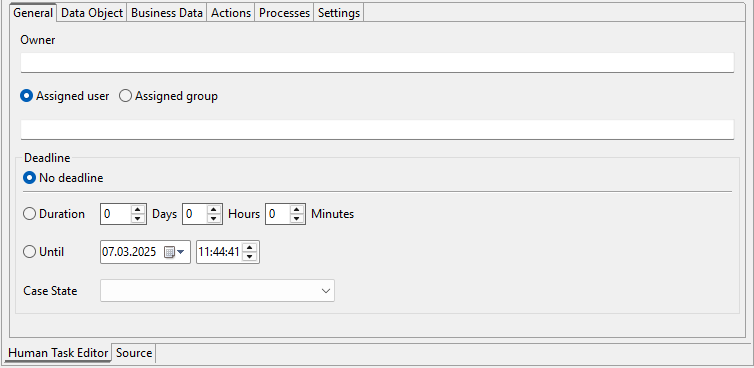
On this tab, you define the owner of the task, the assigned user or group, and the deadline for completion.
|
Field |
Description |
|---|---|
|
|
Owner of the task |
|
|
Assigned user or group for the task Note: The users and groups involved are created and managed in the user management system used (e.g. Keycloak). The user or group can be entered in the input fields for |
|
|
Deadline for completing the task with the following options:
Note: If a human task is executed with a specified deadline, the process automatically continues with the configured Case State after the deadline is reached. In this case, the human task is automatically closed and displayed in the Verfallen folder in the Task Management Web App. All human tasks that have exceeded the deadline and have been automatically closed are displayed here. If no Case State is set, the process will not continue automatically. |
Data Object tab
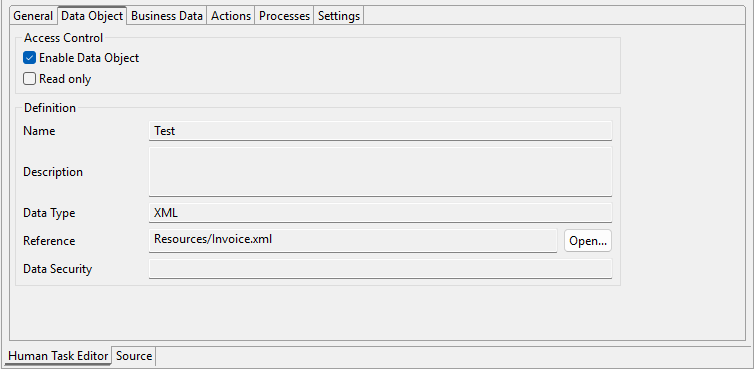
On this tab, you define whether you want to work with data objects in the human task.
Notes:
-
You can only work with data objects in human tasks if you have set up the Data Object function. For more information, see Data Objects.
-
To work with data objects in your Business Process, you must first create a domain model file and define the structure of the data object. For more information, see Managing Domain Models and Defining Data Objects .
|
Field |
Description |
|---|---|
|
|
Use this option to specify whether you want to work with data objects in the human task. |
|
|
Use this option to control whether the persons processing the human task are only allowed to read data objects. If the checkbox is deselected, the persons processing the human task can edit data objects. |
|
|
The Note: You cannot edit the details of the data object you are using at this location. You edit data objects in domain model files. For more information, see Defining Data Objects . |
Business Data tab
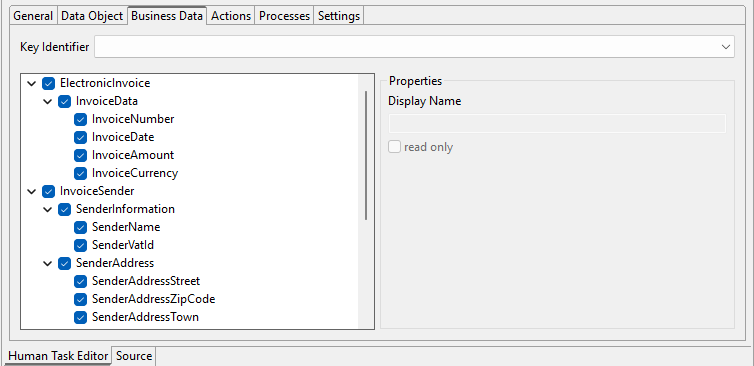
On this tab, you define the information to be displayed in the Task Management Web App.
|
Field |
Description |
|---|---|
|
|
Case feature as a key identifier in the Task Management Web App |
|
Tree structure of the features |
Categories, feature groups, and features are displayed in a tree-like structure and can be selected for visibility in the Task Management Web App. Note: Categories appear as tabs in the Task Management Web app. |
|
|
Display name of the selected category, feature group, or feature |
|
|
Marks the selected category, feature group, and feature as read-only |
Actions tab
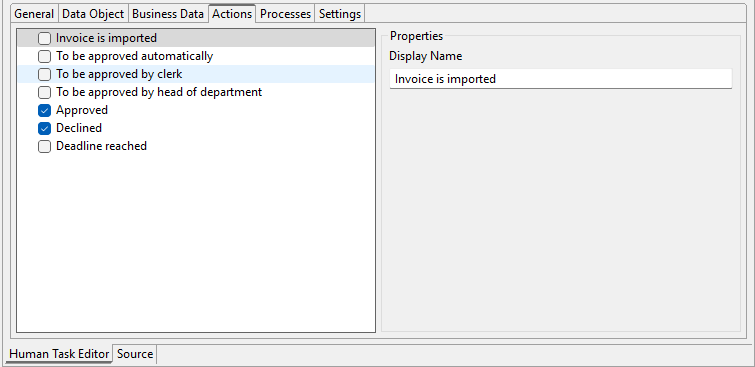
On this tab, you define the executable actions for the Task Management Web App.
|
Field |
Description |
|---|---|
|
Available actions field (left) |
Under Actions, you can define the status values that can be set for the process by the user in the Task Management Web App. |
|
|
Display name of the selected Case State in the Task Management Web App |
Processes tab
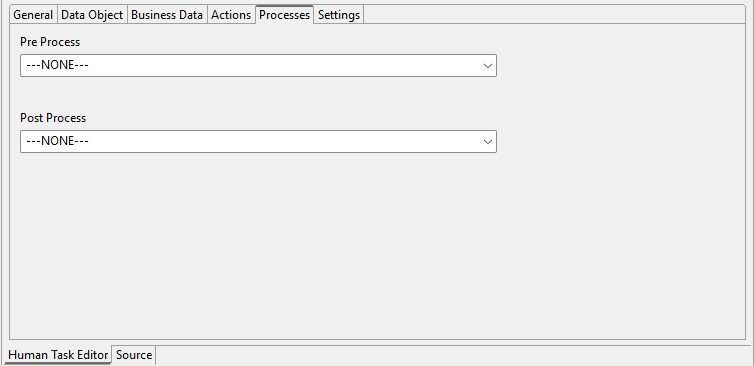
On this tab, you define which processes are executed before and after the human task.
Notes:
-
The corresponding processes must be created in the repository as child objects, i.e. under the human task, in order to be selected on the Processes tab.
-
If a selected process no longer exists or is not available below the respective human task, a corresponding message is displayed.
|
Field |
Description |
|---|---|
|
|
In this field, you select the Technical Process to be executed before the human task. |
|
|
In this field, you select the Technical Process to be executed after the human task has been completed. |
Settings tab
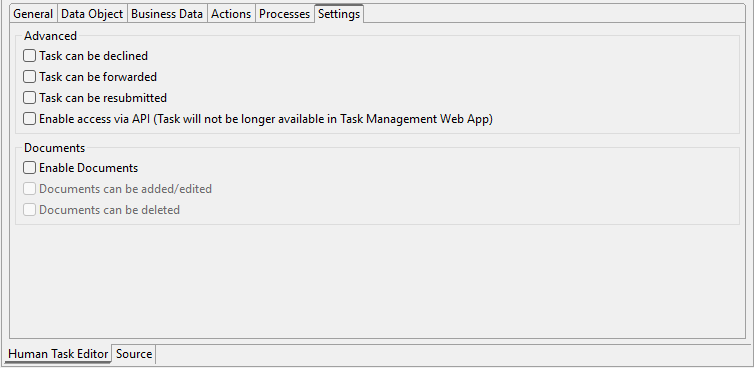
On this tab, you define the extended settings for the pre-processing and processing of processes.
Advanced area
In the Advanced area, you can allow tasks to be rejected and forwarded, as well as access to human tasks via an interface. For more information about accessing through the interface, see Accessing Human Tasks via REST Interface .
|
Field |
Description |
|---|---|
|
|
Allows users to reject human tasks. |
|
|
Allows users to forward human tasks. |
|
|
Allows users to resubmit human tasks. |
|
|
Allows access to the human task via an interface. |
Note:
Additional actions for a human task can be defined via the Task Management adapter. For more information, see Task Management.
Documents area
In the Documents area, you can allow documents to be added, edited, and deleted to/in/from a process.
|
Field |
Description |
|---|---|
|
|
Allows the processing of documents. |
|
|
Allows users to add and edit documents. |
|
|
Allows users to delete documents. |
Dynamically parameterizing human tasks via a Technical Process
Human tasks can be configured not only via human task files, but also dynamically via Technical Processes.
The following settings of the human task can be overridden in the Technical Process:
-
Owner -
Assignee -
Deadline
The Technical Process for parameterizing the human task is created as a private file directly under the human task via the context menu New > Process and cannot be moved either.
The input and output document for the technical process has the following structure:
<?xml version="1.0" encoding="UTF-8" standalone="yes"?>
<HumanTask>
    <TaskId>3acf3d51-7e45-410b-be4f-8cd57c01a103</TaskId>
    <Owner>OwnerName</Owner>
    <Assignee>
        <name>AsigneeName</name>
        <type>user|group</type>
    </Assignee>

    <!-- Deadline types (NoDeadline, DurationDeadline, UntilDeadline)-->
    <NoDeadline />

    <DurationDeadline>
        <Days>7</Days>
        <Hours>4</Hours>
        <Minutes>45</Minutes>
    </DurationDeadline>

    <UntilDeadline>2019-04-18T14:30:49+02:00</UntilDeadline>
</HumanTask>
Note:
The task ID ( <TaskId> ) contained in the input of the process created as a private file is a UUID that can be passed on, for example, to an external task app.
Accessing human tasks via a ReST interface
Note:
Logging on via BasicAuth is no longer supported for the X4 API. A Bearer token is now required to call the X4 API. You can retrieve this token via http://localhost:8080/X4/X4Api/ or using the Keycloak Token adapter.
This note applies only to the X4 API; BasicAuth is still available for the other services.
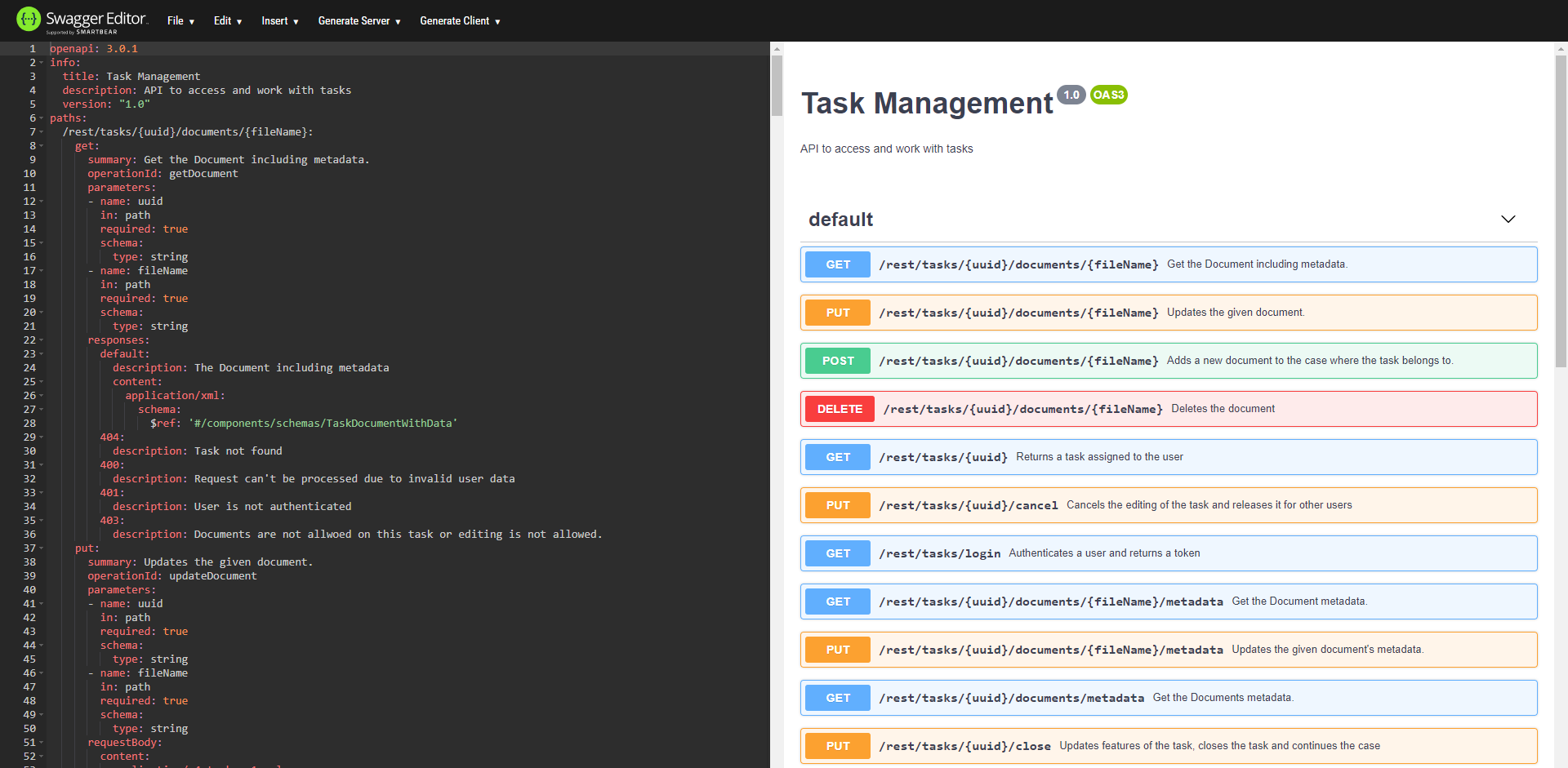
For documentation of the ReST interface, see http://localhost:8080/X4/X4Api/.
Instead of the Task Management Web App, you can also use other applications to display and process human tasks. The integration happens via a webservice-based interface that offers all functions also available in the Task Management Web App.
Access to the human task via the ReST interface can be made possible per human task file.
To enable the connection via the ReST interface, the following settings must be made in the human task:
-
Open the human task.
-
Open the Settings tab.
-
In the Advanced area, select
Enable access via API.
Access is now only possible via the interface.
Integrating Web App components into the human task
You can integrate Web App components into the human task file to include custom forms tailored to your needs.
Prerequisite:
You have selected Enable access via API in the Advanced area of the Settings tab of the Human Task Editor. This displays the Form tab.
Form tab
This tab allows you to link a Web App to a human task using the link to the Web App. This makes it easy to combine interactive forms with human tasks and allows users to interact with intuitive web-based forms directly in their task management system.
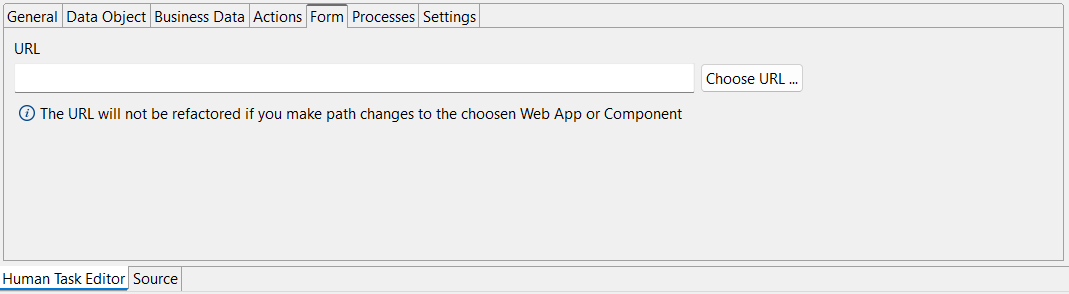
|
Field |
Description |
|---|---|
|
|
Enter the URL of the Web App in this field. Note: Use Ctrl+Space to display a list of available parameters. |
|
|
This button opens the Choose URL dialog box. 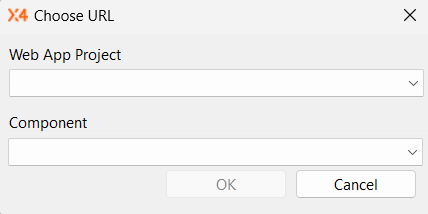
In this dialog box, you can select an existing Web App Project and a component it contains. |