
X4 Produktdokumentation

Database Editor

The Database Editor allows you to define SQL queries for database connection components in order to retrieve data from a relational database. The logical separation of the SQL instruction and database connection process components these process components to be used flexibly in the X4 Designer and can be used multiple times.

To open the Database Editor, create a new SQL statement file (.stm) or open an existing SQL statement file.

Structure of the Database Editor

The Database Editor consists of the following sections:

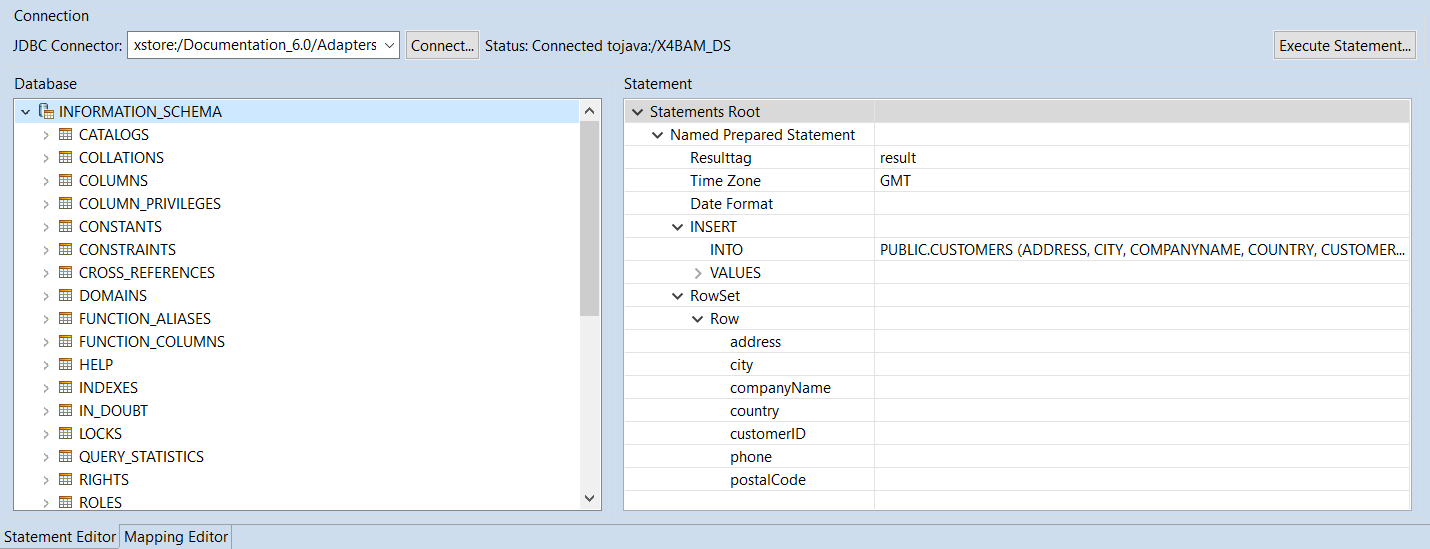
  • Statement Editor: This section allows you to connect to a database and view the structure of the connected database. This structure can then be used to create SQL statements for the database.

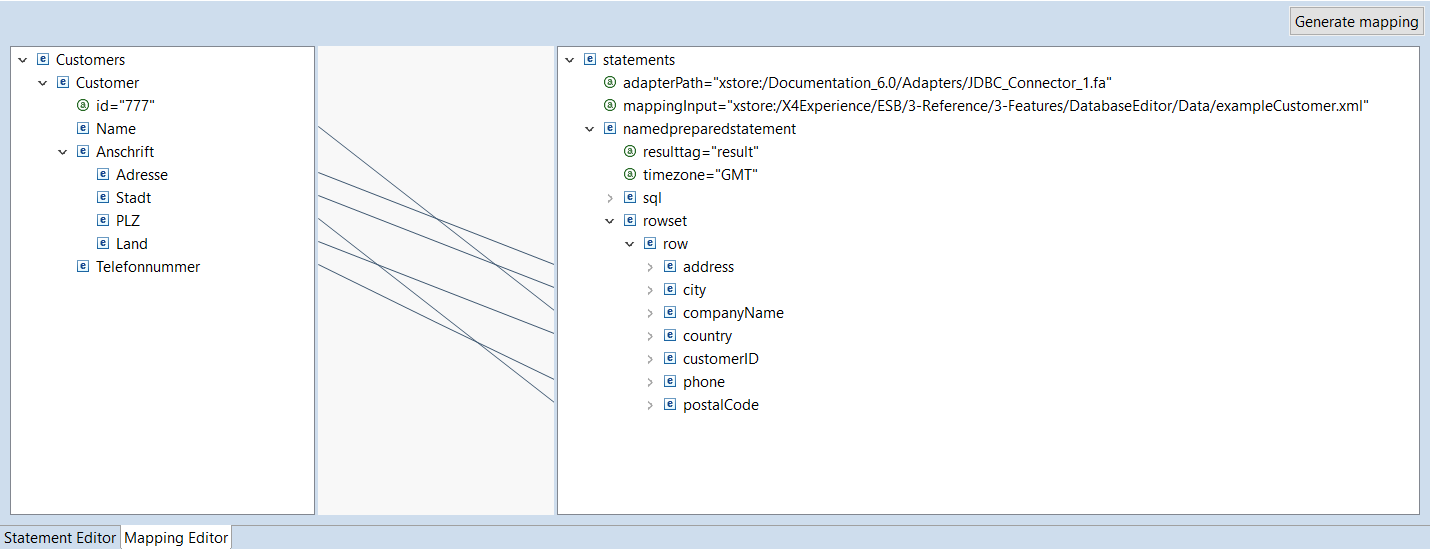
  • Mapping Editor: In this section, you can define a mapping of elements of an input XML document to the named parameters of the statement for the statement previously created in the Statement Editor. From this mapping, you can then create an XSL mapping that generates a dynamically generated input for the JDBC connector using a matching input XML document.
Mit_DB-verbinden.png

Statement Editor

The Statement Editor is divided into the following sections:

Connection

In this section, you can establish a connection to a database via a JDBC Connector.

  • JDBC Connector: xstore URL to a JDBC Connector

Note:

  • To establish a connection, the adapter must contain a valid JNDI name within the JndiName parameter.

  • The drop-down list offers the last eight linked URLs for selection.

  • Connect: Connect to the database
    info-icon.png The status of the connection is displayed under Status.

  • Execute Statement: Execute the statement

Database

This section displays the structure of the database after the connection has been established. The following icons are used to visualize the structure:

  • Datenbankschema.png Database schema

  • Datenbanktabelle.png Database table

  • Peimärschlüssel.png Primary key

  • 2016-09-29_15h43_37.png Primary key/foreign key

  • 2016-09-29_15h43_54.png Foreign key

Statement

In this section, you can create various statements for the connected database using the context menu:

  • New Named Prepared Statement: Create a new named prepared statementin Statements Root

  • Edit Named Prepared Statement: Edit Named Prepared Statement

  • New RowSet: Create new RowSet.
    info Only one RowSet can exist within a Named Prepared Statement. It is automatically created when the Named Prepared Statement is created.
    A new RowSet can only be created if the existing RowSet has been deleted.

  • New Row: Add a new row within a RowSet

  • New Named Parameter Value: Add a new named parameter value within a row

  • Edit Named Parameters: Edit Named Parameter

  • New SELECT Statement: Create a new SELECT statement

  • Edit SELECT: Edit the SELECT command

  • Edit FROM: Edit the FROM command within a SELECT statement

  • New INSERT Statement: Create a new INSERT statement

  • Edit INTO: Edit the INTO command

  • New VALUE Entry: Create a new entry under VALUE

  • Edit VALUE: Edit the value of a VALUE entry

  • New UPDATE Statement: Create a new UPDATE statement

  • Edit UPDATE: Edit the UPDATE command

  • New SET Entry: Create a new entry under SET

  • Edit SET Entry: Edit the entry under SET

  • New DELETE Statement: Create a new DELETE statement

  • Edit FROM: Edit the FROM command

  • Edit WHERE: Edit WHERE condition

  • New Column: Insert a new column within an INSERT or SELECT command

  • New Table: Insert a new table within an UPDATE or SELECT command

  • Delete : Delete element

For more information about creating and editing statements, see Creating Statements for a Connected Database .

Drag-and-drop actions

In the Statement section, you can perform the following drag-and-drop actions:

SQL statement

Database element

Statement element

Action

SELECT

Column

SELECT

Add the column to be selected

info-icon.png

If the table of the column is not already entered within FROM, it is added automatically.

Table

FROM

Add the table from which to select

UPDATE

Column

SET Entry

Set column as entry

info-icon.png

If the table of the corresponding column is not already entered within UPDATE, it is added automatically.

Table

UPDATE

Set the table to be updated

INSERT

Table

INTO

Set the table in which you want to write

info-icon.png

If a table already exists, it is replaced. This also deletes columns that have already been set (columns).

Column

INTO

Set the column in which you want to write

info-icon.png

This is only possible if the column comes from the set table.

DELETE

Table

FROM

Set the table to be deleted

info-icon.png

If a table already exists, it is replaced.


Mapping Editor

With the Mapping Editor, you can configure and then create mappings from an input XML document to the named parameters of the statements for the statements previously created in the Statement Editor using drag-and-drop. These mappings generate dynamically generated input for the JDBC connector using a matching input XML document.

The Mapping Editor is divided into the following sections:
Mapping-Editor.png

Source document section

The source document section is located on the left. In this sectioin, you can drag and drop the input XML file and view it.

From the context menu, you can edit the selected node as follows:

  • Collapse: Collapse nodes with expanded sub-elements

  • Expand: Expand sub-elements of the node

  • Remove Input: Remove the input XML document

Linking section

The linking section is located in the middle column. In this section, the xsl:value-of links between the element from the source document and the named parameter in the statement are visualized as lines.

Statements section

The Statments section is located on the left. This section displays the entire structure of the statement file. Mappings can be created from the input XML to the child elements of a row element.