
The Web service configuration can be edited in the X4 Designer using the graphical Webservice Configuration Editor and updated on the X4 Server. Technical Processes can thus be provided as HTTP-based web services of various types (ReST, SOAP, etc.) with just a few mouse clicks.
All web services deployed in this way have a common base URL. By default, the base URL is http://localhost:8080/X4/httpstarter/ReST.
Calling the Webservice Configuration Editor
To call the Web service Configuration Editor, double-click the .wsinc file in the Projects view in the desired ESB Project.
Interface of the WebService Configuration Editor
The Web Service Configuration Editor is divided into the following sections:
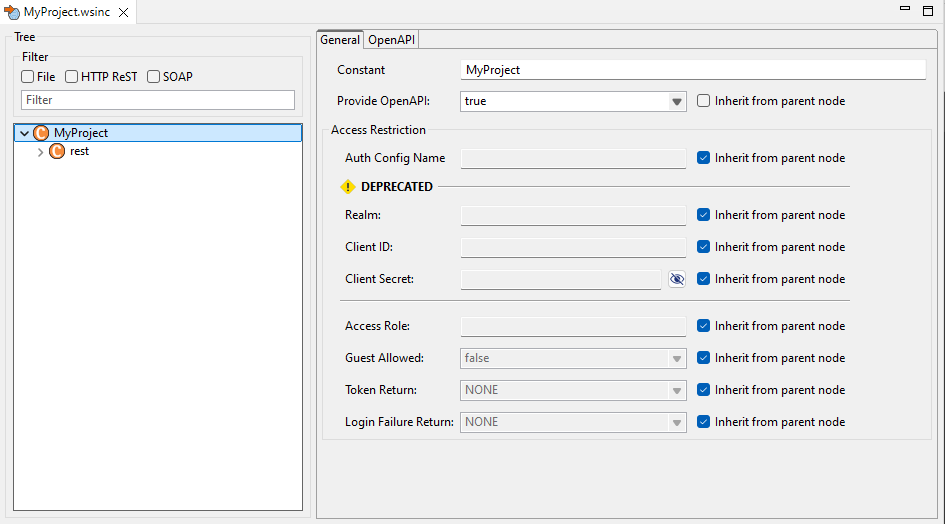
Tree: URL tree structure
The Tree section displays the hierarchical Web service URL structure, i.e. the URL parts in an expandable and collapsible tree structure. You can edit this tree structure by right-clicking on an element in the structure and choosing an option from the context menu. You can also drag and drop items within the tree.
Using the Filter field, you can filter the displayed tree structure by node name so that structures that do not contain the search term are hidden. You can reset the filter via 
File, HTTP ReST, and SOAP to filter by service type.
Tree elements
|
|
Constant URL part You can define all properties of the selected constant in the Scope section, or you can inherit security properties from the parent element. |
|
|
Variable URL part You can define all properties for the selected variable in the Scope section, or you can inherit security properties from the parent element. |
|
|
Fully flexible URL part definition You can define all properties for the selected remainder in the Scope section or you can inherit security properties from the parent element. |


Creating and manage constants, variables, or remainders
In the tree structure, select the desired node (corresponding to a URL part of the web service) and right-click to select an action from the context menu:
|
Add Constant |
Create a constant as a child node to define a constant URL part for your web service |
|
Add Variable |
Create a variable as a child node to to define variable elements using placeholders within the URL of your Web service |
|
Add Remainder |
Create a remainder as a child node to intercept all remaining URL parts |
|
Copy Service URL to Clipboard |
Copy the associated web service resource URL to the clipboard |
|
Rename |
Rename the selected node |
|
Delete |
Delete the selected node |
Note:
Node names are case sensitive!
Defining the security properties of the node
In Access Restrictions, you can define (security) properties for the selected node, if necessary. As of X4 BPMS 7.5.0, the central authentication concept is available for this purpose via a configuration from the authentication_config.xml file. For more information, see Authentication with OpenID Connect (OIDC).
Note:
With Inherit from parent node, the security realm is inherited from the parent element. Disable this property to set a custom value.
|
Auth Config Name |
This field can be used to specify an OIDC configuration defined on the server side in the As soon as a value is entered here, the Realm, Client ID and Client Secret fields are ignored.
|
|
|
Realm (⚠️ DEPRECATED) |
Security area for the current URL part This field is obsolete and will only be considered if Auth Config Name is empty. |
|
|
Client ID (⚠️ DEPRECATED) |
Keycloak client This field is obsolete and will only be considered if Auth Config Name is empty. |
|
|
Client Secret (⚠️ DEPRECATED) |
Keycloak client credentials This field is obsolete and will only be considered if Auth Config Name is empty. |
|
|
Access Role |
Keycloak role The role must be assigned to the user in Keycloak to access the web service. |
|
|
Guest Allowed |
If a security realm has been defined in the Realm property, |
|
|
Token Return |
Select a returned login token Possible values:
|
|
|
Login Failure Return |
In combination with the login module for X4 Web Apps, you can use Login Failure Return to control whether the reason should also be returned after a failed login attempt. Possible values:
|
|