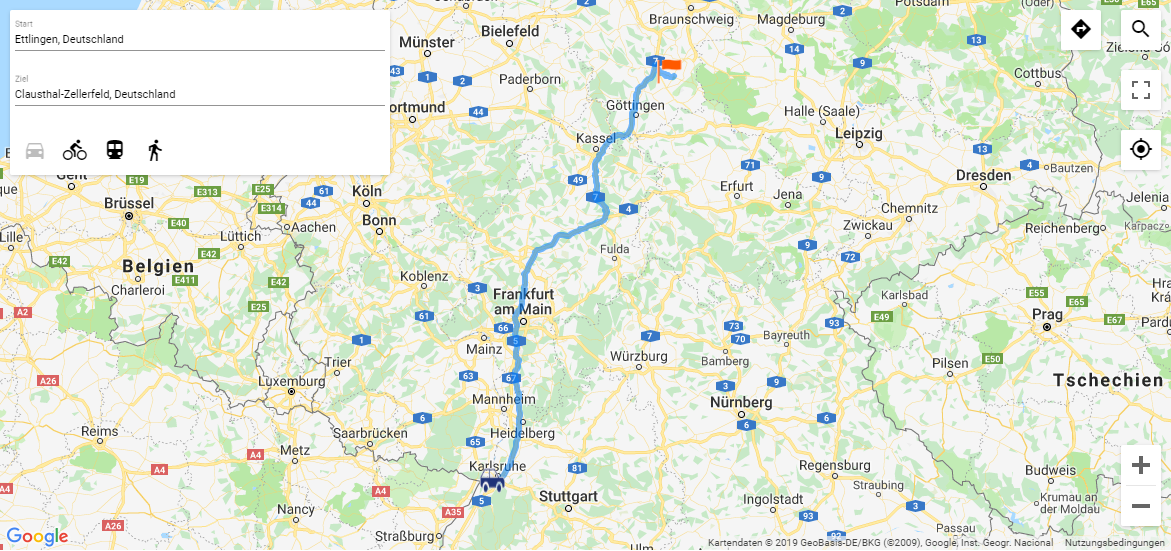
The <Map> control can be used to integrate maps from various vendors, including Google Maps and OpenStreetMap, into X4 Web Apps. You can view geodata, find locations, and look up routes.
Instructions for use
A <Map> control is created with the <Map> element. The element can only be used in the layout of a Detail Component.
<Map>
...
</Map>
The <Map> element can contain the following elements:
-
<Geolocation>
-
<Markers>
-
<Routing>
-
<Search>
-
<SelectedLocationMarkers>
-
<SingleMarker
<Map> controls can be used in all available layout types: For more information, see Layouts.
Attribute
Note:
There are a number of default attributes that can be set for all controls. For more information about the default attributes, see Default attributes.
In addition to the default attributes, you can define the following attributes for <Map> controls.
|
Attribute |
Description |
|---|---|
|
|
Defines the API key if required by the vendor. Possible values: API key Note: Using OpenStreetMap as the map provider does not require an API key. If an API key is entered when using OpenStreetMap, the API key is ignored. When using Google Maps as a map provider, the following APIs must be enabled:
The |
|
|
Defines the longitude on which the map should be centered when it is loaded.
Possible values: Longitude in degrees with decimal places (e.g. |
|
|
Defines the longitude on which the map should be centered when it is loaded.
Possible values: Latitude in degrees with decimal places (e.g. |
|
|
Restrict scrolling behavior in maps Possible values:
|
|
|
Defines if the satellite view of the map is activated. Possible values:
The satellite view cannot be used if OpenStreetMap is used as map vendor. |
|
|
Selected index The Possible values: String binding |
|
|
Required Specifies the map provider. Possible values:
Note when selecting Bing as the card provider: The use of Bing Maps will no longer be possible in the future. The reason is the termination of the underlying Microsoft API (May 2024, full shutdown for Free Tier from June 2025).
|
|
|
Specifies the initial zoom level of the map. The values give an approximate indication of the meters shown on the map. Please note that there may be deviations in the scale bar, as the scale changes depending on the distance from the equator. Possible values:
|
Use the user's location (<Geolocation> element)
Within the <Map> element, the <Geolocation> element can be used to query the user's location. If the <Geolocation> element is used, a button is displayed on the map. By clicking on the button, the user's location is queried and marked on the map.
The <Geolocation/> element can have the following attributes:
|
Attribute |
Description |
|---|---|
|
|
Path to the graphic file to be used as an icon for the markers. The graphic file must be located in the
Possible values: String (URI) |
|
|
Horizontal position of the icon |
|
|
Vertical position of the icon |
Marker group (<Markers/> element)
To display multiple markers in a map control, the <Markers/> element is used within <Map> and, if necessary, after <Search/> and <Routing/>.
<Map>
	...
	<Markers/>
</Map>
Note:
If several markers are used, the respective icons are displayed in the corresponding order. The first marker group is displayed on the bottom level, the last on the top level. As a result, the icons of the last marker group may overlay the icons of the first markers listed.
The <Markers/> element can have the following attributes:
|
Attribute |
Description |
|---|---|
|
|
Defines if markers are grouped if they are very close together on the map. Possible values:
|
|
|
Specifies the name of the component for internal navigation. Possible values: String (name of a component)
|
|
|
Required Defines which data is used for the marker set.
Possible values: Expression for data binding |
|
|
Defines the description of the markers.
Possible values: Data binding expression relative to the expression in |
|
|
Specifies the link that appears in the marker pop-up.
Possible values: Data binding expression relative to the expression in
|
|
|
Specifies whether the link ( Possible values:
|
|
|
Defines the horizontal position of the icon relative to the entered coordinates. This is particularly important at low zoom levels: The icon is displayed to the left/right of the actual coordinate. Possible values:
|
|
|
Path to the graphic file to be used as an icon for the markers. The graphic file must be located in the
Possible values: String (URI) |
|
|
Defines the vertical position of the icon relative to the entered coordinates. This is particularly important at low zoom levels: Here the icon is displayed above/below the actual coordinate. Possible values:
|
|
|
Index of the marker set
Possible values: Any string |
|
|
Required if Defines the latitude of a marker.
Possible values: Data binding expression relative to the expression in |
|
|
Required if Defines the longitude of a marker.
Possible values: Data binding expression relative to the expression in |
|
|
Defines the name of the markers.
Possible values: Data binding expression relative to the expression in |
|
|
Defines the text that appears in the marker pop-up instead of an external link or component name.
Possible values: String including spaces |
|
|
Defines if the markers are numbered. Possible values:
|
|
|
Required if Address line to search for selected services from the card vendor.
Possible values: String for searching a service, such as a Note:
|
|
|
Defines the horizontal position of the numbering relative to the given coordinates. Possible values:
Bing Maps automatically positions the numbering. Therefore, this function has no effect on Bing Maps. |
|
|
Defines the vertical position of the numbering relative to the given coordinates. Possible values:
Bing Maps automatically positions the numbering. Therefore, this function has no effect on Bing Maps. |
Route calculation (<Routing/> element)
To allow a Web App user to calculate a route between two locations in the Map control, the <Routing/> element is used within <Map> and, if necessary, after <Search/>.
<Map ...>
	<Routing/>
</Map>
The <Routing/> element can have the following attributes:
|
Attribute |
Description |
|---|---|
|
|
Defines the horizontal position of the target icon relative to the coordinates searched for. Possible values:
|
|
|
Path to the graphic file to be used as an icon for the target point. The icon marks the target point of the route. The graphic file must be located in the
Possible values: String (URI) |
|
|
Defines the vertical position of the target icon relative to the coordinates searched for. Possible values:
|
|
|
Defines the horizontal position of the start icon relative to the coordinates searched for. Possible values:
|
|
|
Path to the graphic file to be used as an icon for the starting point. The icon marks the starting point of the route. The graphic file must be located in the
Possible values: String (URI) |
|
|
Defines the vertical position of the start icon relative to the coordinates searched for. Possible values:
|
Search function (<Search/> element)
To allow users to search for locations in the <Map> control, the <Search/> element is used within <Map>.
<Map>
	<Search/>
</Map>
The <Search/> element can have the following attributes:
|
Attribute |
Description |
|---|---|
|
|
Defines the horizontal position of the icon relative to the coordinates searched for. Possible values:
|
|
|
Path to the graphic file to be used as an icon. The icon is used to highlight the search result. The graphic file must be located in the
Possible values: String (URI) |
|
|
Defines the vertical position of the icon relative to the coordinates searched for. Possible values:
|
Setting a marker by clicking in the map (<SelectedLocationMarker> element)
The <SelectedLocationMarker> element allows the user of a Web App to set a marker by clicking on a specific location on the map. The location marked by the user can be further processed by a Technical Process.
<Map>
	...
	<SelectedLocationMarker .../>
</Map>
The <SelectedLocationMarker/> element can have the following attributes:
|
Attribute |
Description |
|---|---|
|
|
Specifies the description of the marker.
Possible values: Any string including spaces |
|
|
Required Longitude of the marker
Possible values: Property A property must be set as the value for the attribute. |
|
|
Required The latitude of the marker
Possible values: Property A property must be set as the value for the attribute. |
|
|
Path to the graphic file to be used as an icon. The icon marks the selected location. The graphic file must be located in the
Possible values: String (URI) |
|
|
Specifies the name of the marker.
Possible values: Any string of alphanumeric characters |
Simple marker (<SingleMarker/> element)
To display a single marker in a Map control, the <SingleMarker/> element is used within <Map> and, if necessary, after <Search/> and <Routing/>.
<Map>
	...
	<SingleMarker/>
</Map>
The <SingleMarker/> element can have the following attributes:
|
Attribute |
Description |
|---|---|
|
|
Specifies the name of the component for internal navigation. Possible values: String (name of a component) |
|
|
Specifies the description of the marker.
Possible values: String including spaces |
|
|
Specifies the link that appears in the marker pop-up.
Possible values: String (URL) |
|
|
Specifies whether the link ( Possible values:
|
|
|
Defines the horizontal position of the icon relative to the entered coordinates. Possible values:
|
|
|
Path to the graphic file to be used as an icon for the marker. The graphic file must be located in the
Possible values: String (URI) |
|
|
Defines the vertical position of the icon relative to the entered coordinates. Possible values:
|
|
|
Index of the marker
Possible values: Any string |
|
|
Required if Specifies the latitude of the marker.
Possible values: Latitude in degrees with decimal places (e.g. This attribute cannot be used at the same time as |
|
|
Required if Specifies the longitude of the marker.
Possible values: Longitude in degrees with decimal places (e.g. This attribute cannot be used at the same time as |
|
|
Specifies the name of the marker.
Possible values: String of alphanumeric characters |
|
|
Specifies the text that appears in the marker's pop-up instead of an external link or component name.
Possible values: String including spaces |
|
|
Required if Address line to search for selected services from the card vendor.
Possible values: String for searching a service, such as a This attribute cannot be used at the same time as the |
Actions
The following action is available for <Map> controls. For more information about actions, see Actions.
<SelectAction>
You can insert the Select action using the <SelectAction/> element withinSingleMarker>, <Markers>, or <SelectedLocationMarker>. The action is triggered when the user selects the corresponding marker.
Note:
You must insert the <SelectAction> element before the desired layout type (BoxLayout, FlowLayout, GridLayout, ResponsiveLayout, TabLayout).
Examples
Example 1: <Map> control with defined properties and a group of markers
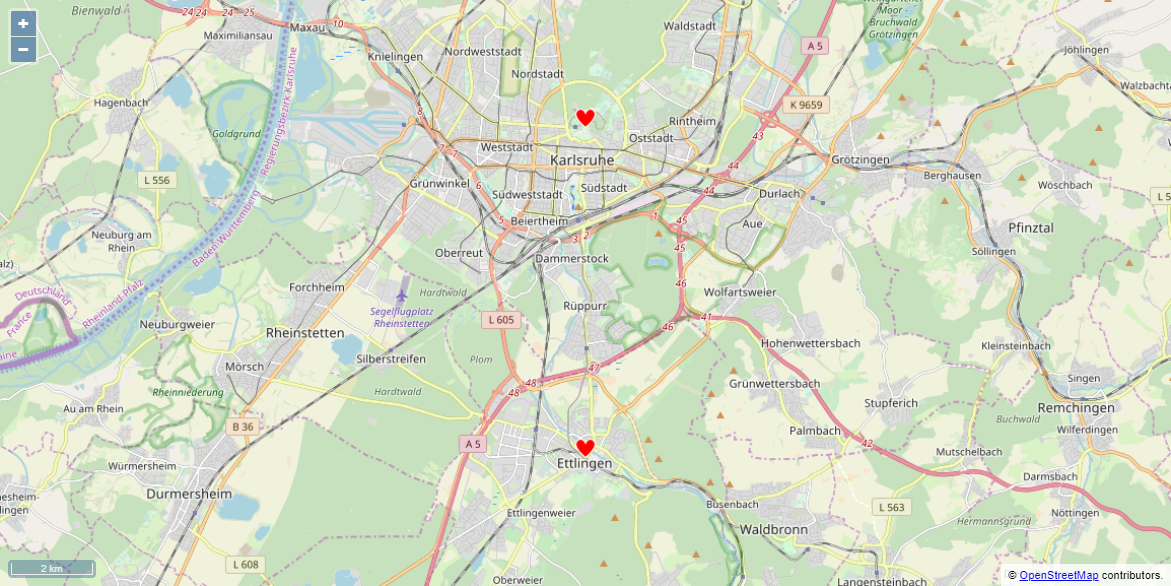
Example 2: <Map> with two sets of markers and enabled search and route calculation
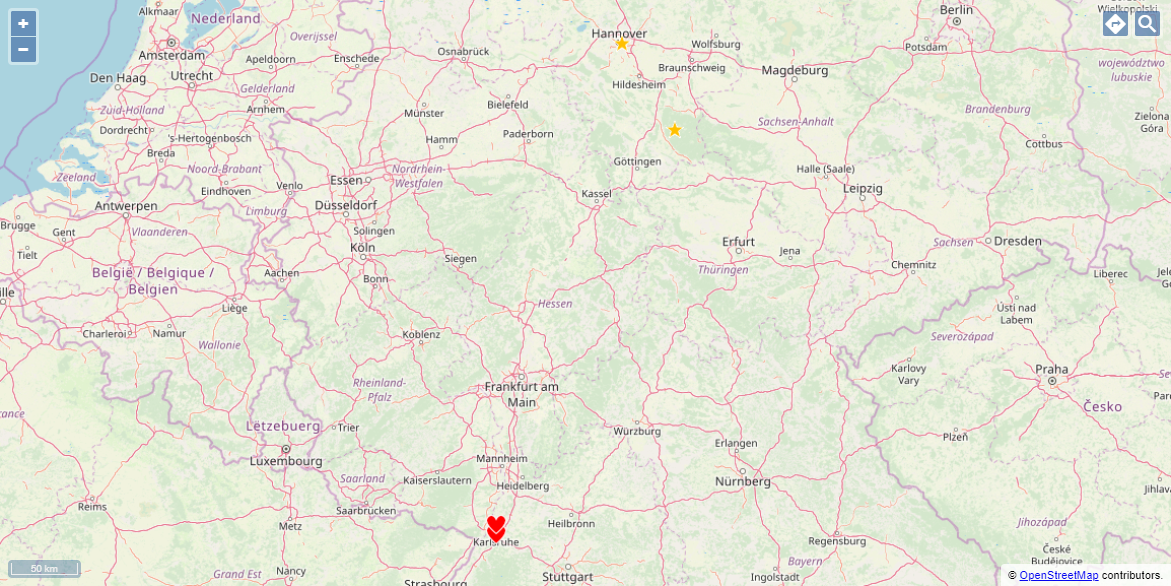
Multiple groups of markers with different icons (OpenStreetMap)
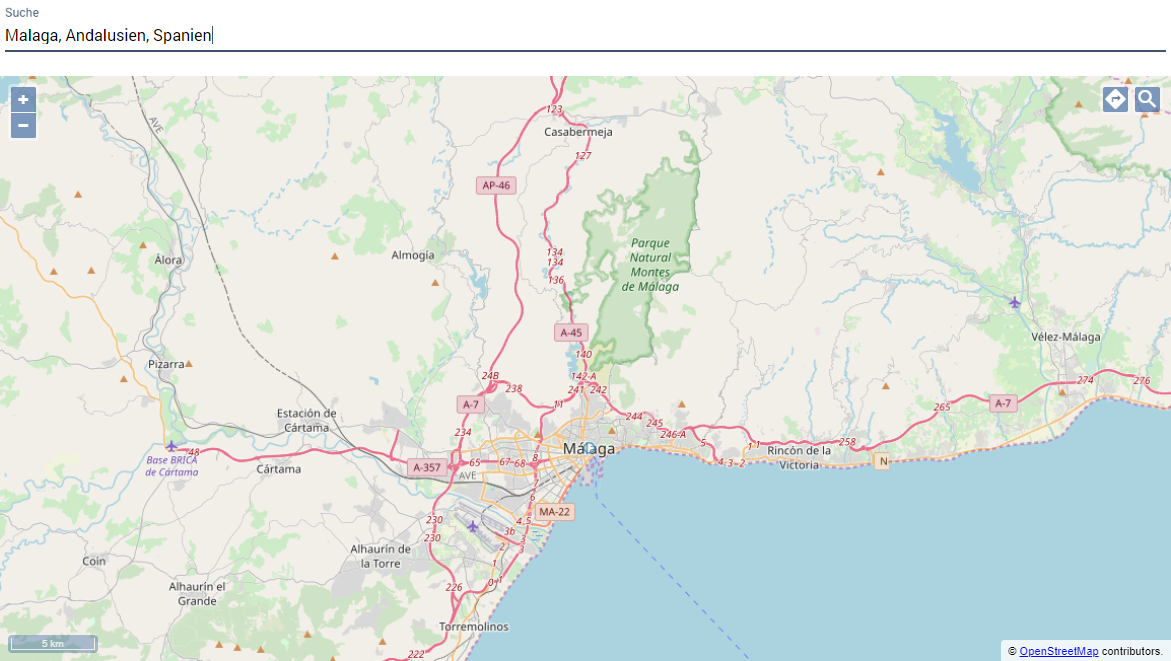
Search function (OpenStreetMap)
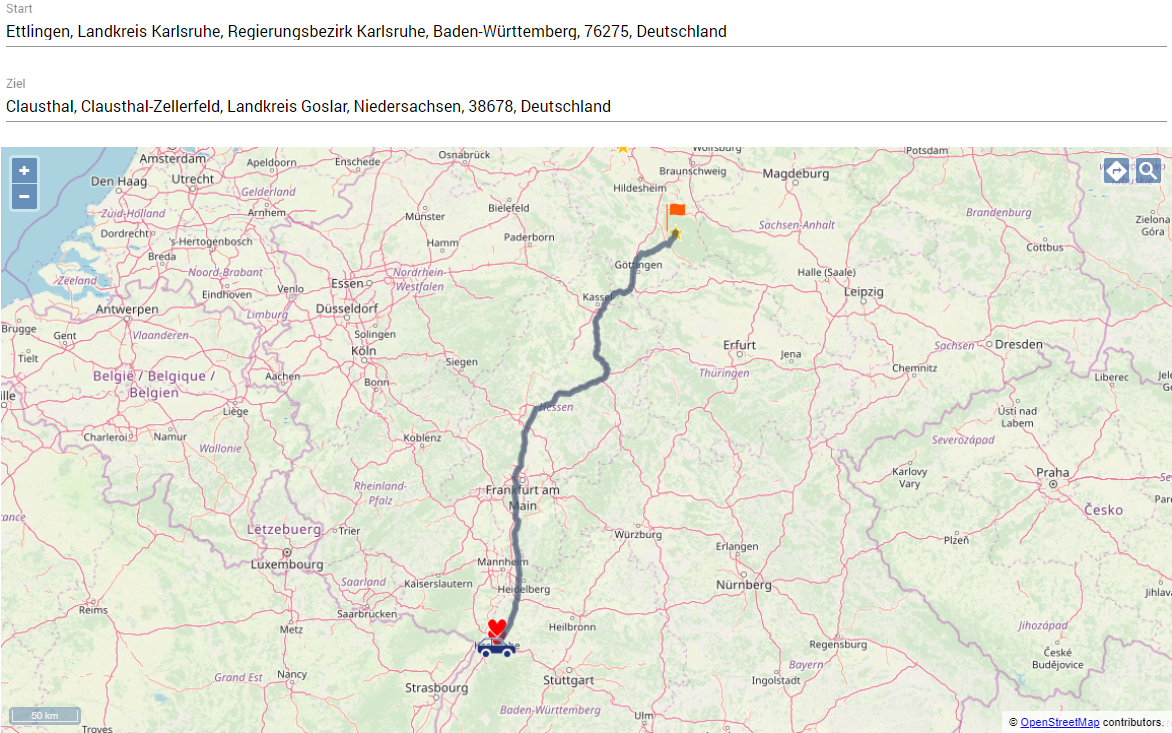
Route calculation (OpenStreetMap)
Example 3: <Map> control with Google Maps