
<ListView> can be used to display (simple or complex) data objects from lists. How a single object is displayed is defined as an element template. To do this, the display is defined within a layout (Flow Layout or Grid Layout). This display is applied to each individual object. Since the data objects that are to be displayed are supplied by a Technical Process, a corresponding Technical Process must be defined in the component that contains the <ListView> control.
Instructions for use
A <ListView> control is created with the <ListView> element.
<ListView>
...
</ListView>
<ListView> controls can be used in all available layout types: For more information, see Layouts.
Attribute
Note:
There are a number of default attributes that can be set for all controls. For more information about the default attributes, see Default attributes.
In addition to the default attributes, you can define the following attributes for <ListView> controls.
|
Attribute |
Description |
|---|---|
|
|
Required Source of the data. The number of entries defines the number of elements displayed.
Possible values: Any string |
|
|
Specifies the width of an element (equivalent to a list entry in the XML file). Possible values: Integer |
|
|
Specifies the unit that applies to the size of the element. Possible values:
|
|
|
Specifies the maximum number of entries that are displayed. If there are more entries in the list, the user can display them using a drop-down arrow. Possible values: Integer |
Actions
The following actions are available for <ListView> controls. For more information about actions, see Actions.
Note:
The selected element is identified in the output with the attribute selected="true".
<SelectAction>
You can insert the Select action using the <SelectAction/> element within <ListView>. The action is triggered when the user selects an entry in the list view.
Note:
You must insert the <SelectAction> element before the desired layout type (BoxLayout, FlowLayout, GridLayout, ResponsiveLayout, TabLayout).
<DoubleClickAction>
You can insert the DoubleClick action using the <DoubleClickAction/> element within <ListView>. The action is triggered when the user double-clicks an entry in the list view.
Note:
You must insert the <DoubleClickAction> element before the desired layout type (BoxLayout, FlowLayout, GridLayout, ResponsiveLayout, TabLayout).
Examples
Here you will find various examples of <ListView> controls.
Example 1: <ListView> without actions
Input
<DetailComponent name="ExampleListView" path="ExampleListView" displayName="Example ListView" process="example.wrf">
	<Properties>
		<Property name="ListObject" type="List">
			<Property name="Caption" type="String" />
			<Property name="Name" type="String" />
			<Property name="City" type="String" />
		</Property>
	</Properties>
	<FlowLayout>
		<ListView objectList="#ListObject">
			<FlowLayout>
				<Label value="#Caption"/>
				<Label value="#Name"/>
				<Label value="#City"/>
			</FlowLayout>
		</ListView>
	</FlowLayout>
</DetailComponent>
Output
The data supplied by the Technical Process are in the following format:
<?xml version="1.0" encoding="UTF-8" ?>
<Ok>
	<ListObject>
		<Caption>Example 1</Caption>
		<Name>Max Mustermann</Name>
		<City>Ettlingen</City>
	</ListObject>
	<ListObject>
		<Caption>Example 2</Caption>
		<Name>John Doe</Name>
		<City>New York</City>
	</ListObject>
	<ListObject>
		<Caption>Example 3</Caption>
		<Name>Kari Nordmann</Name>
		<City>Oslo</City>
	</ListObject>
	...
</Ok>
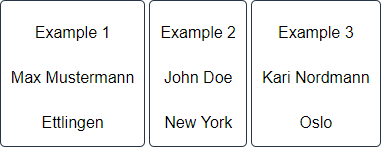
The above code creates the following lists:
Example 2: <ListView> with actions
Input
<DetailComponent
	path="Dashboard"
	displayName="Dashboard"
	process="DataInput.wrf"
	default="true">
	<Properties>
		<Property
			name="ListObject"
			type="List">
			<Property
				name="name"
				type="String" />
		</Property>
	</Properties>
	<FlowLayout>
		<ListView objectList="#ListObject">
			<SelectAction process="Response.wrf" />
			<FlowLayout>
				<TextBox value="#name" />
			</FlowLayout>
		</ListView>
	</FlowLayout>
</DetailComponent>
Output
The data supplied by the Technical Process are in the following format:
The selected element is identified in the output with the attribute selected="true".
In order for all entries in the list to be completely deleted, the attribute empty="true” must be set in the output.
<?xml version="1.0" encoding="UTF-8"?>
<Action>
   <ListObject selected="true">
      <name>Ettlingen</name>
   </ListObject>
   <ListObject>
      <name>New York</name>
   </ListObject>
   <ListObject>
      <name>Oslo</name>
   </ListObject>
</Action>