
The Detail Editor allows you to create and edit the contents of Detail Components and From Components from your Web App Project in XML.
To launch the Detail Editor, open a Detail Component or a Form Component in the Web App Perspective. For more information on the Web App perspective, see Perspectives
Structure of the Detail Editor
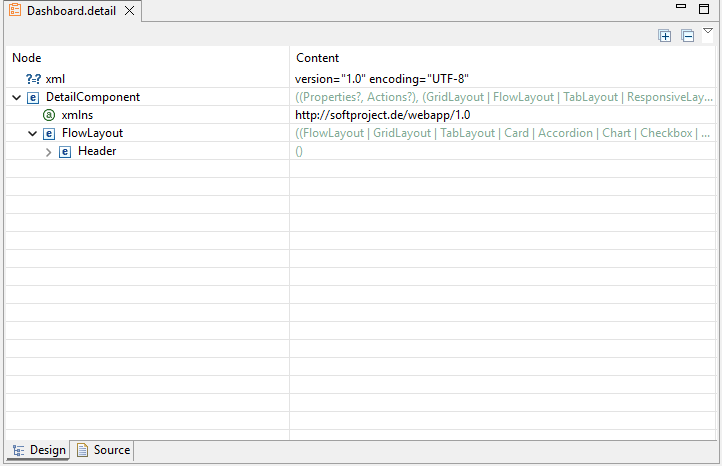
Two views are available for editing XML documents: the Design view and the Source view. You can switch between views via the tabs at the bottom of the editor.
|
View |
Description |
|---|---|
|
Design |
The tree structure of the opened XML document is displayed in a table in the Design view. The left column contains the various nodes that you can expand and collapse if child nodes exist. The right column displays the contents of the nodes. You can execute the following actions using the context menu:
|
|
Source |
In the Source view, you can edit the source text of XML documents. The editor supports you with the following functions:
|
Behavior when working on multiple Detail/Form Components at the same time
If you have opened multiple Detail Components or Form Components in the Web App perspective and select an element in the Detail Editor, the properties of this element are displayed in the Properties view. If you then switch to another opened Detail Component or Form Component in the tab bar, the properties of the element selected on the current tab are no longer displayed in the Properties view.
-
To display the properties again after switching between tabs, select the desired element again in the Detail Editor.