
The Condition Editor enables you to edit Condition components within a Technical Process, when different branches will be executed. For each branch, you can define conditions that evaluate status codes of preceding process components, context variable values, or parameter values (global, project or system parameters).
How to open the Condition Editor
-
Open a Technical Process.
-
Double-click a Condition symbol

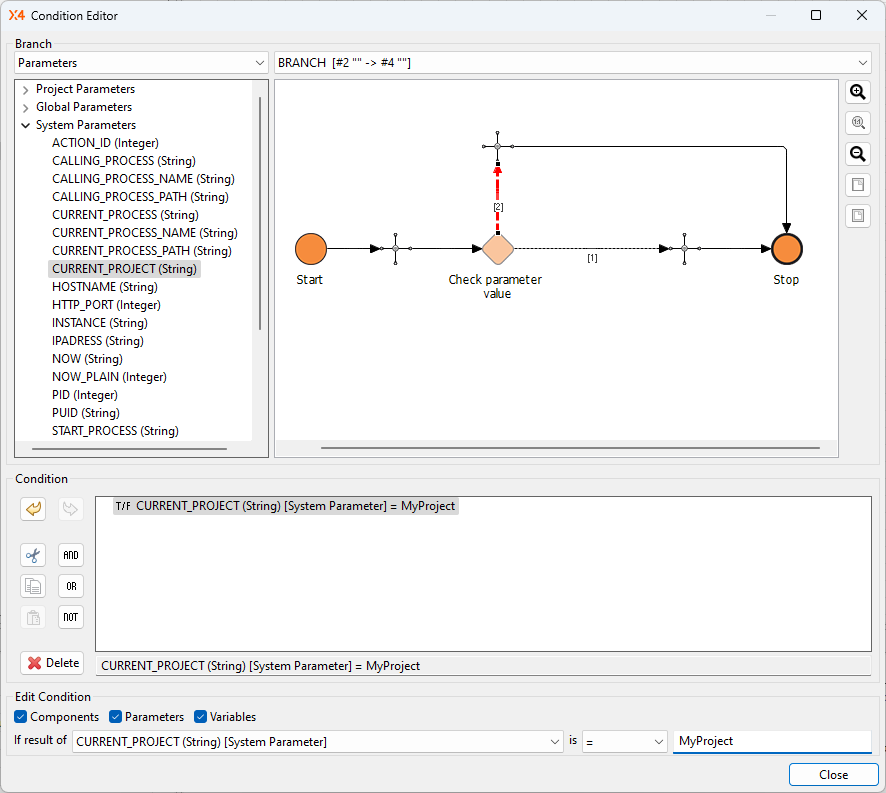
The Condition Editor displays the process diagram in a simplified way without drawing elements:
Right-hand side of the Branch area
In the Branch area on the right-hand side, you can select the branch for which you want to create a condition from the drop-down list. Alternatively, you can click on the correspondent transition line in the process preview.
View options for process preview:
|
|
Zoom in |
Zoom into the process diagram |
|
|
Original zoom |
Display the process diagram in original size |
|
|
Zoom out |
Zoom out of the process diagram |
|
|
Zoom to page |
Display all |
|
|
Zoom to width |
Display in full width |


Left-hand side of the Branch area
In the Branch area on the left-hand side, you can select additional condition criteria from the drop-down list. The area below displays all entries that correspond to your selection. Choose between the following options for a condition criterion:
-
Parameters: a list of currently available parameters and parameter groups (system, global and project parameters)
Global parameters can only be selected if they have previously been created in the Global Parameter Configuration.
Project parameters can only be selected if they have previously been created in the*.paramfile (Project Parameter Configuration), see also Creating project parameters.
-
Variables: a list of context variables that have already been defined within the current Technical Process
Condition area
The Condition area is used to display and edit the conditions for the selected branch.
To create or edit a condition, double-click into this area.
Editing options for conditions:
|
|
Undo |
Undo the last editor action |
|
|
Redo |
Redo a previously undone editor action |
|
|
Cut |
Cut a selection |
|
|
Copy |
Copy a selection |
|
|
Paste |
Paste a selection |
|
|
Logical AND |
Insert logical |
|
|
Logical OR |
Insert logical |
|
|
Logical NOT |
Insert logical |
|
|
Delete |
Delete a selected condition |


Edit Condition area
In the Edit Condition area, you can create or edit a selected condition. For more information, see Creating and Using Conditions.

|
Components |
Option to specify whether If result of drop-down list should display process components to evaluate their execution state during process runtime |
|
|
Parameters |
Option to specify whether If result of drop-down list should display parameters (system, global or project parameters) to evaluate their actual values during process runtime |
|
|
Variables |
Option to specify whether If result of drop-down list should display context variables to evaluate their actual values during process runtime |
|
|
If result of |
Here you can select the criterion (process component, parameter, or variable) for which you want to define a condition. |
|
|
is 
|
Here, you can select a relational operator:
The following comparison operators for character strings are available here for parameters and variables:
|
|
|
(Comparison value) |
Enter a value which should be compared to the selected criterion. a) For processes elements, always enter a numeric status value:
b) For context variables and parameters, enter an alphanumeric value:
|
|