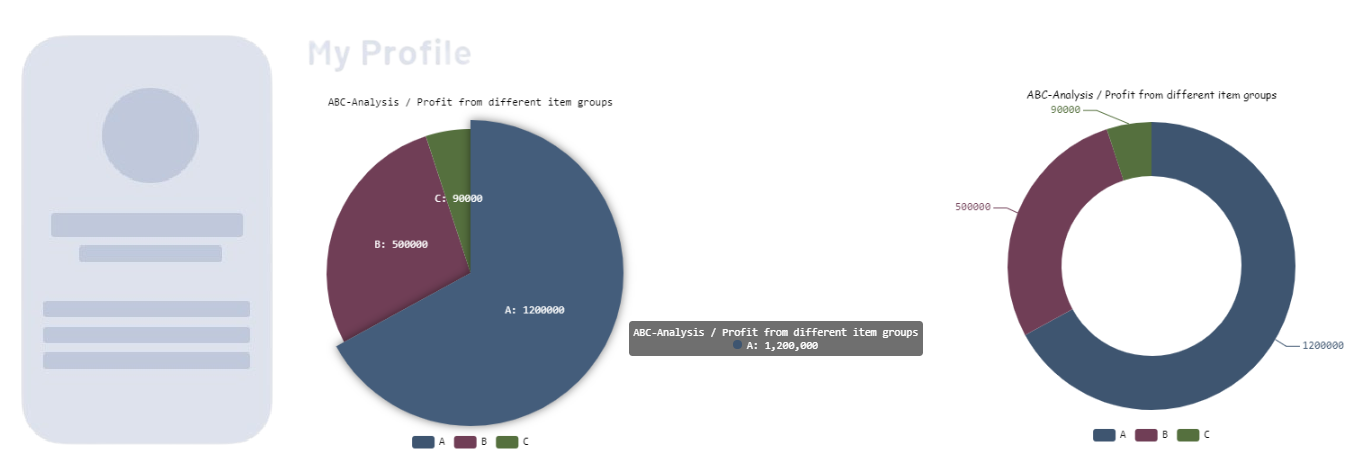
A pie chart can be used to illustrate the proportion of individual data in the totality.
Instructions for use
A pie/donut chart is created using the <Pie> element within the <Chart> element. The element can only be used in the layout of a Detail Component.
<Chart>
    <Pie/>
</Chart>
The <Pie> element can contain the following element:
-
<Tooltip>: Defines how the tooltip for each value should be displayed in the chart.
Attribute
You can define the following attributes for all elements of a pie/donut chart:
|
Attribute |
Description |
|---|---|
|
|
Specifies the font family.
Possible values:
|
|
|
Sets the font size.
Possible values:
|
|
|
Defines the tilt of the font. This attribute overrides the default font tilt for this layout. Possible values:
|
|
|
Defines the font weight. This attribute overrides the default font weight for this layout. Possible values:
|
|
|
Defines the font color. This setting overrides the default color of the color scheme! Possible values:
Note:
|
<Pie> element
Defines how the chart is displayed.
In addition to the general attributes, you can define the following attributes for the <Pie> element:
|
Attribute |
Description |
|---|---|
|
|
Required Specifies which data are displayed in the chart. The specified string refers to a defined property within the data source specified in the Possible values: Data binding possible |
|
|
Required Defines the name associated with the respective value (data label). The specified string refers to a defined property in the provided Possible values: Data binding possible |
|
|
Required Specifies which value of the data object is visualized. The specified string refers to a defined property in the provided Possible values: Data binding possible |
|
|
Specifies whether to prevent the overlapping of labels. Possible values:
|
|
|
Specifies the horizontal position of the chart. Possible values:
|
|
|
Specifies the vertical position of the chart. Possible values:
|
|
|
Color of each chart pane Possible values: Hexadecimal color value or expression for data binding (Color) If the |
|
|
Specifies whether the chart should be displayed as a donut chart. Possible values: |
|
|
Defines the font color of the label. Overrides the color of all chart labels. Possible values:
Note:
|
|
|
Specifies what should happen if the label is longer than the specified width of the label. Possible values:
|
|
|
Defines the width of the label in pixels. Possible values:
|
|
|
Specifies whether to display a legend. Possible values:
|
|
|
Specifies whether the values should be labeled directly in the chart. Possible values:
|
|
|
Sets the radius in pixels. Possible values:
|
|
|
Sets the outer radius in pixels. Only relevant if the attribute Possible values:
|
|
|
Specifies whether a percentage is displayed in addition to the value in the label and tooltip. Possible values:
|
<Tooltip> element
Child element of <Pie> . Defines how the tooltip for each value should be displayed in the chart.
For the <Tooltip> element, you can define the general attributes (see above).
Example
<Properties>
	<Property name="DataSource" type="Complex">
		<Property name="ABC-Analysis" type="List">
			<Property name="ItemGroup" type="String"/>
			<Property name="Profit" type="Integer"/>
		</Property>
	</Property>
</Properties>
<FlowLayout>
	<Chart fontFamily="Font03" title="ABC-Analysis / Profit from different item groups">
		<Pie data="#DataSource.ABC-Analysis" fontFamily="Font03" name="#ItemGroup" normals="false" value="#Profit">
           <Tooltip fontFamily="Font03"/>
        </Pie>
	</Chart>
	<Chart fontFamily="Font02" title="ABC-Analysis / Profit from different item groups">
		<Pie data="#DataSource.ABC-Analysis" donut="true" fontFamily="Font03" name="#ItemGroup"  normals="true" value="#Profit">
			<Tooltip fontFamily="Font03"/>
		</Pie>
	</Chart>
</FlowLayout>
Output
The data supplied by the Technical Process are in the followoing format:
<Ok>
	<DataSource>
		<ABC-Analysis>
			<ItemGroup>A</ItemGroup>
			<Profit>1200000</Profit>
			<ItemGroup>B</ItemGroup>
			<Profit>500000</Profit>
			<ItemGroup>C</ItemGroup>
			<Profit>90000</Profit>
			</ABC-Analysis>
	</DataSource>
</Ok>