
The Database Editor allows you to define SQL queries for database connection components in order to retrieve data from a relational database. The logical separation of the SQL instruction and database connection process components these process components to be used flexibly in the X4 Designer and can be used multiple times.
To open the Database Editor, create a new SQL statement file (.stm) or open an existing SQL statement file.
Structure of the Database Editor
The Database Editor consists of the following sections:
-
Statement Editor: This section allows you to connect to a database and view the structure of the connected database. This structure can then be used to create SQL statements for the database.
-
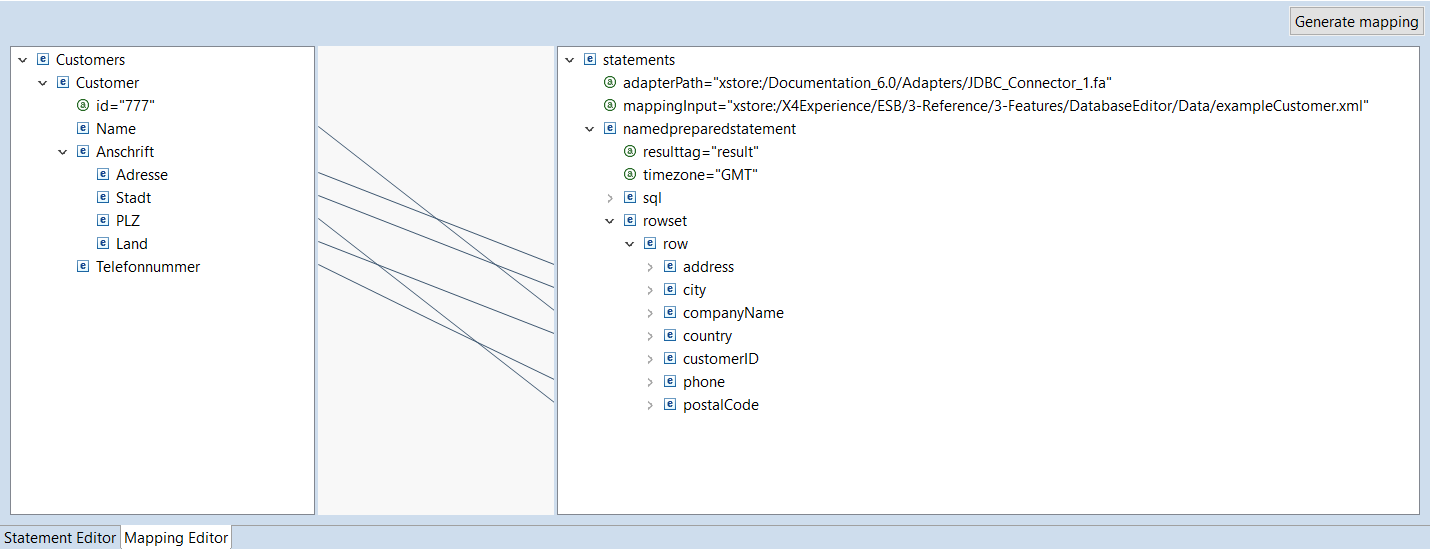
Mapping Editor: In this section, you can define a mapping of elements of an input XML document to the named parameters of the statement for the statement previously created in the Statement Editor. From this mapping, you can then create an XSL mapping that generates a dynamically generated input for the JDBC connector using a matching input XML document.
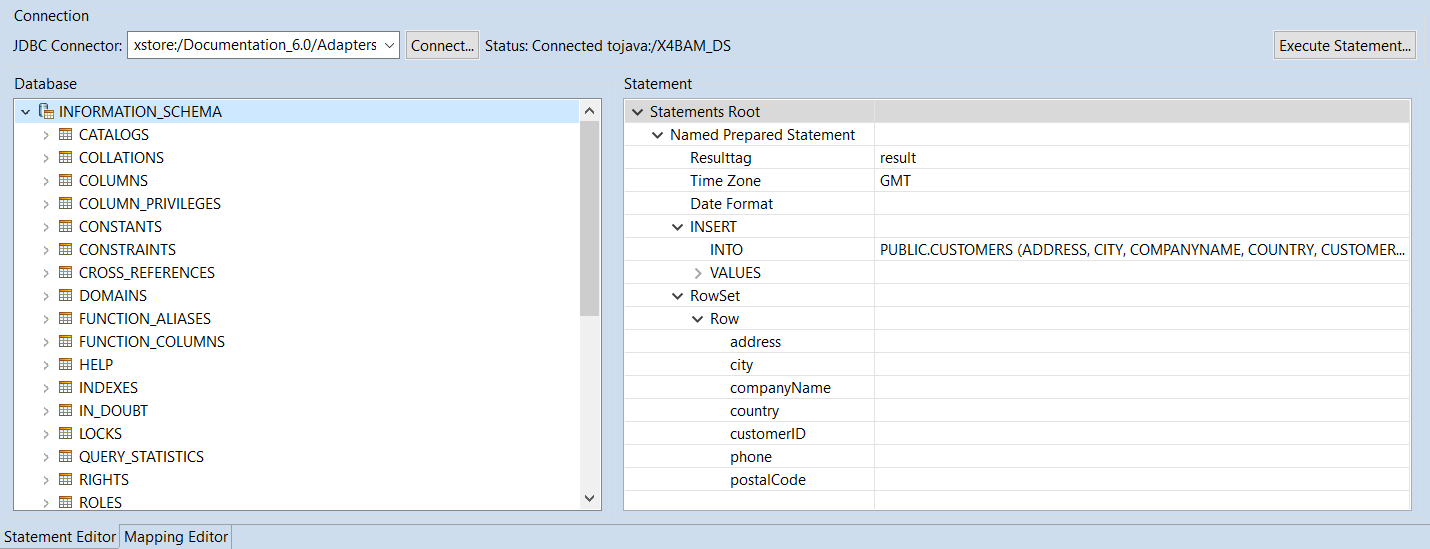
Statement Editor
The Statement Editor is divided into the following sections:
|
Connection |
In this section, you can establish a connection to a database via a JDBC Connector.
Note:
|
|||||||||||||||||||||||||||||
|---|---|---|---|---|---|---|---|---|---|---|---|---|---|---|---|---|---|---|---|---|---|---|---|---|---|---|---|---|---|---|
|
Database |
This section displays the structure of the database after the connection has been established. The following icons are used to visualize the structure:
|
|||||||||||||||||||||||||||||
|
Statement |
In this section, you can create various statements for the connected database using the context menu:
For more information about creating and editing statements, see Creating Statements for a Connected Database . Drag-and-drop actions In the Statement section, you can perform the following drag-and-drop actions:
|


Mapping Editor
With the Mapping Editor, you can configure and then create mappings from an input XML document to the named parameters of the statements for the statements previously created in the Statement Editor using drag-and-drop. These mappings generate dynamically generated input for the JDBC connector using a matching input XML document.
The Mapping Editor is divided into the following sections:
|
Source document section |
The source document section is located on the left. In this sectioin, you can drag and drop the input XML file and view it. From the context menu, you can edit the selected node as follows:
|
|---|---|
|
Linking section |
The linking section is located in the middle column. In this section, the |
|
Statements section |
The Statments section is located on the left. This section displays the entire structure of the statement file. Mappings can be created from the input XML to the child elements of a row element. |