
X4 Produktdokumentation

TextBlock

<TextBlock> can be used to format text blocks within a Web App.

Instructions for use

A <TextBlock> control is created with the <TextBlock> element.

<TextBlock>
...
</TextBlock>

<TextBlock> controls can be used in all available layout types: For more information, see Layouts.

Attribute

The <TextBlock> control is defined via the standard attributes for controls.

Elements

The <TextBlock> element can include the following elements:

  • Free text

  • <Binding>

  • <Break>

  • <Paragraph>

  • <Span>

  • <TextLink>

  • <Translation>

<Binding> element

The <Binding> element is used for Data Binding.

You can define the following attribute for the <Binding> element:

Attribute

Description

value

Binds a valid data binding string.

Note that no constants are allowed.

Example for <Binding>

XML
<Span>
    Span with binding
    <Break />
    value = '<Binding value="#test" />'
</Span>

<Break> element

The <Break> element is used to insert line breaks within a text section.

Example for <Break>

XML
<Paragraph>
   	SoftProject GmbH
  	<Break/>
   	Am Erlengraben 3
   	<Break/>
  	D-76275 Ettlingen
   	<Break />
   	E-Mail: info@softproject.de
</Paragraph>

<Paragraph> element

The <Paragraph> element is used to divide texts into different paragraphs and can contain the following elements:

  • Free text

  • <Binding>

  • <Break>

  • <Paragraph>

  • <Span>

  • <TextLink>

  • <Translation>

You can define the following attribute for the <Paragraph> element:

Attribute

Description

background

Defines a color for the background of the control.

Note:

  • This setting overrides the default color of the color scheme.

Possible values:

  • Hexadecimal color value, e.g. ff5a00

Note:

  • Do not use a hash before the color value.

  • Do not use an abbreviated notation of the color value.

  • Color code from the color palette of the Web App, e.g. A200.
    For more information, see Theming.

fontFamily

Specifies the font family.

Note:

  • This attribute overwrites the default Web App font for the control.

  • If the attribute is defined on an element, the font family is inherited by any child elements unless the fontFamily attribute is explicitly defined for the child elements.

Possible values:

  • MainFont: stored main font

  • Font code from the font palette, e.g. Font04

fontSize

Sets the font size.

Note:

  • This attribute overrides the default Web App font size for the control.

Possible values:

  • Any integer or decimal number with a period as a decimal separator, e.g. 20, 20.8, .9

  • Font size in pixels, e.g. 20px

  • Font size in points, e.g. 18pt

  • Font size compared to the font size of the parent element, e.g. .8em or 120%

  • Keywords, e.g. small or larger

fontStretch

Defines the width of each character.

Note:

  • This attribute overrides the default character width for the control.

Possible values:

  • Condensed

  • Expanded

  • ExtraCondensed

  • ExtraExpanded

  • Medium

  • Normal (default)

  • SemiCondensed

  • SemiExpanded

  • UltraCondensed

  • UltraExpanded

fontStyle

Defines the tilt of the font.

Note:

  • This attribute overrides the default font tilt for the control.

Possible values:

  • italic: Italic font

  • normal: Normal font (default)

  • oblique: Slanted font style (calculated)

fontWeight

Defines the font weight.

Note:

  • This attribute overrides the default font weight for the control.

Possible values:

  • Black

  • Bold

  • DemiBold

  • ExtraBlack

  • ExtraBold

  • ExtraLight

  • Heavy

  • Light

  • Medium

  • Normal (default)

  • Regular

  • SemiBold

  • Thin

  • UltraBlack

  • UltraBold

  • UltraLight

foreground

Defines a color for the foreground (text, etc.) of the control.

Note:

  • This setting overrides the default color of the color scheme.

Possible values:

  • Hexadecimal color value, e.g. ff5a00

Note:

  • Do not use a hash before the color value.

  • Do not use an abbreviated notation of the color value.

  • Color code from the color palette of the Web App, e.g. A200
    For more information, see Theming.

justifyText

Defines the text alignment within the text block.

Possible values:

  • justify: full justification

  • center: centered

  • left (default): left-aligned

  • right: right-aligned

textOverflow

Specifies what should happen when the control is full.

Possible values:

  • ellipsis (default): Use ... to show that the text is not finished

  • hidden : Cancels the text, whole words are observed.

  • wordBreak: Cancels the text within the word.

  • allow: Wraps the text between the words.

Example <Paragraph>

XML
<Paragraph justifyText="justify" textOverflow="allow">
    Paragraph
    <Binding value="#test" />
</Paragraph>

<Span> element

The <Span> element is used to divide texts into different paragraphs and can contain the following elements:

  • Free text

  • <Binding>

  • <Break>

  • <Paragraph>

  • <Span>

  • <TextLink>

  • <Translation>

You can define the following attribute for the <Span> element:

Attribute

Description

background

Defines a color for the background of the control.

Note:

  • This setting overrides the default color of the color scheme.

Possible values:

  • Hexadecimal color value, e.g. ff5a00

Note:

  • Do not use a hash before the color value.

  • Do not use an abbreviated notation of the color value.

  • Color code from the color palette of the Web App, e.g. A200.
    For more information, see Theming.

fontFamily

Specifies the font family.

Note:

  • This attribute overwrites the default Web App font for the control.

  • If the attribute is defined on an element, the font family is inherited by any child elements unless the fontFamily attribute is explicitly defined for the child elements.

Possible values:

  • MainFont: stored main font

  • Font code from the font palette, e.g. Font04

fontSize

Sets the font size.

Note:

  • This attribute overrides the default Web App font size for the control.

Possible values:

  • Any integer or decimal number with a period as a decimal separator, e.g. 20, 20.8, .9

  • Font size in pixels, e.g. 20px

  • Font size in points, e.g. 18pt

  • Font size compared to the font size of the parent element, e.g. .8em or 120%

  • Keywords, e.g. small or larger

fontStretch

Defines the width of each character.

Note:

  • This attribute overrides the default character width for the control.

Possible values:

  • Condensed

  • Expanded

  • ExtraCondensed

  • ExtraExpanded

  • Medium

  • Normal (default)

  • SemiCondensed

  • SemiExpanded

  • UltraCondensed

  • UltraExpanded

fontStyle

Defines the tilt of the font.

Note:

  • This attribute overrides the default font tilt for the control.

Possible values:

  • italic: Italic font

  • normal: Normal font (default)

  • oblique: Slanted font style (calculated)

fontWeight

Defines the font weight.

Note:

  • This attribute overrides the default font weight for the control.

Possible values:

  • Black

  • Bold

  • DemiBold

  • ExtraBlack

  • ExtraBold

  • ExtraLight

  • Heavy

  • Light

  • Medium

  • Normal (default)

  • Regular

  • SemiBold

  • Thin

  • UltraBlack

  • UltraBold

  • UltraLight

foreground

Defines a color for the foreground (text, etc.) of the control.

Note:

  • This setting overrides the default color of the color scheme.

Possible values:

  • Hexadecimal color value, e.g. ff5a00

Note:

  • Do not use a hash before the color value.

  • Do not use an abbreviated notation of the color value.

  • Color code from the color palette of the Web App, e.g. A200
    For more information, see Theming.

Example for <Span>

XML
<Span fontWeight="ExtraBold" foreground="GaugeAxisMiddle">
    Span
    <Binding value="#test" />
</Span>

<TextLink> element

The <TextLink> element is used to create a link. To generate the link, an action must be defined. For more information, seeActions.

The following actions are supported:

  • CustomAction

  • DownloadAction

  • SelectAction

  • UploadAction

Example for <TextLink>

XML
<?xml version="1.0" encoding="UTF-8"?>
<DetailComponent xmlns="http://softproject.de/webapp/1.0">
	<FlowLayout>
		<Header value="Welcome to my new Web App!" />
		<TextBlock>
			<Link>
				<SelectAction
					process="myProcess.wrf"
					displayName="Click here"></SelectAction>
			</Link>
		</TextBlock>
	</FlowLayout>
</DetailComponent>

<Translation> element

The <Translation> element is used to store a translation key for multilingual interfaces.

You can define the following attribute for the <Translation> element:

Attribute

Description

value

Specifies the translation key.

Example for <Translation>

XML
<Span>
    Span with translation
    <Break />
    value = '<Translation value="$TranslationKey" />'
</Span>

Example
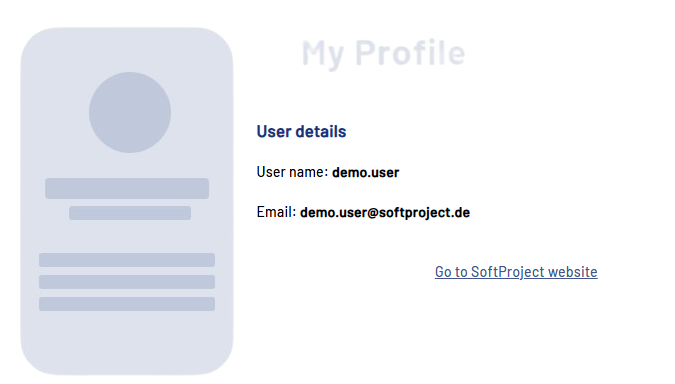
TextBlock in the Detail Component
XML
<DetailComponent xmlns="http://softproject.de/webapp/1.0" name="PasswordBox">
    <FlowLayout>
        <TextBlock>
            <Paragraph>
                <Span fontWeight="Bold" fontSize="larger" foreground="500"> User details </Span>
            </Paragraph>
            <Paragraph>
                <Span>User name:</Span>
                <Span fontWeight="Bold">demo.user</Span>
                <Break/>
                <Break/>
                <Span>Email:</Span>
                <Span fontWeight="Bold">demo.user@softproject.de</Span>
                <Break/>
                <Break/>
            </Paragraph>
            <Paragraph justifyText="center">
                <TextLink>
                    <CustomAction externalLinkTarget="new" externalLink="https://www.softproject.de/de/" displayName="Go to SoftProject website">
					</CustomAction>
                </TextLink>
            </Paragraph>
        </TextBlock>
    </FlowLayout>
</DetailComponent>
image-20251119-113328.png