
Under Connection, connection profiles with the respective profile data can be stored.
-
Select

⇾ The X4 Preferences dialog opens.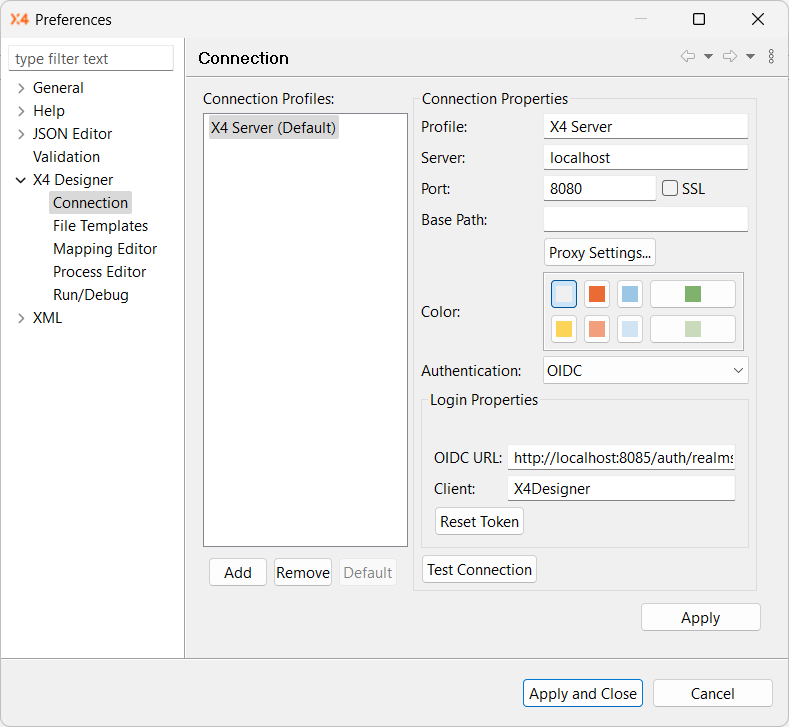
-
On the left, expand X4 Designer and select Connection to access the connection settings.
-
Configure the desired connection settings:
|
Setting |
Description |
|---|---|
|
Connection Properties |
|
|
Profile |
Name of the connection profile (freely selectable) |
|
Server |
IP address or hostname of the X4 Server (example: |
|
Port |
Port number |
|
Base Path |
Base URL for connecting to an X4 Server behind a proxy |
|
Proxy Settings |
Default settings for proxy servers and Internet connection |
|
Color |
Color for the connection setting (optional) Note: The selected color will be displayed in the status bar of X4 Designer the next time a successful connection is attempted. This makes it easier to distinguish between different X4 Servers. |
|
Authentication |
Selection of the desired authentication method Possible values:
Note: The No Auth option allows users to bypass OIDC authentication, for example in development or test environments. Please note that this option in X4 Designer is informational only and does not represent the actual authentication behavior between X4 Designer and X4 Server. For No Auth to work, the X4 Server must also be configured accordingly. If not, an error message is displayed when accessing protected resources. |
|
Login Properties Note: The fields displayed in the Login Properties section depend on the selection in Authentication. If you select No Auth, the Login Properties section is not displayed. |
|
|
Authentication: Basic |
Option to enable basic authentication 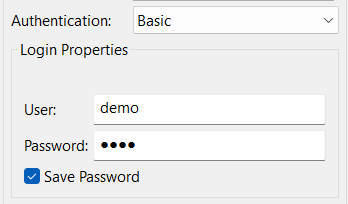
User: Name of the repository user Password: Password of the repository user
|
|
Authentication: OIDC |
Option to enable OIDC authentication 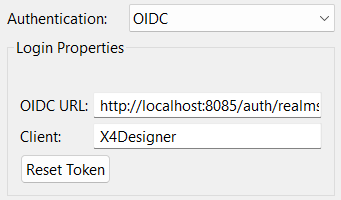
Example:
Example: Note: This name must match exactly the client name configured in the OIDC server (for example, Keycloak) for login to work.
Note: This button is active only if a token exists. After resetting a token, the button is disabled. |
⇾ The created connection profiles are displayed under Connection Profiles. You can add, remove, and set any profile as the default.
-
Select Test Connection to verify that the connection is established correctly.
-
Select Apply and Close to save the settings and close the window.