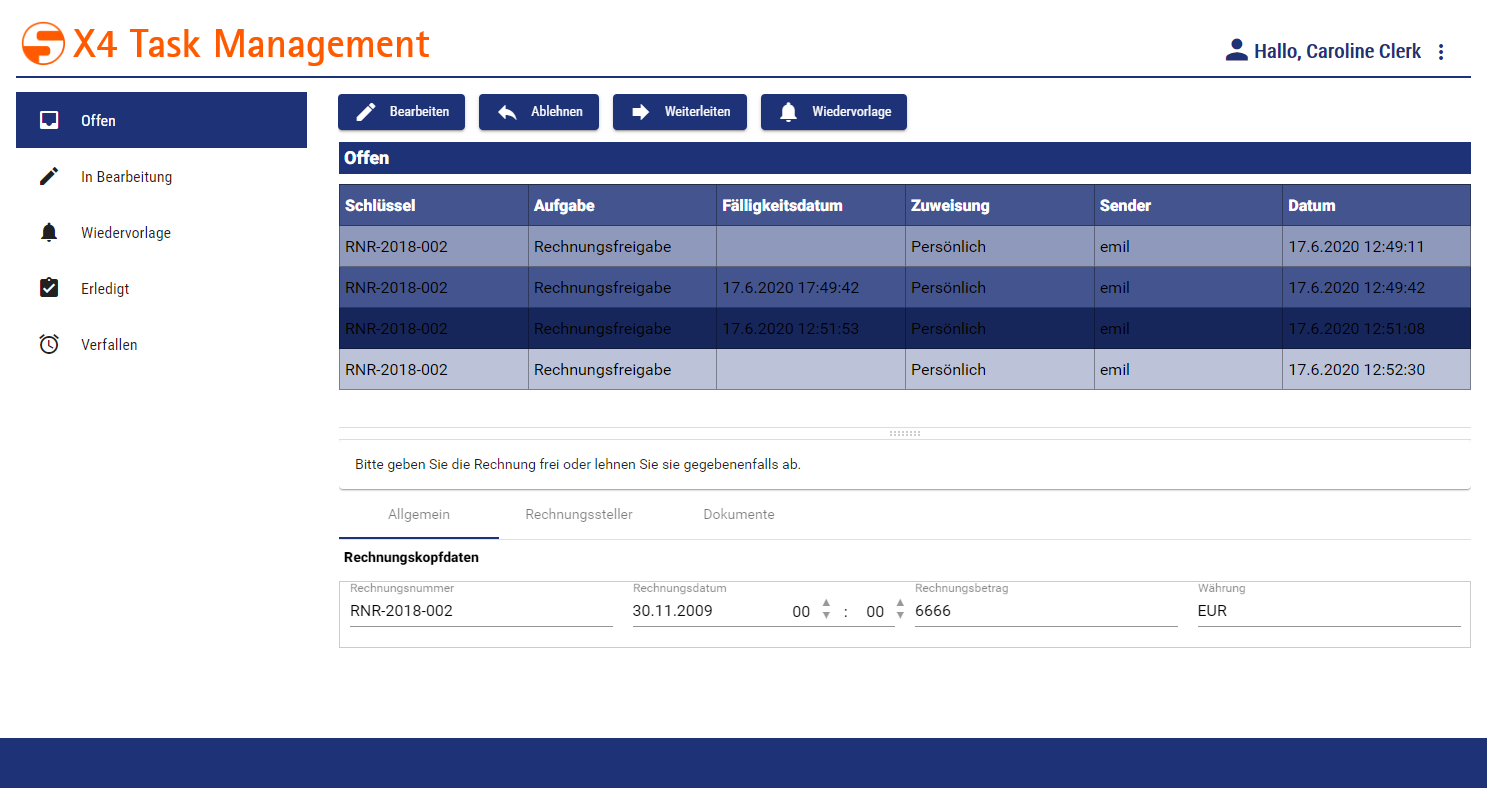
Human Tasks allow integrating people into Business Processes. The Task Management Web App provides the user interface for processing the defined tasks.
The Task Management Web App already has a predefined structure and predefined functions. However, further settings can be made within the corresponding Business Process and via various settings within the Human Task Editor.
The Task Management Web App can be opened via the menu Tools > X4 Task Management. The default access data is demo/demo.
Defining and Displaying Business Case Data
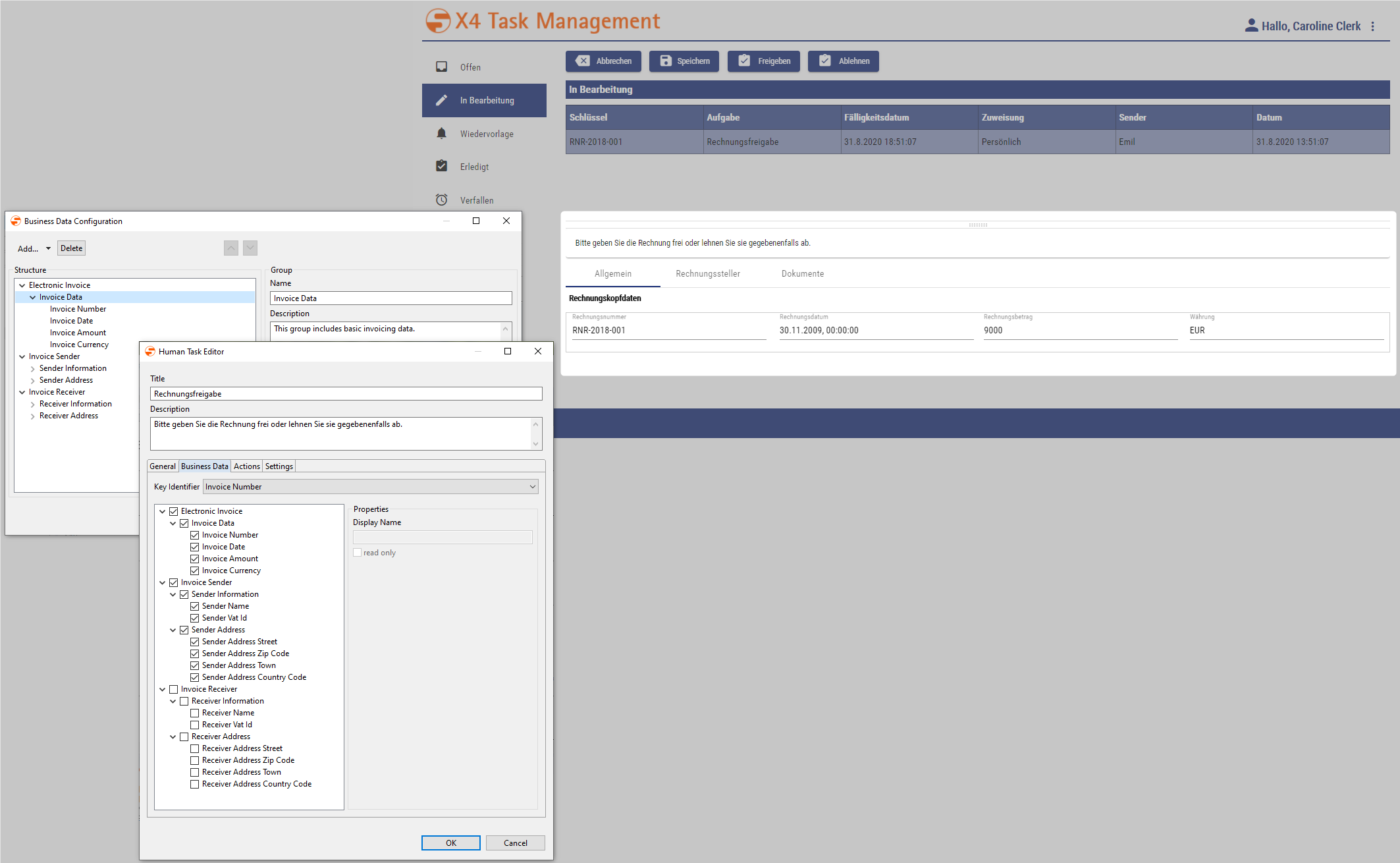
Business case data is defined via the Business Process property Business Data, see Managing Business Process Data. Which of the defined business data is actually displayed in the Task Management Web App for the user logged in is specified within the Human Task Editor's tab Business Data.
Defining and Setting Case States
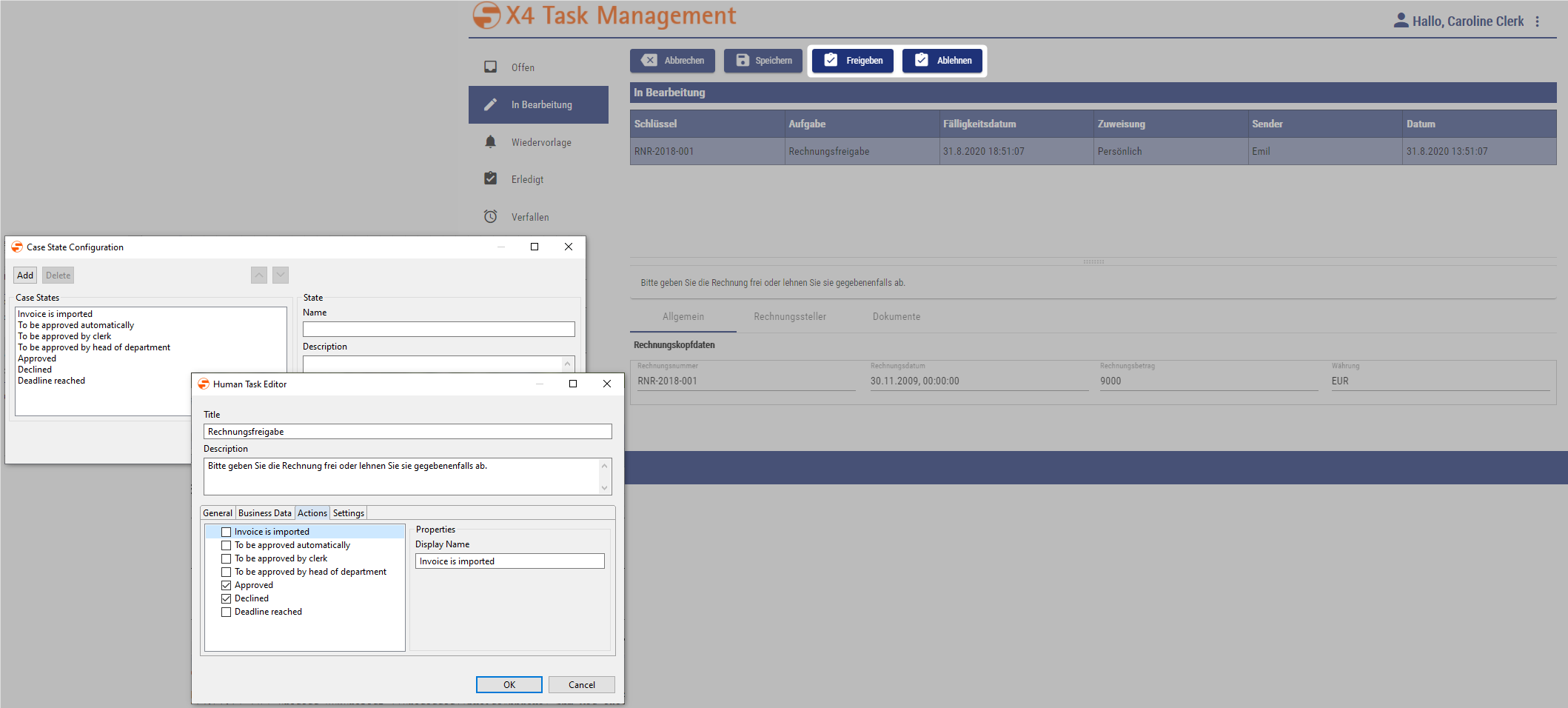
Case states are defined via the Business Process property Case States, see Managing Case States. Which of the defined states a user can actually set for his tasks within the Task Management Web App is specified within the Human Task Editor's tab Actions.
Declining, Forwarding and Resubmitting Tasks
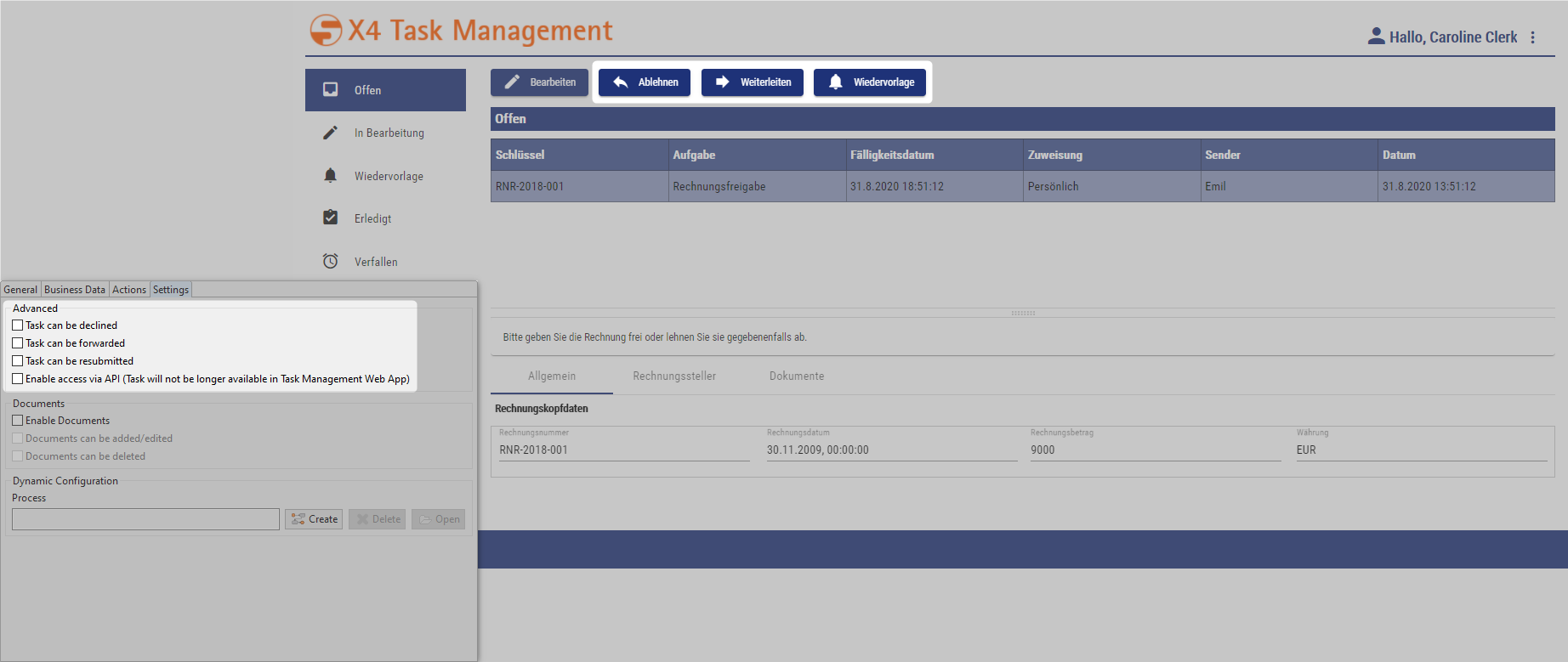
Whether a user should be able to decline, forward or resubmit tasks is specified within the Human Task Editor's tab Settings, see also Human Task.
Displaying and Editing Documents
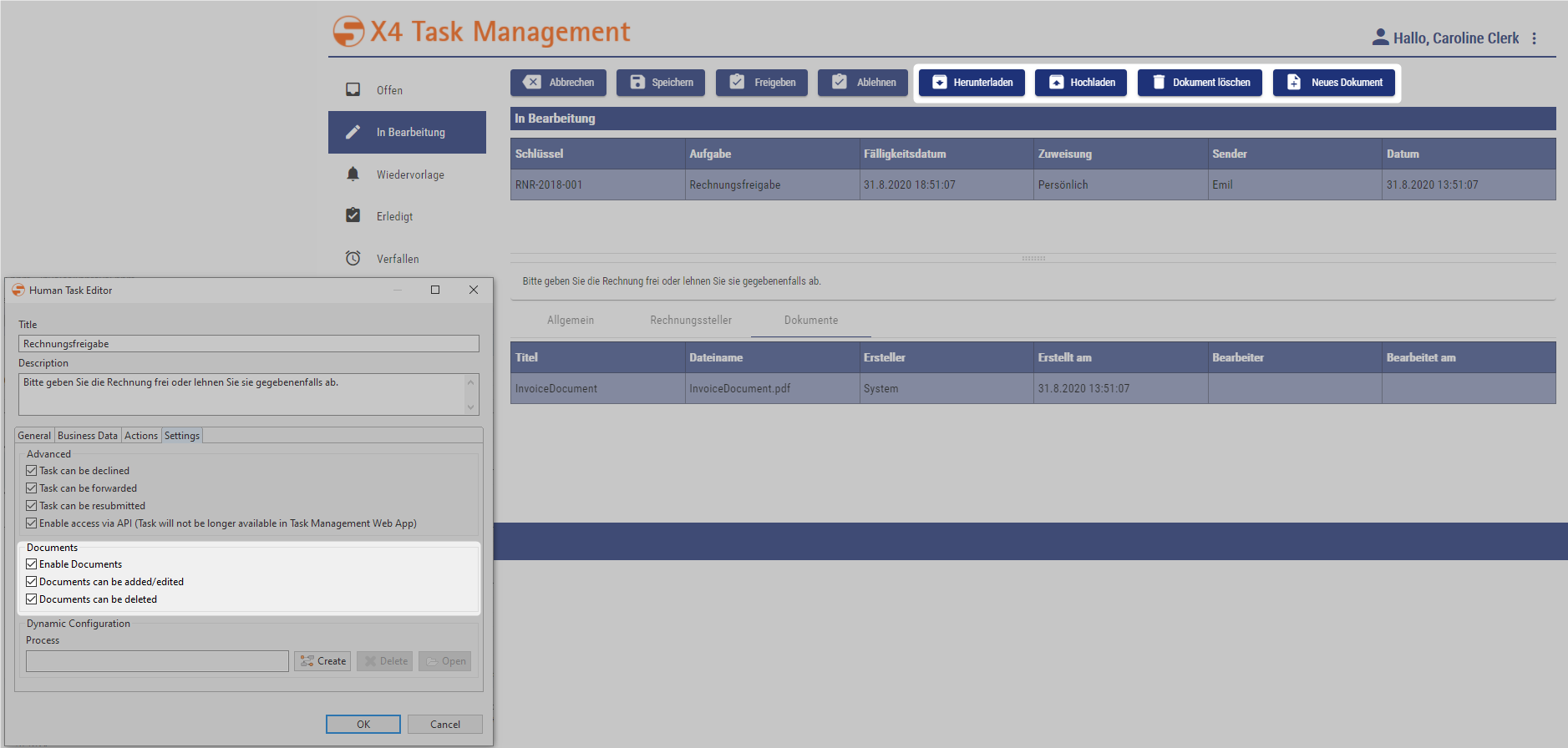
Whether documents can be displayed and processed in the Task Management Web App is specified within the Human Task Editor's tab Settings, see also Human Task.
-
Option
Enable Documentsdisplays the tab Dokumente and the button Herunterladen (download) within the Task Management Web App. -
Option
Documents can be added/editedallows editing (button Hochladen) and adding (button Neues Dokument) documents.
Deadline Management for Human Tasks
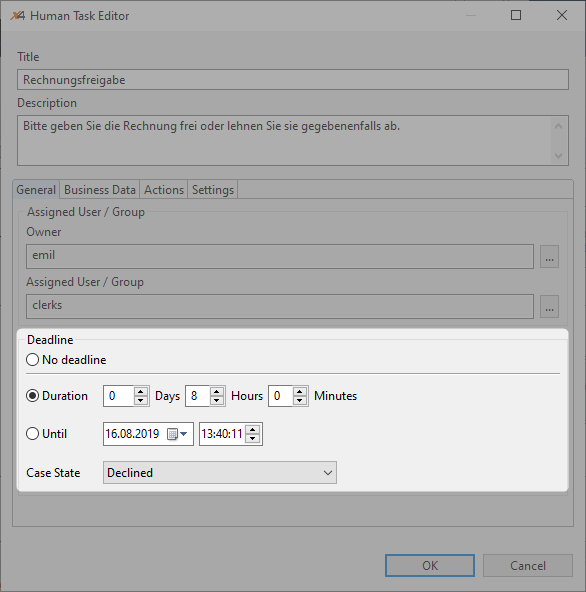
For each human task a deadline can be defined, which is specified within the Human Task Editor under General > Deadline. In addition to a duration (Duration), an exact time limit (Until) with a date and time specification can be defined. Moreover, a case state can be specified, which is automatically executed when the task deadline has been reached.
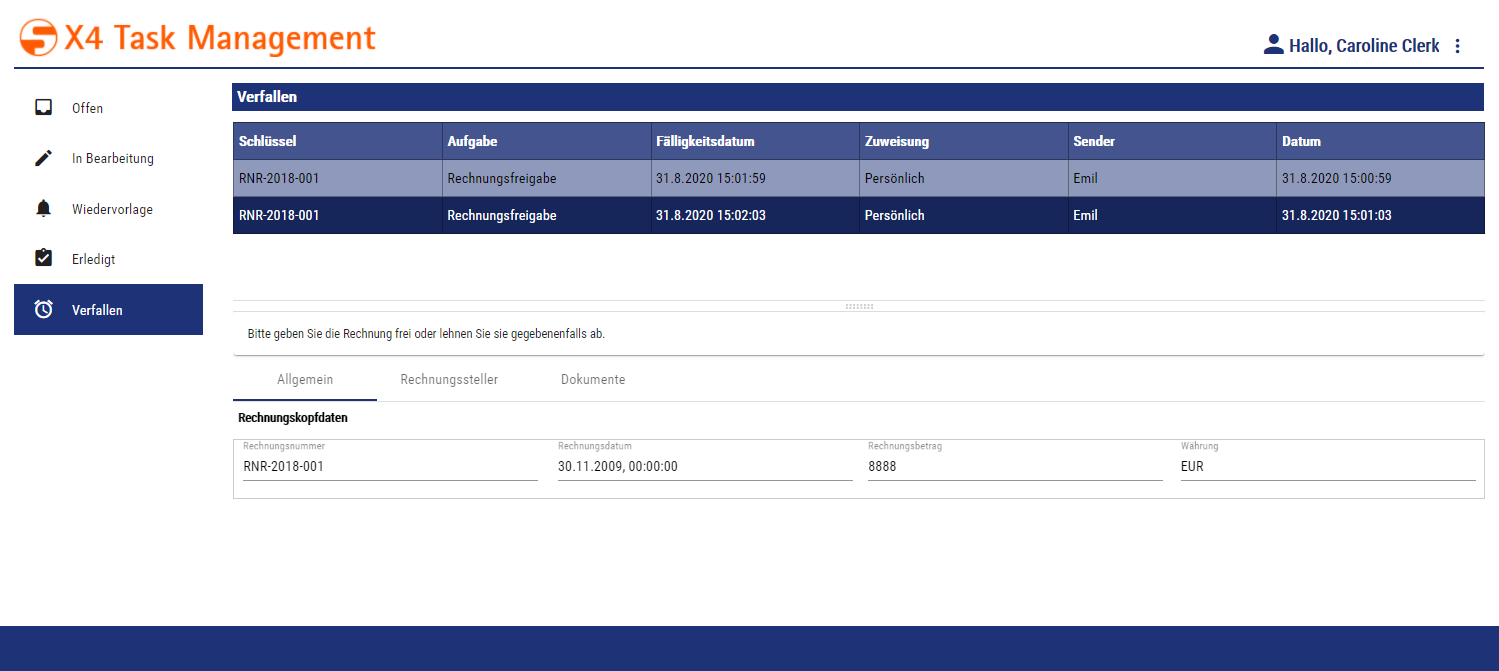
If a human task's deadline was reached before it could be processed and the process was automatically resumed with the configured case state, the human task is automatically closed and displayed within the Task Management web app's navigator node Verfallen (expired). All human tasks that have exceeded the deadline and have been closed automatically are displayed here.
In order to better recognize processes with a deadline in the Task Management web app, they are highlighted in different colors:
-

-

-