
To map processes in X4 BPMS, you need to define the required business data structure for the Business Process. You use Domain Model files (.domainmodel) to create a three-level hierarchy for the business data including corresponding descrptions and thus add them to the process definition.
Structure of business case data
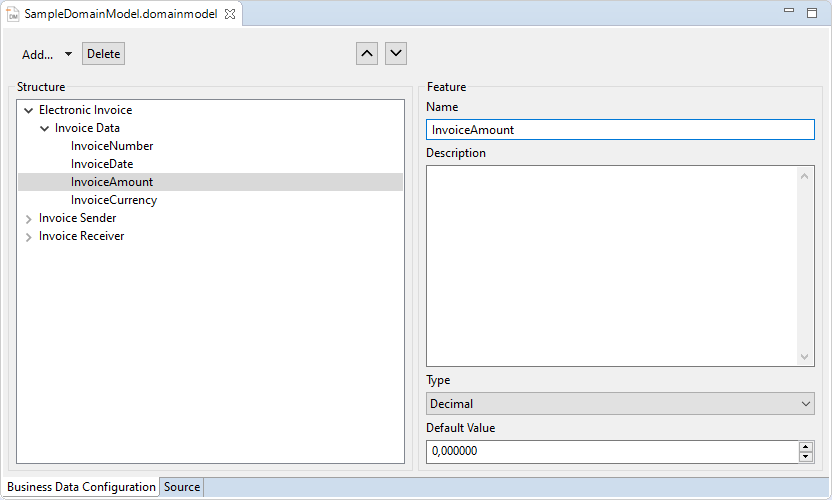
The business data for a process are divided into categories (category), groups (group), and features(feature):
|
Category |
A category groups business data at the highest level and can contain additional groups. Each category has a name, position, and optional description. |
|
Group |
A group summarizes the features of the business data within a category. Each group has a name, position, and optional description. |
|
Feature |
A feature defines the specific properties of the business process data, e.g. an order date within a feature group. Each feature has a unique name in the domain model, a position, an optional description, a data type, and an optional default value. |
Available data types for features
You can define a data type for each feature you create. The selected data type determines the expected range of values for this feature.
|
Data type |
Description |
|---|---|
|
|
Character string |
|
|
Integer |
|
|
Floating point number |
|
|
Boolean value |
|
|
Date and time |
Defining business process data
You can define business process data for individual Business Processes and for entire projects, that is, multiple Business Processes.
-
If you want to use the business process data for more than one Business Process, you need to create the
.domainmodelfile in the Activities > DomainModel repository folder. -
If you want to use the business process data for a specific Business Process, you need to create the
.domainmodelfile directly subordinate to the Business Process. After saving, the file is immediately attached to theStartevent of the Business Process.
-
Right-click the BPM Process for which you want to define the business process data in the Projects view.
-
Select New > Domain Model from the context menu.
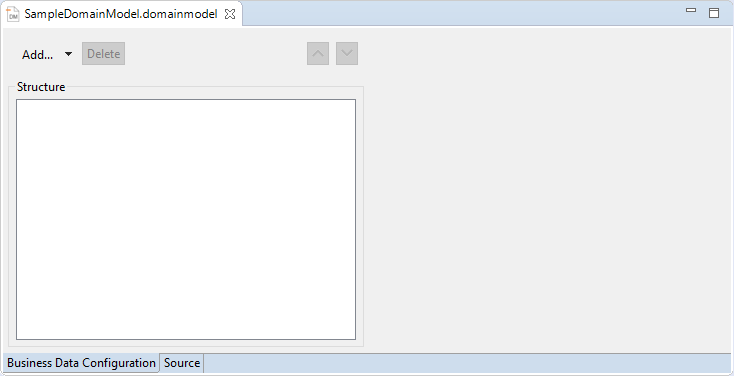
The file is created and opened in the X4 Designer.
-
Define the structure of the business data and add corresponding descriptions:
-
Click Add or select

-
Click Add within a category or select Add
-
Click Add within a category or select
Example:
-
Click 

Click the Delete button to delete an entry selected in the tree structure.
-
Click

-
If you have created the business process data in the Activities > DomainModel repository folder, you must drag the file to the desired Business Process at this point.
-
.domainmodelfiles created subordinate to the Business Process are automatically attachmed to theStartevent. The business data is thus available in the process and the human tasks included in it.