
Example: ESB Project
In the X4 Designer, you use so-called ESB Projects to graphically model and execute Technical Processes. ESB Projects contain a predefined folder structure in which any number of Technical Processes (*.wrf) can be created.
A Technical Process can be modeled with different process components. These can be dragged into the drawing surface via drag&drop. Once they have been parameterized, they can then be tested directly via the integrated debugging tool or run on the X4 Server in a time-controlled and event-controlled manner via mouse click.
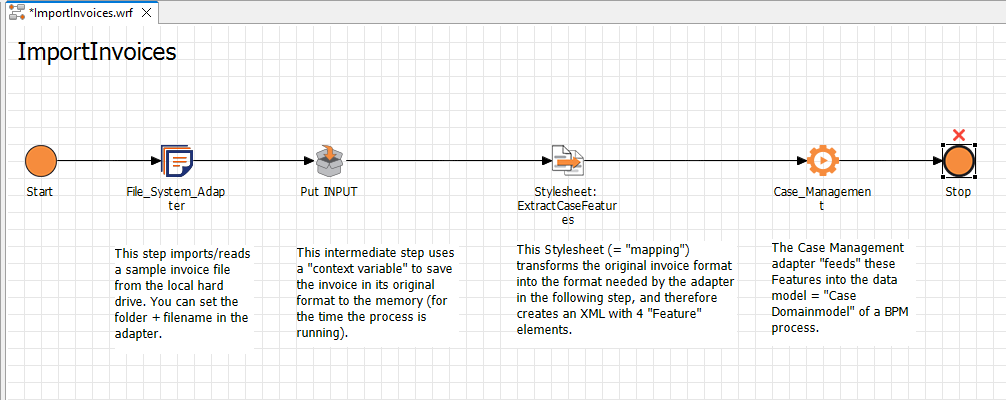
For this example ESB Project, you model the "Import Invoices" process to import and process invoice data: For this process, you want to read a sample invoice file from your local computer, transform the data, and integrate them into a BPM process.

Note:
You can retrospectively integrate the Technical Process created in this example into your example BPM Project. For more information, see Example: BPM Project and Activity.
File to prepare
To implement the Technical Process described in this chapter, you must prepare the following file and save it to your local computer.
How to create the SampleInvoice.xml file
Create a new XML file with the following content. You can do create the file using any code editor, such as Notepad++.
<?xml version="1.0" encoding="UTF-8"?>
	<Invoice>
		<InvoiceNumber>RNR-2018-001</InvoiceNumber>
		<InvoiceDate>2018-09-27</InvoiceDate>
		<InvoiceTotal>1234.56</InvoiceTotal>
		<Currency>EUR</Currency>
		<Sender>
			<Name>Meier GmbH</Name>
			<VatId>DE123456789</VatId>
			<Address>
				<Street>Bahnhofstraße 12</Street>
				<ZipCode>76275</ZipCode>
				<Town>Ettlingen</Town>
				<Country>DE</Country>
			</Address>
		</Sender>
		<Receiver>
			<Name>SoftProject GmbH</Name>
			<VatId>DE987654321</VatId>
			<Address>
				<Street>Am Erlengraben 3</Street>
				<ZipCode>76275</ZipCode>
				<Town>Ettlingen</Town>
				<Country>DE</Country>
			</Address>
		</Receiver>
	</Invoice>
Creating an ESB Project
Right-click in the Projects view.
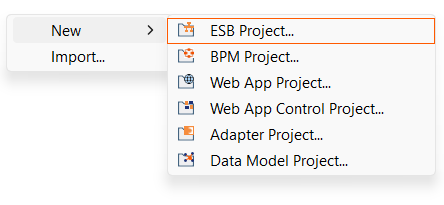
Under New, select the ESB Project… project type.
The Project Creation Wizard dialog opens.
In the Project name text field, enter a name for your project.
Click Finish.
✅ Your new project has been created and you can see the project structure created in the Projects view.
Required ESB process components
You model your ESB processes in so-called ESB process files. For this purpose, various elements are available in the Palette view.
For more information on the other elements in the Palette view, see Process Components and Their Use.
The following elements are relevant to our example process.
Icon | Name | Description |
|---|---|---|
|
| Defines the start event of the Business Process according to BPMN 2.0 and allows differentiation of different event types. |
|
| Inserts a text frame whose contents you can edit and format in a dialog by double-clicking. |
|
| Provides basic or additional functions, such as character set conversions, or access to an SAP system. Since the X4 Designer mainly works with XML data, adapters are usually used to create or modify XML documents. As output, adapters primarily generate XML data, which is further processed in a next process step. |
|
| A |
|
| Transforms an XML document in a source structure via an XSLT stylesheet into a target structure (usually XML) and thus enables the individual data elements to be mapped to each other. X4 BPMS also uses XSLT as a scripting language to dynamically parametrize process components. |
|
| Basic element for defining the end of the process. |


You can find the next steps in this example project on the following pages: