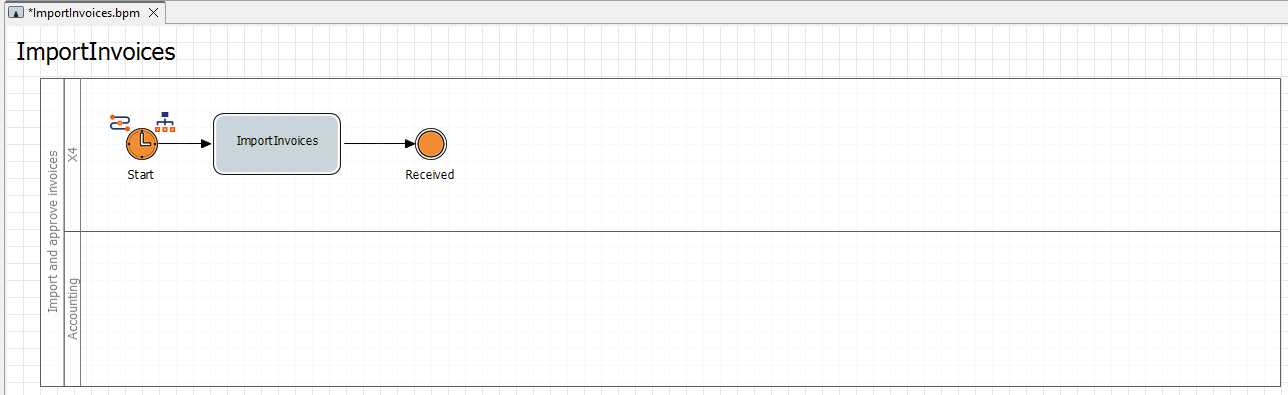
In this step, you add an intermediate event to the process and select the desired status of the element from the previously created process status.
Previous step: Inserting the First Activity
Prerequisites:
You have defined case states. For more information, see Defining Case States .
-
Drag the

Intermediateelement from the Palette view next to the
ImportInvoiceselement in the top lane of the pool. -
Click the lower right

ImportInvoicesactivity, hold down the mouse button, and drag a connection to the Intermediateelement. -
In the Label field in the Properties view, define the name
Receivedfor the Intermediateelement. -
Select the
Receivedstatus from the Case State drop-down list in the Properties of the Receivedelement.