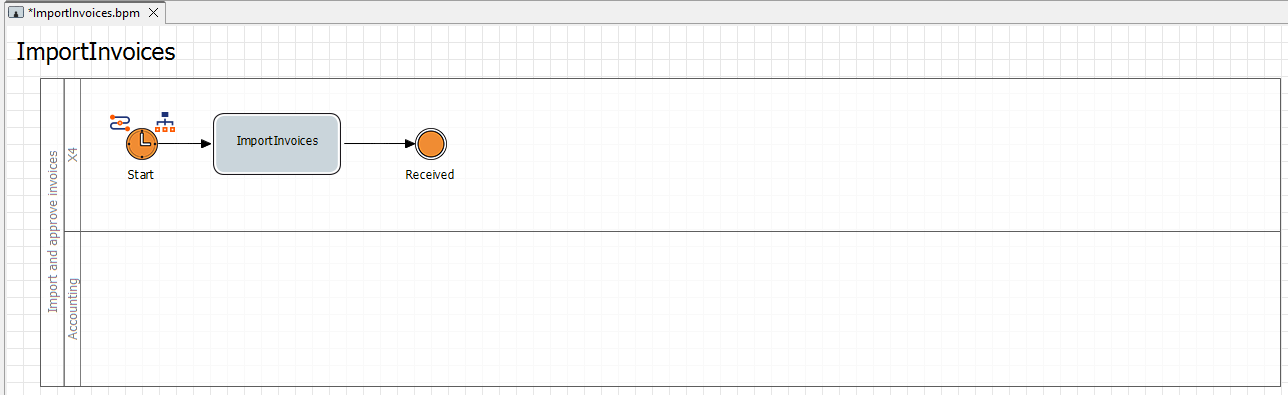
Inserting the First Intermediate Event
In this step, you add an intermediate event to the process and select the desired status of the element from the previously created process status.
Previous step: Inserting the First Activity
Prerequisites:
You have defined case states. For more information, see Defining Case States .
Drag the

Intermediateelement from the Palette view next to the
ImportInvoiceselement in the top lane of the pool.Click the lower right
 corner of the
 ImportInvoicesactivity, hold down the mouse button, and drag a connection to theIntermediateelement.In the Label field in the Properties view, define the name
Receivedfor theIntermediateelement.Select the
Receivedstatus from the Case State drop-down list in the Properties of theReceivedelement.