
Inserting the First Activity
With Activity components, you define an activity within a process. The activity type and its execution behavior are determined by corresponding properties. Depending on the use case, an Activity component can be used to link Technical Processes or other Business Processes as subprocesses.
How to insert an activity
Previous step: Defining the Start Element
Drag the
Activityelement from the Palette view next to the
Timer Startelement in the top lane of the pool.In the Label field in the Properties view, define a new name for the
Activity, e.g.ImportInvoices.Select Script as the Activity type in the Properties view to define a script for automating the step.

You can also link the corresponding script or Technical Process to the element at a later time. For more information on creating the Technical Processes for this example, see the Example: ESB Project page and its subpages.
Click the lower right
 corner of the
 Timer Startelement, hold down the mouse button and drag a connection to theImportInvoicesactivity.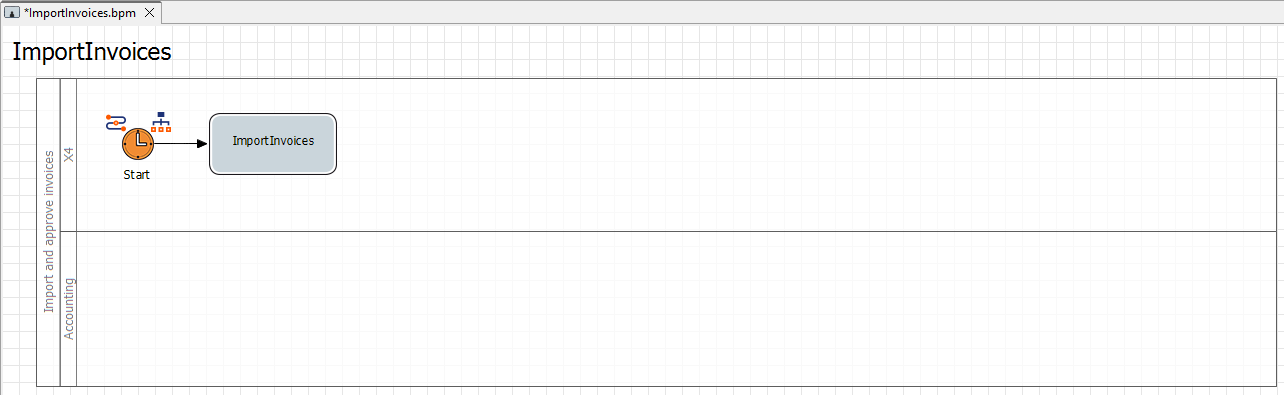
Next step: Inserting the First Intermediate Event