
With map controls, maps from different vendors, including Google Maps and OpenStreetMap, can be integrated into X4 Web Apps. Geodata can be displayed, locations searched, and routes found.
Creating a Map Control
A map control is created with the element <Map>. The element can only be used in the layout of a Detail Component.
Possible attributes:
In addition to the standard attributes of a control, the element <Map> can have the following attributes:
|
Attribute |
Description |
|---|---|
|
|
Defines the API key if required by the vendor. Possible values: API key To use OpenStreetMap, no API key is required. If an API key is entered when using OpenStreetMap as a map provider, the API key is ignored.
If Google Maps is used as vendor, the following APIs have to be activated:
The
|
|
|
Defines the longitude on which the map should be centered when it is loaded.
Possible values: Longitude in degrees with decimal places (e.g. |
|
|
Defines the longitude on which the map should be centered when it is loaded.
Possible values: Latitude in degrees with decimal places (e.g. |
|
|
Restrict scrolling behavior in maps Possible values:
|
|
|
Defines if the satellite view of the map is activated. Possible values: The satellite view cannot be used if OpenStreetMap is used as map vendor.
|
|
|
Selected index The attribute Possible values: String binding |
|
|
Required. Defines the map vendor. Possible values:
|
|
|
Specifies the maps's initial zoom level. The values give an approximate indication of the meters shown on the map. Please note that there may be deviations in the scale bar, as the scale changes depending on the distance from the equator. Possible values:
|
|
|
Defines if the user can interact with the control.
Possible values: The
|
|
|
Direction in which the elements flow. The order of the elements corresponds to their declaration. Possible values:
|
|
|
Defines what happens if the page is full. Possible values:
|
|
|
Defines if the control is visible.
Possible values: |
Search
To allow a Web App user to search for locations in the map control, the <Search/> element is used within <Map>.
<Map> <Search/> </Map>
Possible attributes:
The <Search/> element may have the following attributes:
|
Attribute |
Description |
|---|---|
|
|
Defines the horizontal position of the icon relative to coordinates searched for. Possible values:
|
|
|
Path to the graphic file to be used as icon. The icon marks the search result. The graphic file must be contained in the folder
Possible values: String (URI) |
|
|
Defines the vertical position of the icon relative to the coordinates searched for. Possible values:
|
Routing
To allow a Web App user to calculate routes in the map control, the <Routing /> element is used within <Map> and, if necessary, after <Search />.
<Map ...> <Routing/> </Map>
Possible attributes:
The <Routing/> element may have the following attributes:
|
Attribute |
Description |
|---|---|
|
|
Defines the horizontal position of the destination icon relative to the coordinates searched for. Possible values:
|
|
|
Path to the graphic file to be used as icon for the destination. The icon marks the destination of the route. The graphic file must be contained in the folder
Possible values: String (URI) |
|
|
Defines the vertical position of the destination icon relative to the coordinates searched for. Possible values:
|
|
|
Defines the horizontal position of the start icon relative to the coordinates searched for. Possible values:
|
|
|
Path to the graphic file to be used as icon for the start. The icon marks the start of the route. The graphic file must be contained in the folder
Possible values: String (URI) |
|
|
Defines the vertical position of the start icon relative to the coordinates searched for. Possible values:
|
Single marker
To display a single marker in a map control, the <SingleMarker/> element is used within <Map> and, if necessary, after <Search /> and <Routing />.
<Map> ... <SingleMarker/> </Map>
Possible attributes:
The <SingleMarker/> element may have the following attributes:
|
Attribute |
Description |
|---|---|
|
|
Defines the name of the component for internal navigation. Possible values: String (Name of a component) |
|
|
Defines the description of the marker.
Possible values: String incl. spaces |
|
|
Defines the link that is shown in the pop-up of the marker.
Possible values: String (URL) |
|
|
Defines whether the link ( Possible values:
|
|
|
Defines the horizontal position of the icon relative to the given coordinates. Possible values:
|
|
|
Path to the graphic file to be used as icon for the marker. The graphic file must be contained in the folder
Possible values: String (URI) |
|
|
Defines the vertical position of the icon relative to the given coordinates. Possible values:
|
|
|
Marker index
Possible values: Any string |
|
|
Required if
Possible values: Latitude in degrees with decimal places (e.g. This attribute cannot be used at the same time as
|
|
|
Required if
Possible values: Longitude in degrees with decimal places (e.g. This attribute cannot be used at the same time as
|
|
|
Defines the name of the marker.
Possible values: String of alphanumeric characters |
|
|
Defines the text that is displayed in the marker pop-up instead of an external link or component name.
Possible values: String incl. spaces |
|
|
Required if
Possible values: String for a service search, e.g. This attribute cannot be used at the same time as the attributes
|
Marker set
To display a set of markers in a map control, the <Markers/> element is used within <Map> and, if necessary, after <Search/> and <Routing/>.
<Map> ... <Markers/> </Map>
Possible attributes:
The <Markers/> element may have the following attributes:
|
Attribute |
Description |
|---|---|
|
|
Defines if markers are grouped if they are very close together on the map. Possible values:
|
|
|
Defines the name of the component for internal navigation. Possible values: String (Name of a component) |
|
|
Required. Defines which data is used for the marker set.
Possible values: Data binding expression |
|
|
Defines the descriptions of the markers.
Possible values: Data Binding expression relative to the expression in |
|
|
Defines the link that is shown in the pop-up of the marker.
Possible values: Data Binding expression relative to the expression in |
|
|
Defines whether the link ( Possible values:
|
|
|
Defines the horizontal position of the icon relative to the given coordinates. Possible values:
|
|
|
Path to the graphic file to be used as icon for the markers. The graphic file must be contained in the folder
Possible values: String (URI) |
|
|
Defines the vertical position of the icon relative to the given coordinates. Possible values:
|
|
|
Marker group index
Possible values: Any string |
|
|
Required if
Possible values: Data Binding expression relative to the expression in |
|
|
Required if
Possible values: Data Binding expression relative to the expression in |
|
|
Defines the names of the markers.
Possible values: Data Binding expression relative to the expression in |
|
|
Defines the text that is displayed in the marker pop-up instead of an external link or component name.
Possible values: String incl. spaces |
|
|
Defines if the markers are numbered. Possible values:
|
|
|
Required if
Possible values: String for a service search, e.g. This attribute cannot be used at the same time as the attributes
|
|
|
Defines the horizontal position of the numbering relative to the given coordinates. Possible values:
Bing Maps automatically positions the numbering. Therefore this function has no effect on Bing Maps.
|
|
|
Defines the vertical position of the numbering relative to the given coordinates. Possible values:
Bing Maps automatically positions the numbering. Therefore this function has no effect on Bing Maps.
|
"Select" Action within a Map
The select action is created via the element <SelectAction/> within <SingleMarker>, <Markers> or <SelectedLocationMarker> and is triggered as soon as a corresponding marker is selected.
Examples
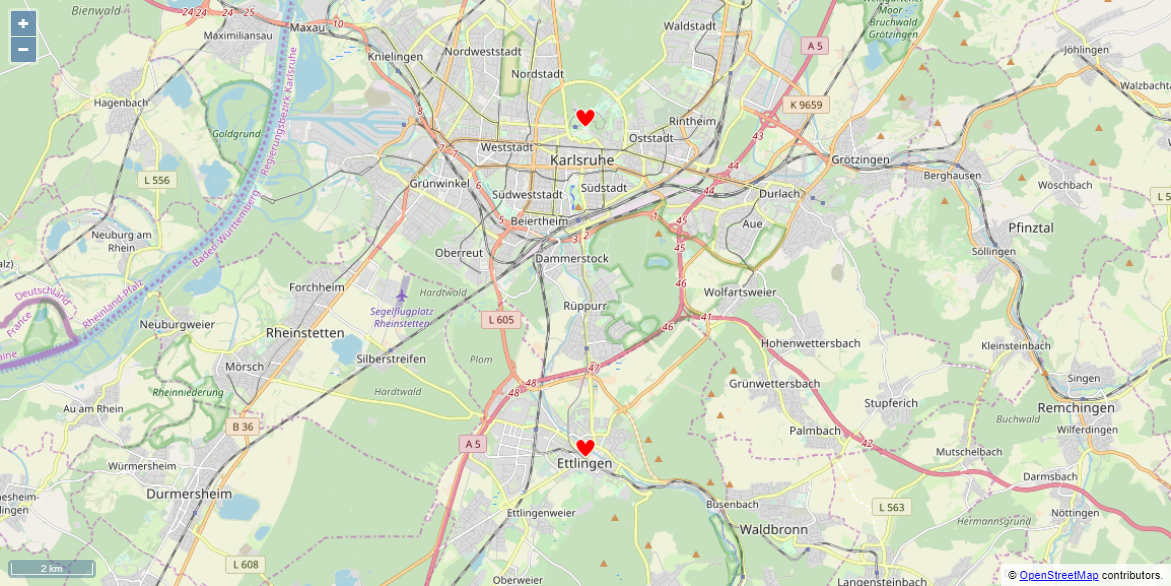
In this example, the properties are defined and a group of markers is displayed.
<Properties>
    <Property name="favorites" type="List">
        <Property name="lat" type="Decimal" />
        <Property name="lng" type="Decimal" />
    </Property>
</Properties>

...

<Map vendor="OpenStreetMap">
    <Markers longitude="#lng" data="#favorites" latitude="#lat" iconUrl="heart.png" name="Favorites" description="Places, I have visited." iconVerticalPosition="top"/>
</Map>
<OkList>
    <favorites>
        <lat>48.94061</lat>
        <lng>8.40471</lng>
    </favorites>

    <favorites>
        <lat>49.01396</lat>
        <lng>8.40445</lng>
    </favorites>
</OkList>
The above example leads to the following result:
In this example, two sets of markers are displayed and searching and routing are activated.
<Properties>
	<Property name="favorites" type="List">
		<Property name="lat" type="Decimal" />
		<Property name="lng" type="Decimal" />
	</Property>
</Properties>

...

<Map vendor="OpenStreetMap">
	<Markers longitude="#lng" data="#favorites" latitude="#lat" iconUrl="heart.png" name="Favorites" description="Places, I have visited." iconVerticalPosition="top"/>
</Map>
<OkList>
	<favorites>
		<lat>48.94061</lat>
		<lng>8.40471</lng>
	</favorites>

	<favorites>
		<lat>49.01396</lat>
		<lng>8.40445</lng>
	</favorites>
</OkList>
The above example leads to the following result:
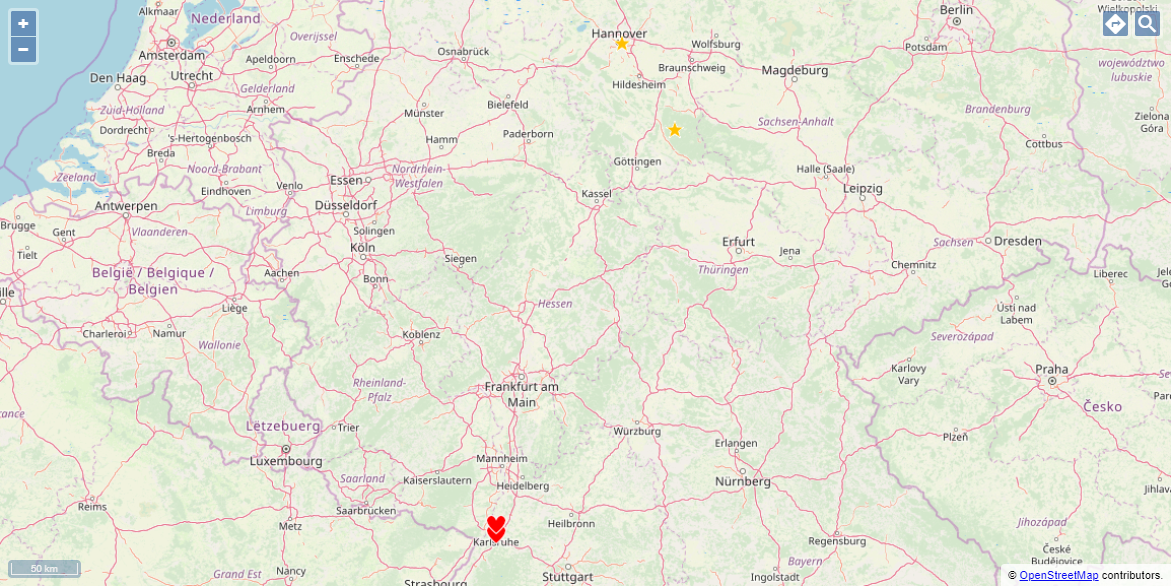
Several groups of markers with different icons (OpenStreetMap)
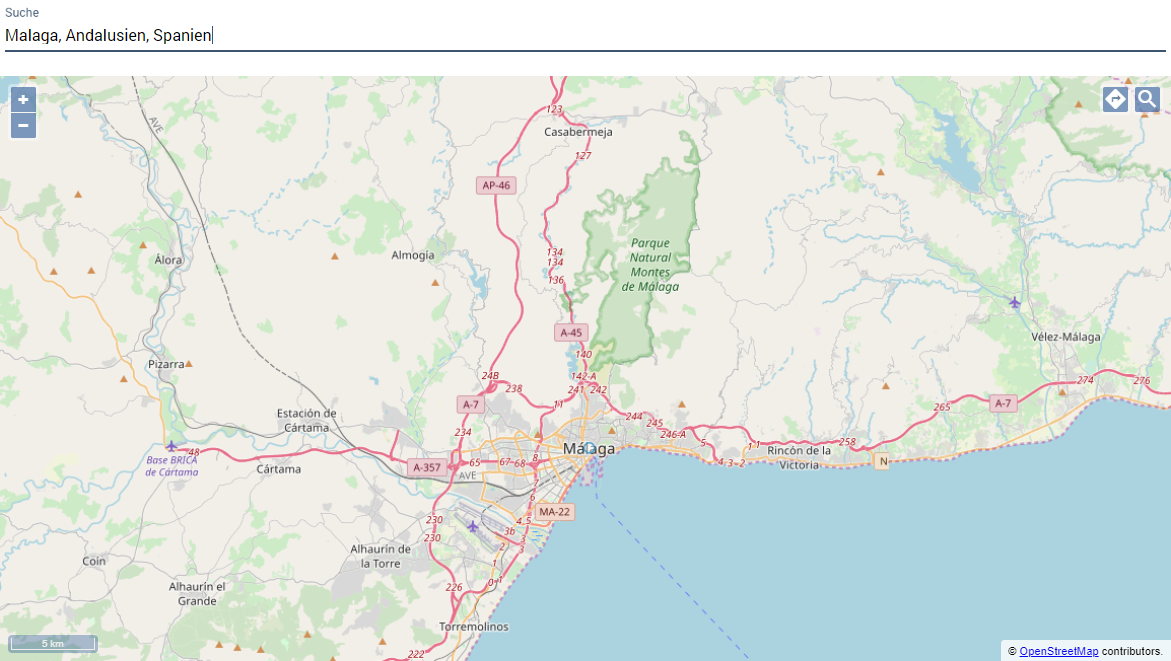
Searching (OpenStreetMap)
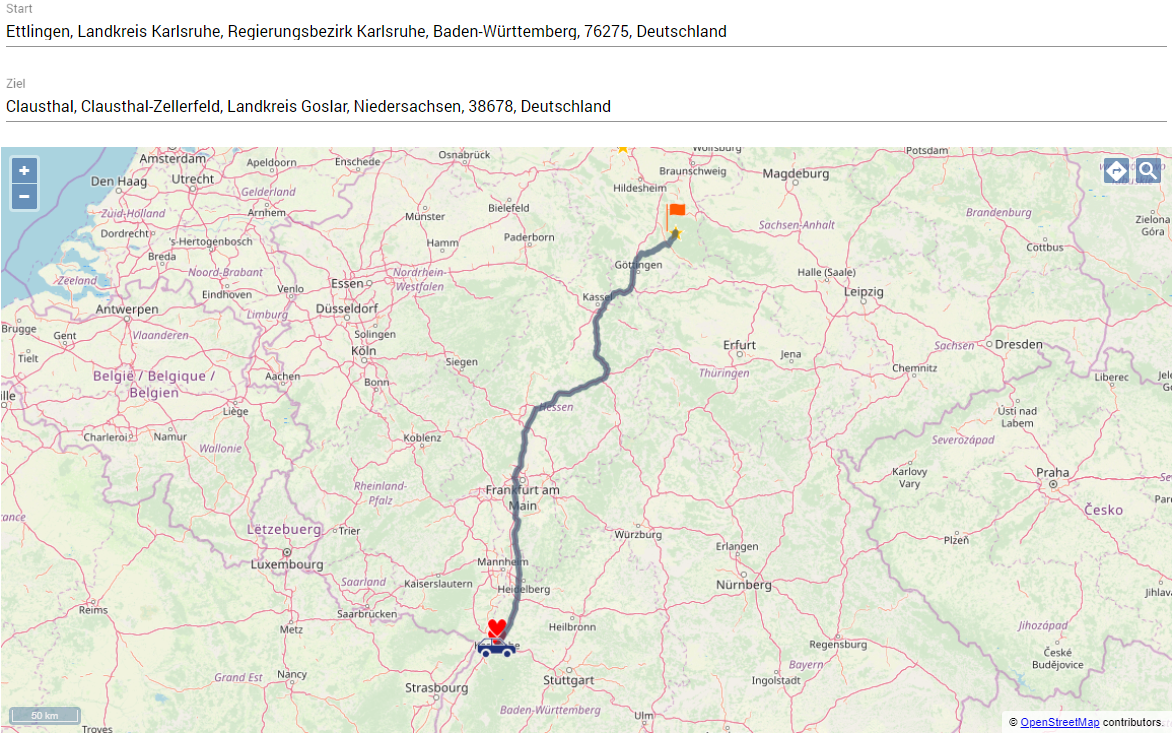
Routing (OpenStreetMap)
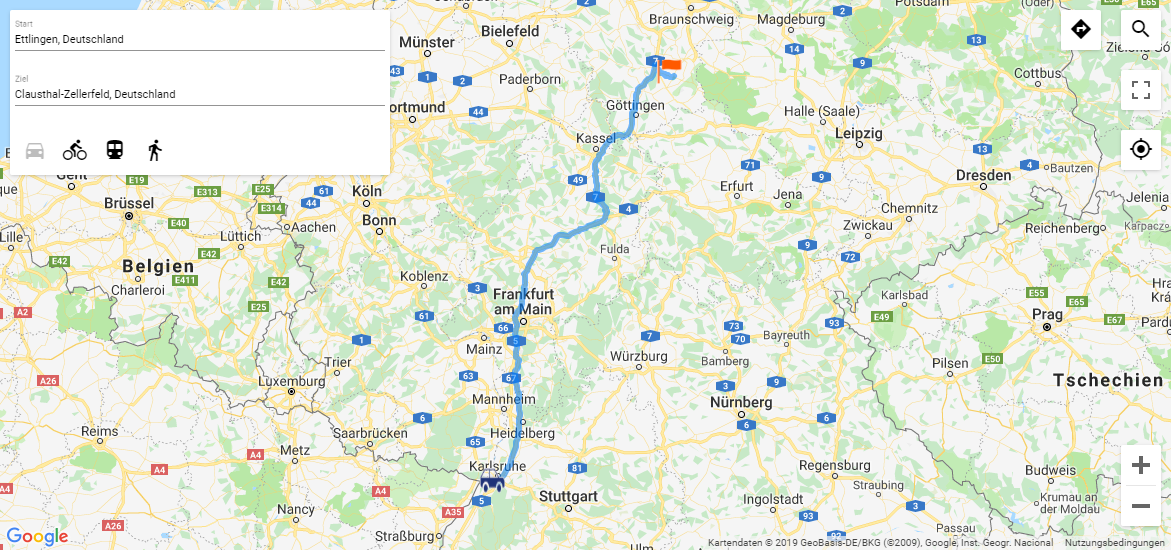
Other map providers are also available. The following example shows a map control with Google Maps.
<Properties>
	<Property name="favorites" type="List">
		<Property name="lat" type="Decimal" />
		<Property name="lng" type="Decimal" />
	</Property>
	<Property name="destinations" type="List">
		<Property name="lat" type="Decimal" />
		<Property name="lng" type="Decimal" />
	</Property>
</Properties>

...

<Map vendor="Google">
	<Search/>
	<Routing destinationIconUrl="finish.png" startIconUrl="car.png" destinationIconVerticalPosition="top" destinationIconHorizontalPosition="center"/>
	<Markers longitude="#lng" data="#favorites" latitude="#lat" iconUrl="heart.png" name="Favorites" description="Places, I have visited." iconVerticalPosition="top"/>
<Markers longitude="#lng" data="#destinations" latitude="#lat" iconUrl="star.png" name="Destinations" description="Places, I want to visit."/>
</Map>
<OkList>
	<favorites>
		<lat>48.94061</lat>
		<lng>8.40471</lng>
	</favorites>

	<favorites>
		<lat>49.01396</lat>
		<lng>8.40445</lng>
	</favorites>

	<destinations>
		<lat>51.8058</lat>
		<lng>10.3343</lng>
	</destinations>

	<destinations>
		<lat>52.3807</lat>
		<lng>9.7706</lng>
	</destinations>
</OkList>
The above example leads to the following result:
Set marker by clicking in the map
The <SelectedLocationMarker> element allows the user of a Web App to set a marker by clicking on a specific location in the map. The location marked by the user can be further processed by a Technical Process.
<Map> ... <SelectedLocationMarker .../> </Map>
Possible attributes:
The <selectedLocationMarker/> element may have the following attributes:
|
Attribute |
Description |
|---|---|
|
|
Required. Longitude of the marker
Possible values: Property A property must be set as the value for the attribute.
|
|
|
Required. Latitude of the marker
Possible values: Property A property must be set as the value for the attribute.
|
|
|
Path to the graphic file to be used as icon. The icon marks the selected location. The graphic file must be contained in the folder
Possible values: String (URI) |
Using the user's location
Within the <Map> element, the <Geolocation> element can be used to query the user's location. If the <Geolocation> element is used, then a button is displayed in the map. By clicking on the button the location of the user is queried and marked on the map.
Possible attributes:
|
Attribute |
Description |
|---|---|
|
|
Path to the graphic file to be used as icon for the markers. The graphic file must be contained in the folder Possible values: String (URI) |
|
|
Horizontal position of the icon |
|
|
Vertical position of the icon |