
X4 Produktdokumentation

Database Editor

The Database Editor allows to define SQL queries for database connection components in order to retrieve data from a relational database. The logical separation of the process components SQL statement and database connection allows these components to be used flexibly and multiple times within the X4 Designer.

To open the Database Editor, create a new SQL statement file (.stm) or open an already existing SQL statement file.

The Database Editor's structure

The Database Editor provides two different tools:

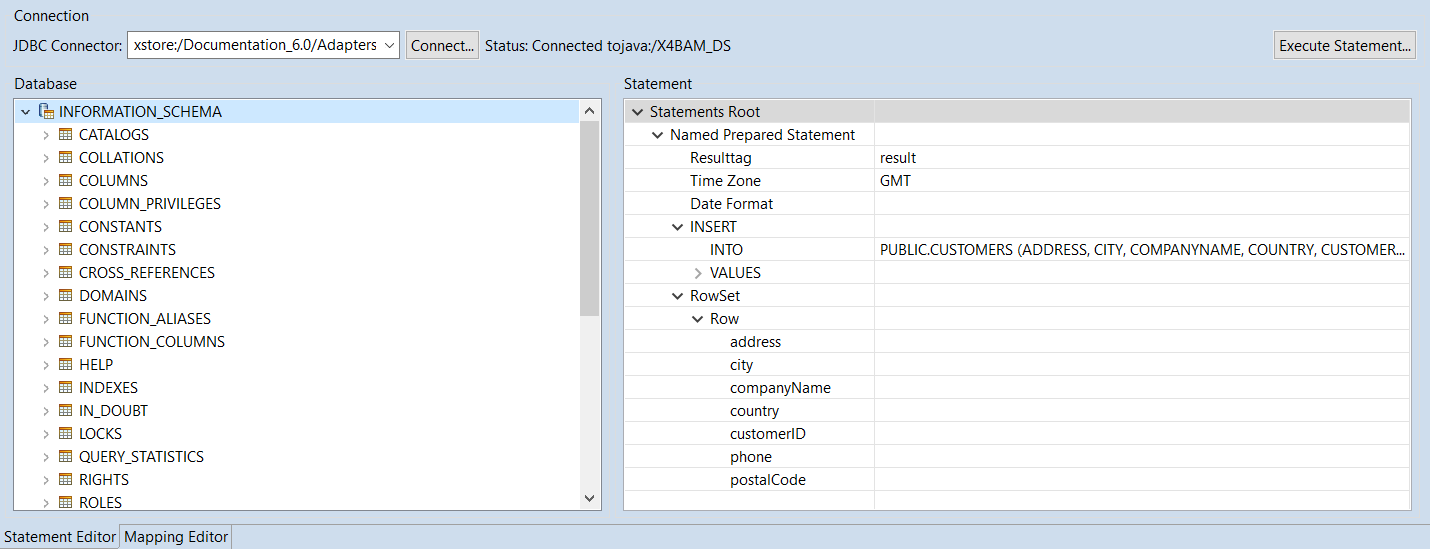
  • Statement Editor: Allows to connect to a database and displays the structure of the connected database. This structure can be used to create an SQL statement for the database. 

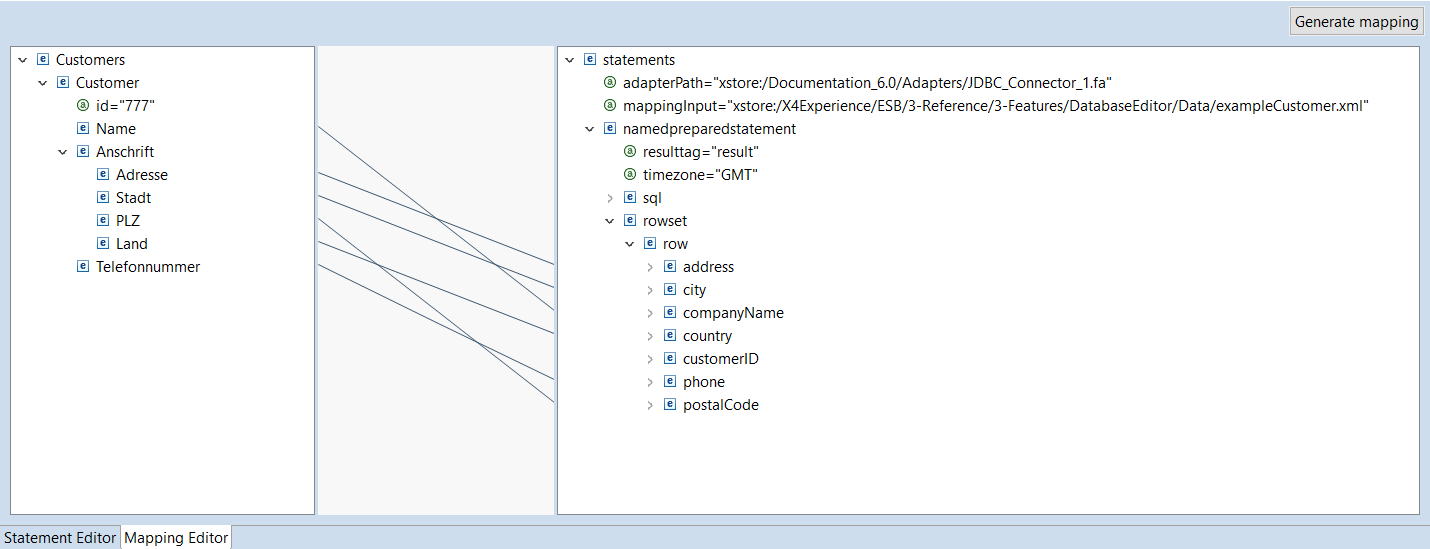
  • Mapping Editor: Allows to define a mapping for elements of an input XML document to the named parameters of the statement previously created with the Statement Editor. This mapping is subsequently used to create an XSL mapping, which generates a dynamically created input for the JDBC Connector using a suitable input XML document.
Mit_DB-verbinden.png

Statement Editor

The Statement Editor is divided into the following areas:

Connection area

Within this area a connection to a database can be established by means of a JDBC Connector. 

  • JDBC Connector: xstore URL to a JDBC Connector

  • Connect: Connect to the database
    The connection status is displayed under Status

  • Execute Statement: Execute sql statement

Database area

The database's structure is displayed here after establishing the connection. The following icons are used to visualize the structure:

  • Datenbankschema.png Database schema

  • Datenbanktabelle.png Database table

  • Peimärschlüssel.png Primary key

  • 2016-09-29_15h43_37.png Primary key/ Foreign key

  • 2016-09-29_15h43_54.png Foreign key

Statement area

Here, different statements can be created for the connected database via the context menu:

  • New Named Prepared Statement: Create a new Named Prepared Statement in Statements Root

  • Edit Named Prepared Statement: Edit Named Prepared Statement

  • New RowSet: Create new RowSet.
    Only one RowSet can exist within a Named Prepared Statements. It is generated automatically when creating the Named Prepared Statement.
    A new RowSet can only be created, if the existing one has been deleted.

  • New Row: Add a new row within a RowSet

  • New Named Parameter Value: Add a new Named Paramerter value within a row

  • Edit Named Parameter: Edit Named Parameter

  • New SELECT Statement: Create new SELECT statement

  • Edit SELECT: Edit SELECT instruction

  • Edit FROM: Edit FROM within a SELECT statement

  • New INSERT Statement: Create new INSERT statement

  • Edit INTO: Edit INTO instruction

  • New VALUE Entry: Create new VALUE entry

  • Edit VALUE: Edit VALUE 

  • New UPDATE Statement: Create new UPDATE statement

  • Edit UPDATE: Edit UPDATE instruction

  • New SET Entry: Create new SET entry

  • Edit SET Entry: Edit SET entry

  • New DELETE Statement: Create new DELETE statement

  • Edit FROM: Edit FROM instruction

  • Edit WHERE: Edit WHERE condition  

  • New Column: Add new column within an INSERT or SELECT instruction

  • New Table: Insert new table within an UPDATE or SELECT instruction

  • Delete: Delete element

For further information on how to create and edit statements, see section Creating Statements for a Connected Database.

Drag&Drop actions

The following Drag&Drop actions can be performed within the Statement area:

SQL statement

Database element

Statement element

Action

SELECT

Column

SELECT

Add the column to be selected.
info-icon.png  If the table corresponding to the added column is not already entered within FROM, it will be entered automatically.

Table

FROM

Add the table from which is to be selected.

UPDATE

Column

SET Entry

Set the column as entry.
info-icon.png  If the table corresponding to the added column is not already entered within UPDATE, it will be entered automatically.

Table

UPDATE

Set the table to be updated.

INSERT

Table

INTO

Set the table into which is to be written.
info-icon.png  If there is already a table, it will be replaced. Already set columns will be deleted thereby.

Column

INTO

Set the column into which is to be written.
info-icon.png  This is only possible, if the column originates from the set table.

DELETE

Table

FROM

Set the table to be deleted.
info-icon.png  If there is already a table, it will be replaced.


Mapping Editor

The Mapping Editor allows to define a mapping for elements of an input XML document to the named parameters of the statement previously created with the Statement Editor. This mapping is subsequently used to create an XSL mapping, which generates a dynamically created input for the JDBC Connector using a suitable input XML document.

The Mapping Editor is divided into the following areas:
Mapping-Editor.png


Source area

The Source area is on the Mapping Editor's left side. The input XML file can be displayed here and assigned by drag & drop.

The context menu provides the following options:

  • Collapse: Collapse a node's child nodes

  • Expand: Expand the child nodes of the selected node

  • Remove Input: Remove assigned input XML document

Linking area

The Linking area is located in the Mapping Editor's middle column. It visualizes the xsl:value-of connections between an element in the source document and a Named Parameter in the statement as line.

Statements area

The Statements area is located on the Mapping Editor's right side. The complete structure of the statement file is displayed here. Moreover, elements of an input XML file can be mapped to the child elements of a Row element.