
In the Project Parameter Configuration, you can also declare custom types (enums) with custom type values (enum values), which you can select later when creating a project parameter.
Custom Types can be created using Manage Custom Types.
Possible use case:
-
Custom Type Values as selection options in the Condition Editor, see Creating and Using Conditions .
Creating custom types with custom type values
Application example:
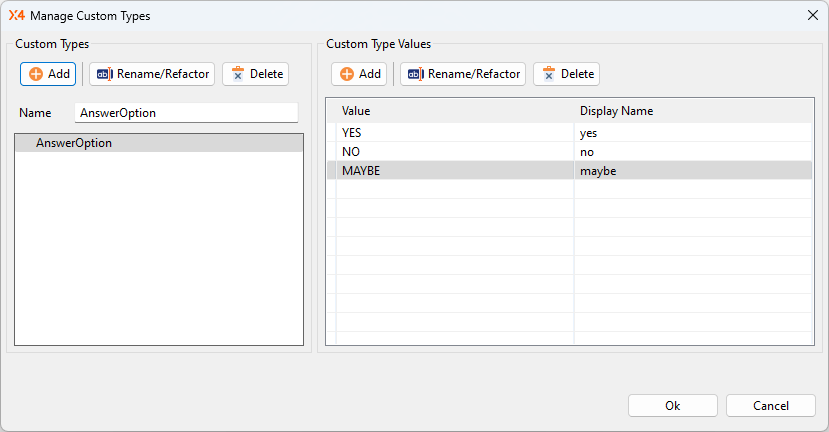
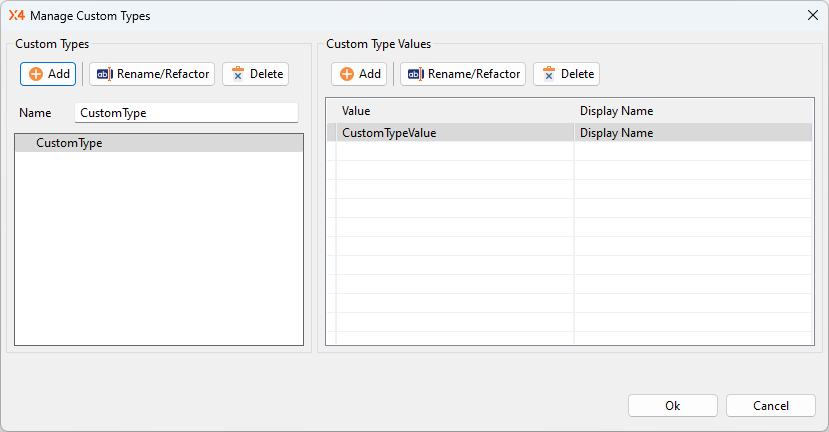
In our example, we create the Custom Type AnswerOption with the values (Values) YES, NO , MAYBE and the display name (Display Names) yes, no, maybe:
How to open the Manage Custom Types dialog
Open an existing *.param (Project Parameter Configuration) file.
There are two ways to add custom project parameters:
-
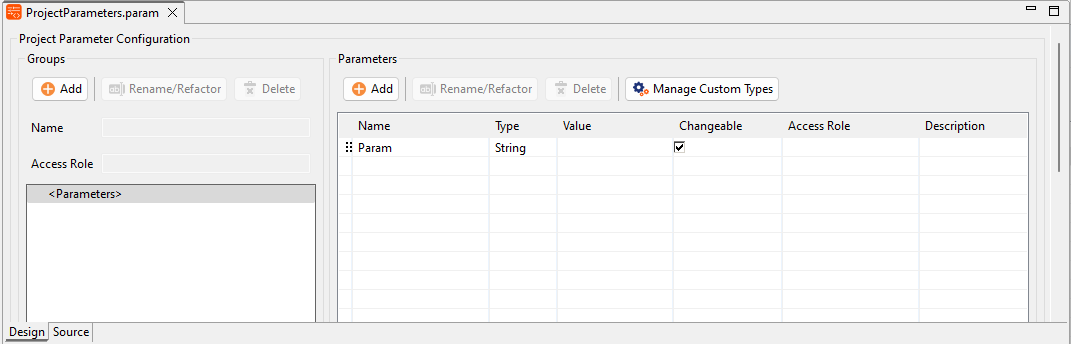
In the Parameters area, click Manage Custom Types.
-
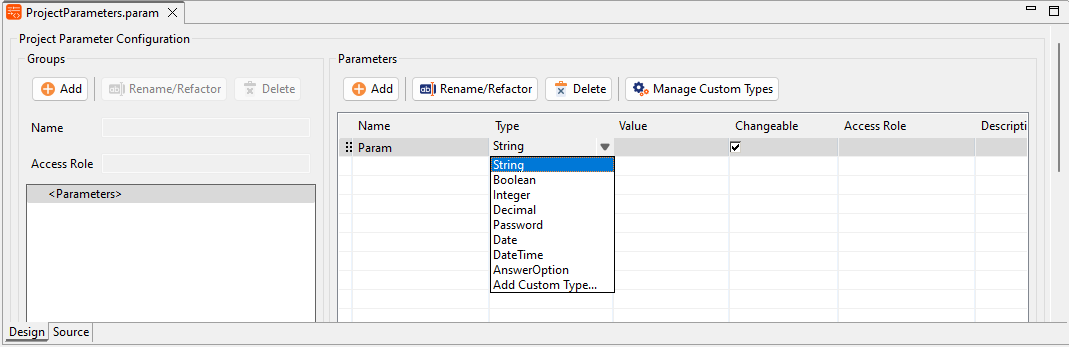
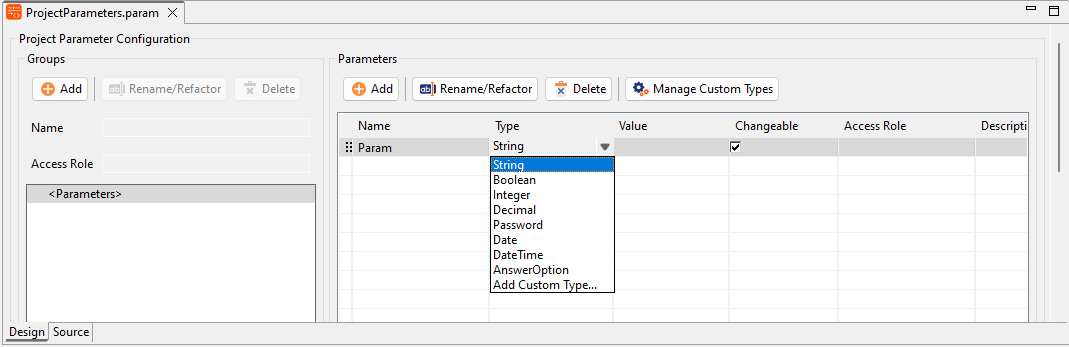
In the Type column of the project parameter you want to create, open the drop-down list and select Add Custom Type.
The Manage Custom Types dialog opens: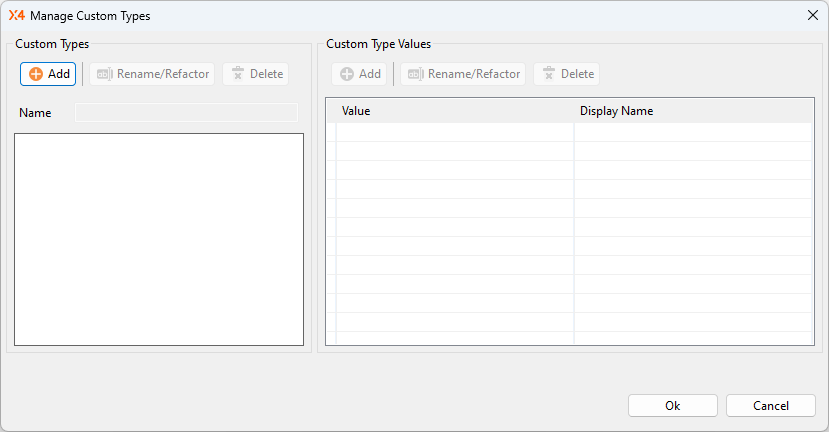
How to create custom types with custom type values
-
In the Custom Types area, click Add to add a new custom project parameter.
A new custom project parameter type with the predefined name CustomType has been created.The Custom Type name must be unique.
-
In the Custom Type Values area, you can add the selectable values (Values) for the custom types with display names (Display Name).
-
Click Add to add a new value (Value) with display name (Display Name).
-
Click OK to save the custom types with the defined values.
A new Custom Type with Custom Type Values has been created.
The new Custom Type with Custom Type Values can now be selected in the Type column when creating new project parameters:
|
Field |
Description |
Name in Source (XML) |
|---|---|---|
|
Custom Type Name |
Name of the Custom Type, selectable as a new type with selection options (Values) in the Type column after the Custom Type has been created |
|
|
Custom Type Value -
|
Selection options (Values), selectable in the Value column when creating a new project parameter |
|
|
Attribute Custom Type Value - Display Name |
Display name of the value |
Custom Type Value - Display Name |
<Parameters xmlns="http://softproject.de/parameter/1.0">
    <Enums>
        <Enum name="AnswerOption">
            <Value displayName="yes">YES</Value>
            <Value displayName="no">NO</Value>
            <Value displayName="maybe">MAYBE</Value>
        </Enum>
    </Enums>
    <VariableParameter name="Answer" type="AnswerOption">
        <Value>YES</Value>
    </VariableParameter>
</Parameters>
How to change the name in the Custom Types area
Note
You can change the name in the Name field in the Custom Types area.
-
Click on the Custom Type.
-
Edit the name in the Name field:
Deleting Custom Types and Custom Type Values
Deleting Custom Types
What happens if I delete a custom type that is in use?
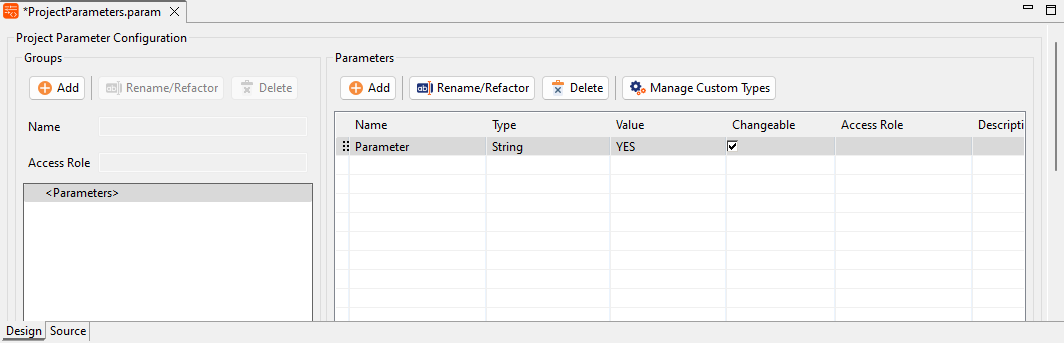
If a custom project parameter type (Custom Type) is deleted, the Type is set to String, but the previously set value is retained:
How to delete a custom type:
-
Open an existing
*.param(Project Parameter Configuration) file. -
Click the Manage Custom Types button.
-
In the Custom Types area, select the Custom Type that you want to delete.
-
In the Custom Types section, click Delete.
-
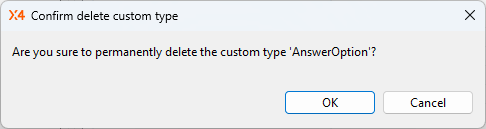
The dialog for confirming the deletion opens:
-
Click OK to confirm the deletion of the Custom Type.
The Custom Type has been deleted.
Deleting Custom Type Values
What happens if I delete a Custom Type Value that is in use?
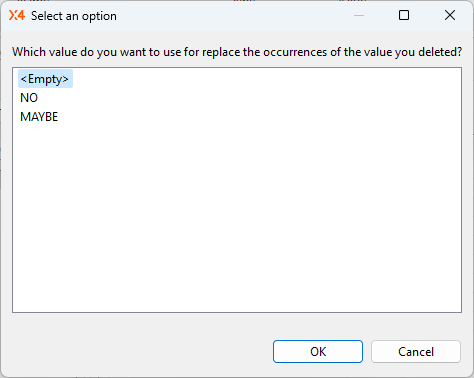
Before deleting a value of a custom project parameter type (Custom Type Value), a query appears asking which value should be set instead.
Ho to delete a Custom Type Value:
-
Open an existing
*.param(Project Parameter Configuration) file. -
Click the Manage Custom Types button.
-
In the Custom Type Values area, select the Custom Type Value that you want to delete.
-
In the Custom Type Values area, click Delete.
-
The dialog for confirming the deletion opens. If the value is in use, you have the option of replacing the value with another:
-
Select the value to be used for replacement.
-
Click OK to confirm the deletion of the Custom Type Value.
The Custom Type Value has been deleted and the value selected to replace has been used.
Renaming project parameters with custom types
Renaming project parameters with custom types is the same as renaming project parameters, see: Renaming and Moving Project Parameters