
How can I use global parameters?
You can define global parameters in the Global Parameter Configuration. Any parameter groups with global parameters can be created and managed directly in the X4 Designer.
These can then be used in the X4 Designer tools (Adapter Editor, Mapping Editor, Process Editor), just like system parameters and project parameters.
Using system parameters in adapters
Similar to system and project parameters, global parameters with %PARAM_GROUP_NAME% can also be used in adapter configurations.
Using global parameters in Technical Processes
To be able to use global parameters in Technical Processes, the parameters to be used must first be read into the current process context. With the Global Parameter Management adapter, global parameters can be created via X4 processes and managed during the process runtime. The adapter provides various operations for managing project parameters, for example, adding or deleting, but also for importing and exporting parameters or parameter groups.
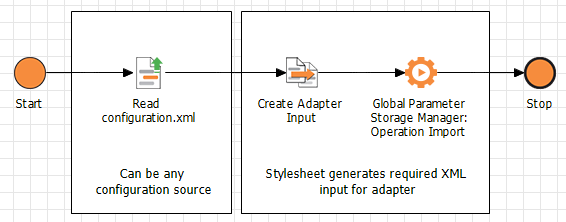
The following process example shows how global parameters can be created with a mapping using the Global Parameter Management adapter. The Technical Process reads an XML document with configuration values, transforms it via a stylesheet, and creates the parameters via the adapter with the appropriate operation. Thus, the parameters for the project and its processes are available.
Providing the input XML document
The input XML document must be structured according to the following scheme:
Example: Input XML with predefined parameters
<Placeholder>
    <Group name="MyGroup">
    	<Key name="MyTargetHost" type="String">123.456.789.000</Key>
        <Key name="MyTargetPort" type="Integer">1415</Key>
        <Key name="MyTargetChannel" type="String">Dev</Key>
    </Group>
    <Group name="Thresholds">
    	<Key name="MinMessages" type="Integer">0</Key>
        <Key name="MaxMessages" type="Integer">10</Key>
    </Group>
</Placeholder>
Explanation:
-
The
Placeholderroot element can contain any number ofGroupelements. -
A
Groupelement represents one cdr at a time and can contain any number ofKeyelements. -
The
nameattribute within aGroupelement defines the name of the parameter group. -
A
Keystands for a parameter and contains the following attributes and contents:-
name: Name of the parameter -
type: Parameter typeString,Boolean,Integer,DecimalorDate(ISO-Date formatYYY-MM-DD) -
Value of the parameter according to the parameter type
-
How to model the Technical Process
-
Create a new Technical Process via the menu New > Technical Process.
-
Drag the input XML file (see example) into the Technical Process and select the
Readoperation in the properties. -
Insert a stylesheet to transform the configuration file (input file) to the input structure required by the subsequent adapter.
-
Drag the Global Parameter Management adapter into the Technical Process and select the
AddKeysadapter operation. -
Save the Technical Process.
-
Run the Technical Process.
The parameters have now been created and can be viewed and edited both in the Global Parameter Configuration and in the X4 Control Center administration interface.
Using global parameters in XSL mappings
Similar to the project and system placeholders, global parameters with %PARAM_GROUP_NAME% can also be used in XSL stylesheets.
Example of usage
The following example shows the use of global parameters in mappings. The relevant parameters must be inserted into the XSL mapping before they can be used.

Creating a mapping
The XSL mapping must be structured according to the following scheme. The global parameters to be used must first be declared in the stylesheet under their fully qualified name. They can then be used as usual.
Example: XSL mapping
<xsl:stylesheet xmlns:xsl="http://www.w3.org/1999/XSL/Transform" version="2.0">
  <xsl:output media-type="text/xml" method="xml"></xsl:output>
  <xsl:param name="PARAM_MyGroup_MyTargetHost"></xsl:param>
  <xsl:param name="PARAM_Thresholds_MinMessages"></xsl:param>
  <xsl:param name="PARAM_Thresholds_MaxMessages"></xsl:param>
  <xsl:template match="/">
    <Result>
      <MyGroup>
        <MyTargetHost><xsl:value-of select="$PARAM_MyGroup_MyTargetHost"></xsl:value-of></MyTargetHost>
      </MyGroup>
      <Thresholds>
        <MinMessages><xsl:value-of select="$PARAM_Thresholds_MinMessages"></xsl:value-of></MinMessages>
        <MaxMessages><xsl:value-of select="$PARAM_Thresholds_MaxMessages"></xsl:value-of></MaxMessages>
      </Thresholds>
    </Result>
  </xsl:template>
</xsl:stylesheet>
Modeling the Technical Process
-
Create a new Technical Process via the menu New > Technical Process.
-
Drag the XSL mapping (see example) into the Technical Process.
-
Save the Technical Process and then run it.