
Inserting an Exclusive Gateway and More Activities
In this step, you use an exclusive gateway to specify how the data is handled when one of the case states defined in the rule is set: Either the invoice is automatically forwarded or must be manually checked.
To insert the execution conditions, the next activities must already be inserted. These activities include an Activity element for automatic forwarding and a so-called Human Task element for the manual invoice check.

Note:
By default, the Task Management Web App is available for the task management in relation to human tasks. For more information, see Task Management.
Previous step: Creating a Decision Table and Inserting a Rule
Inserting an exclusive gateway
Drag the

Exclusive Gateway (Forking)element from thePaletteview next to theRuleelement in the top lane of the pool.Click on the lower right
corner of the
Ruleelement, hold down the mouse button, and drag a connection to theExclusive Gateway (Forking)element.
Inserting activities
Drag the

Human Taskelement from the Palette view into the bottom lane of the pool.
You will define the settings of the human task at a later time. For more information, see Creating and Defining a Human Task.Define a new name for the
Human Taskin the Label field in the Properties view, e.g.ApproveOrDeclineInvoice.Drag the

Activityelement from the Palette view next to theExclusive Gateway (Forking)element in the top lane of the pool.
You can link the corresponding script or Technical Process with the element at a later time. For example, you could insert a Technical Process responsible for automatic forwarding after the data has been transformed.Define a new name for the

Activityin the Label field in the Properties view, e.g.CreateTransferRequest.Click the lower right
Exclusive Gateway (Forking)element and drag a connection to the
CreateTransferRequestactivity and theApproveOrDeclineInvoicehuman task.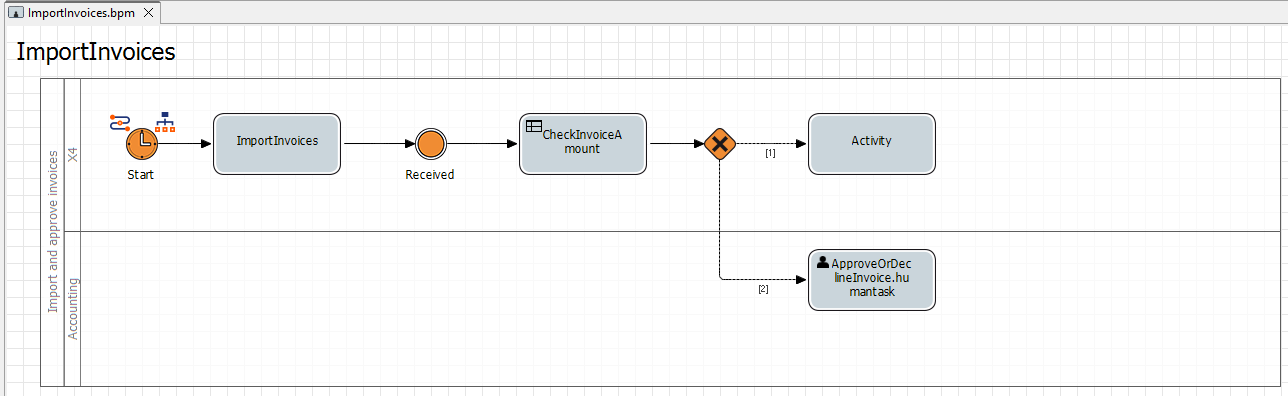
Next step: Setting Execution Conditions