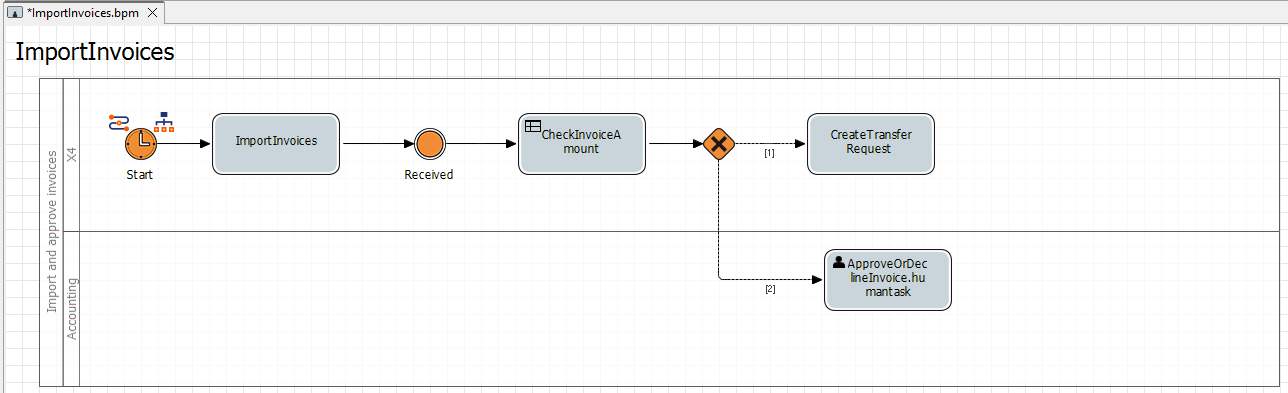
Creating and Defining a Human Task
At this point, the BPM process contains an activity that is classified as a human task, i.e. a human, manual activity. In this example, this manual activity is the manual approval of the invoice in the Task Management Web App. For this process step, you now need to create a HUMANTASK file and define other settings, for example, the possible actions.

Note:
By default, the Task Management Web App is available for the task management in relation to human tasks. For more information, see Task Management.
How to create the human task
Previous step: Setting Execution Conditions
Right-click the BPM Project in the Projects view and select New > Rules….
The File Creation Wizard dialog opens.In the File name text field, enter the name
ApproveOrDeclineInvoice.humantaskfor your human task.Click Finish.
✅ The human task is created in the BPM Project and opens automatically in the editor.In the Title field, define a title for the human task, e.g.
Approve or decline invoiceSelect the No deadline check box on the General tab so that the release of invoices is not subject to any time restrictions.
Switch to the Business Data tab and select all the checkboxes of the defined data structure so that users can see all the relevant data in the Task Management Web App.
Switch to the Actions tab.
Select the
Approved - manuallycheckbox and define a Display name, e.g.Ok.Select the
Declined - manuallycheckbox and define a Display name, e.g.No.
✅ The status are defined as possible actions in the Task Management Web App.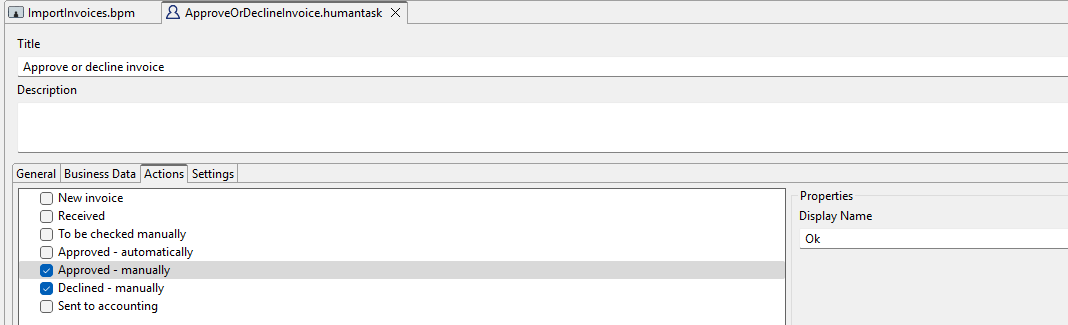
Click
Save.
Return to the
ImportInvoicesBPM Project.Click the
button in the Document field in the Properties view.
The Choose Human Task Input dialog opens.Select the previously created HUMANTASK file
ApproveOrDeclineInvoice.humantask.Click OK.