
To implement cases with X4 BPM, it is required to define a data structure for the business case within the Business Process. In domain model files (.domainmodel), you can add a business data structure in a three-staged hierarchy to the process definition, including descriptions.
Structure of Business Case Data
A case's business data is structured in categories, groups, and features:
-
Categories group business data on the highest level containing feature groups. Each category has a name, a position within the tree and an optional description.
-
Groups aggregate business data features of the same category. Each group has a name, a position within the tree and an optional description.
-
Features are specific business data properties, e.g. an order date within a feature group. Each feature has a name, a position within the tree and an optional description, a data type, and an optional default value.
Available data types for features are:
-
String: String -
Integer: Integers -
Decimal: Decimals -
Boolean: Boolean values -
DateTime: Date and time
How to define Business Case Data
Business case data can be defined both for individual business processes and for the entire project or several business processes.
-
Right-click the
.bpmfile in the Repository Navigator view. -
Select New > Domain Model in the context menu.
-
If the business case data applies to several Business Processes, the corresponding
.domainmodelfile is created within the repository folder Activities > DomainModel. -
If the business case data applies only to one specific Business Process, the corresponding
.domainmodelfile is created directly below the Business Process. After saving, the .domainmodel file is automatically attached to theStartcomponent.
The file is now created and opened in X4 Designer.
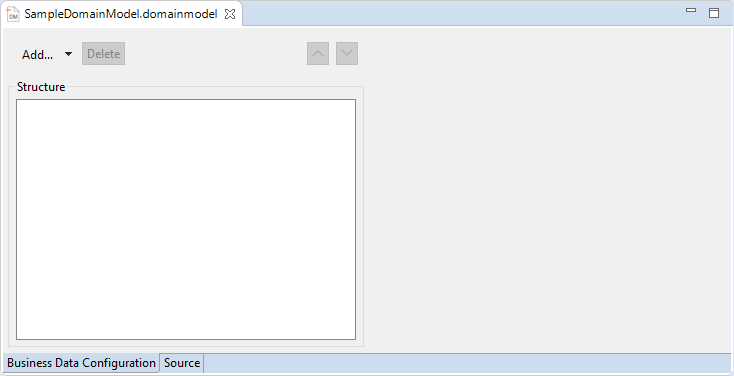
-
-
Define the business data structure and its descriptions.
-
To create a new feature category, click Add or select

Add > Category. Then enter a category name (Name) and a corresponding description (Description).
-
To define a feature group, click Add when a category is selected or select
Add > Group. Then enter a group name (Name) and a corresponding description (Description).
-
To define a feature, click Add when a group is selected or select
Example:
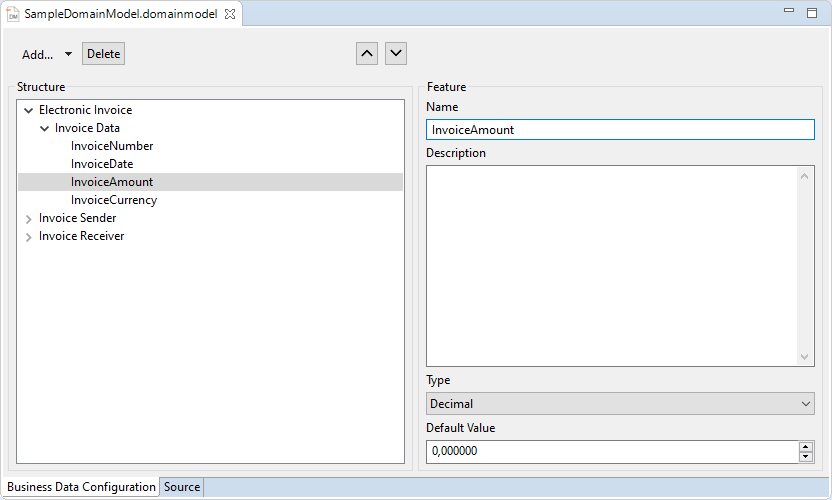
-
To change the sequence of a selected structure element, click


-
The Delete button allows you to remove a selected entry from the tree.
-
-
-
Click the

-
Drag the
.domainmodelfile to the desired Business Process..domainmodelfiles created below the Business Process are automatically attached to theStartcomponent. The business data are therefore available in the process and the related Human Tasks.