

|
|
Properties
|
Case Management |
|
|---|---|
|
|
Case state to be set with this element Possible values: Any already defined case state value; You can manage available case states by clicking
|
|
Technical |
|
|
|
Waiting time until the event occurs Possible values:
(information) As an alternative you can define an end date using To open the waiting time configuration click on |
|
|
Label of the symbol within the process diagram |
Setting a Timer-based Intermediate Event
-
Drag a Timer-based Intermediate Event from the Palette to the process diagram
-
Select the event component and switch to the Properties view.
-
Select in property
Case Statea predefined case state, e.g.IN PROGRESS.If property
Case Statedoesn't provide an option yet, no case state has been defined for the Business Process. To manage case states, click propertyCase Stateand open the case state management by clicking the
When executing the Business Process, the case state will now be updated. The case state change is indicated by a corresponding label for the event.
As an alternative, the case state can also be set dynamically using Technical Processes. The Case Management adapter is provided for this purpose.
-
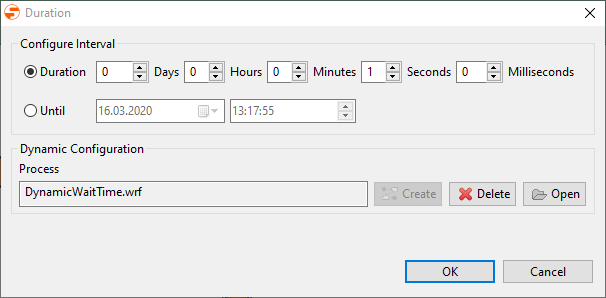
Open the waiting time configuration by clicking the
-
Configure desired waiting time by specifying days, hours, minutes, seconds and milliseconds.
As an alternative you can define an end date using
Until.
-
Save the configuration with OK.
Setting Timer-based Intermediate Event Dynamically
Timer-based events can also be configured dynamically using Technical Processes and a corresponding mapping. The corresponding Technical Process is created and managed via the timer-based intermediate event. It is created directly under the corresponding Business Process and cannot be moved.
-
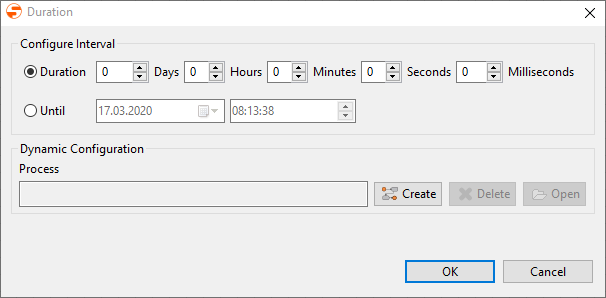
Open the waiting time configuration by clicking the
-
Click on Create under Dynamic Configuration.
-
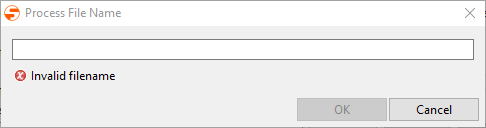
Enter the process name and confirm by clicking OK.
The process will be created directly below the Business Process and can be edited here.
The Technical Process has to provide the following target structure:XML<?xml version="1.0" encoding="UTF-8"?> <timerBasedConfiguration> <durationDay>0</durationDay> <durationHour>0</durationHour> <durationMinute>0</durationMinute> <durationSecond>10</durationSecond> <durationMillis>0</durationMillis> </timerBasedConfiguration>
XML<?xml version="1.0" encoding="UTF-8" standalone="yes"?> <timerBasedConfiguration> <untilTimestamp>2020-03-17T17:00:00</untilTimestamp> </timerBasedConfiguration>