
Under Connection, you can save connection profiles with their profile data.
-
Select Tools > Preferences.
-
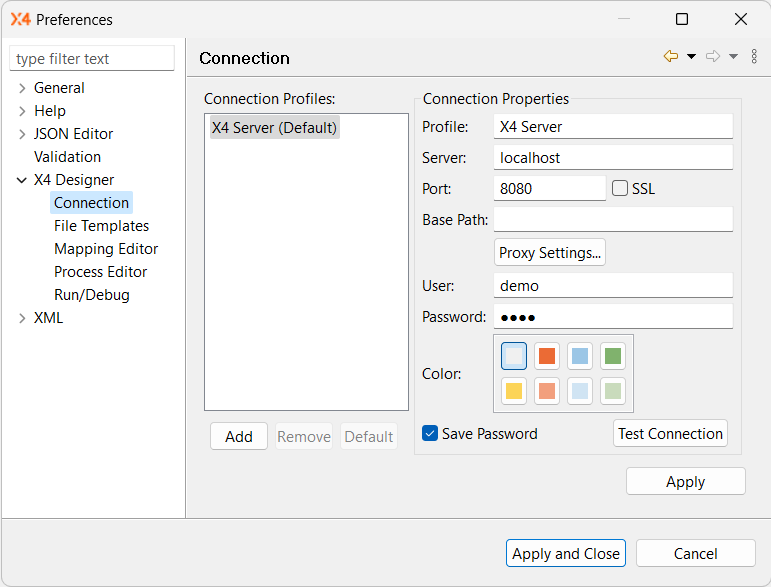
To access the connection settings, expand X4 Designer on the left and select Connection.
-
Make the required connection settings:
Profile
Name of the connection profile (arbitrary)
Server
IP address or host name of the X4 Server (example:
localhost)Port
Port number
Base Path
Base URL for the connection to an X4 Server behind a proxy
Proxy Settings
Default settings for proxy servers and your Internet connection
User
Name of the Repository user
Password
Password of the Repository user
Color
Color for the connection setting (optional)
The selected color will be displayed in the X4 Designer status bar on the next successful connection attempt. This makes it easier to distinguish between different X4 Servers.
The connection profiles you have created are displayed under Connection Profiles. You can add profiles, remove profiles, and set any profile as the default.
-
Click Test Connection to check if the connection functions properly.
-
Click Apply and Close to save the configuration and close the window.