
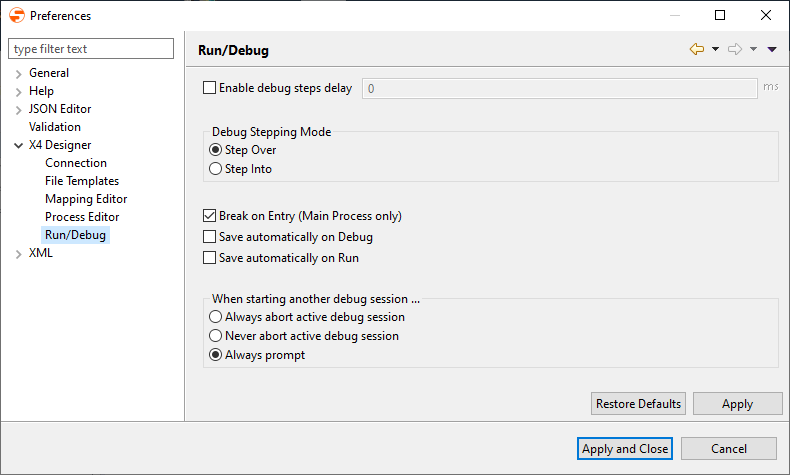
You can define the behavior of processes when they are run or debugged in the X4 Designer.
-
Select menu Tools > Options.
-
On the left side double-click X4 Designer, and select Run/Debug to open the configuration.
-
Make the required settings:
-
Enable debug steps delay: Define the delay (in milliseconds) between each run process step in debug mode.

-
Debug Stepping Mode: Default appearance of debugged process steps:
-
Step Over: Execute steps and debug each sub-process as one step
-
Step Into: Execute steps, jump into sub-processes, and display each sub-process action in debug mode
-
-
Break on Entry (Main Process only): Stop debugging after executing the first process action
-
Save automatically on debug: Save the process automatically before debugging
-
Save automatically on run: Save the process automatically before running
-
When starting another debug session: The debugger's bahaviour when another debugging session is already active:
-
Always abort active debug session: The active debugging session will be aborted, and a new debugging session will start immediately.
-
Never abort active debug session: The active debugging session will never be aborted when trying to start another session (the active session must be aborted manually by the user).
-
Always prompt: When starting debug mode you will be prompted to abort.
-
-
-
Click Apply and Close to save the configuration and close the window.