
You can filter the list of process instances using the ALL, ERRORS, and ACTIVE radio buttons.

|
Displays all process instances. |

|
Displays process instances in |

|
Displays process instances in |
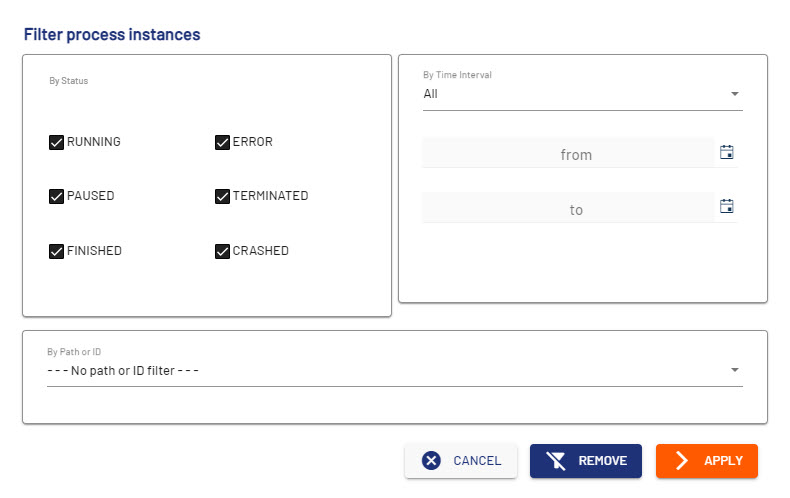
Selecting the Filter button in the Instance View opens the Filter process instances dialog. This dialog allows you to define various filter criteria.
|
Element |
Description |
|---|---|
|
By Status |
Select which process statuses are to be displayed. If you do not make a selection, all processes will be displayed, regardless of the status. |
|
By Time Interval |
Define the period for which process instances are to be displayed. Possible values:
|
|
By Path or ID |
Options for filtering by path or process ID. Possible values:
|
|
Cancel |
Cancels the definition of filter criteria. If you have already set and applied filter criteria before, they will be kept even if you select Cancel. |
|
Remove |
Resets all filters. |
|
Apply |
Executes the selected filter/s. |