
Third-party libraries
The following third-party libraries have been updated (partially) in X4 BPMS 7.5:
-
WildFly: Update to version 39.0.1
-
Java: Update to patch 17.62.17
-
Saxon-PE 12.5
Data Objects plugin
With the Data Objects plugin, you extend domain model files in the X4 BPMS with the Data Object tab. On this tab, you can define a complex XML structure that models your business data.
No action required
The plugin is included in the standard X4 BPMS package. No further installation steps are required.
An automatic background process deletes expired data objects once an hour. You can enable or disable the automatic deletion of expired data objects using the system parameter ENABLE_DELECTION_PROCESS.
X4 Server installation
Installation of the X4 Server as service not possible
The installation of the X4 Server as a service is no longer possible directly via the installation routine. There is also no tool available, such as a Service Setup Tool.
Action required
-
For Windows and Linux installations, the service must be configured manually.
-
Alternatively, more modern methods such as Docker images can be used to deploy the X4 Server.
Keycloak installation
Starting with version 7.5, additional OIDC-compliant identity providers can be integrated. However, Keycloak remains the default supported provider.
Changes:
-
We no longer supply a preconfigured Keycloak.
-
Keycloak is no longer part of the installation packages.
-
No more Docker image will be deployed.
Instead, we provide sample JSON files for the basic Keycloak realm configuration and the sample demo user (demo/demo).
Action required
-
If necessary, download a Keycloak here: Downloads - Keycloak
-
Import the supplied JSON files into your Keycloak installation. For instructions, see Keycloak Integration with OIDC for X4 Designer and X4 Server | Setting Up X4Realm.
What's new when using Keycloak with OIDC
The X4 Designer now requires its own client, as the X4 Designer must be able to request a token without client secret.
For this to work, the following prerequisites must be met:
-
In Keycloak, create a separate client for the X4 Designer.
-
Configure this client as a public client.
Note:
X4 private clients use a client secret to exchange tokens.
Since the X4 Designer cannot use a client secret, such clients are not suitable for this use case.
Use existing Keycloak installation with OIDC
There are two ways to configure an existing Keycloak installation for use with OIDC:
-
Variant A: Use this variant if you have an empty Keycloak instance.
-
Variant B: Use this variant if you have customized your Keycloak instance or if importing data appears too cumbersome.
Action required
You must set up the Keycloak realm for use with OIDC. For instructions, see Keycloak Integration with OIDC for X4 Designer and X4 Server | Setting Up X4Realm.
Introducing OpenID Connect
Starting with version 7.5, the authentication options of the X4 BPMS have been extended.
The following changes affect the configuration and use of OpenID Connect and alternate authentication modes.
Modification to the keycloak_conf.json file
The keycloak_conf.json file is no longer used for authentication.
It is now used only as a basic configuration for the Keycloak Management Adapter.
Without using the Keycloak Management Adapter, the file has no effect.
Authentication in the Swagger UI
The Swagger UI of the API is now protected by basic authentication (username/password).
After successful login, an additional click on the Authorize button is no longer required.
Connection without authentication (No Auth)
A connection to the server is also possible without authentication (No Auth mode).
This mode does not require an identity provider (IDP).
Action required
You must enable No-Auth mode on the server side.
To do this, proceed as follows:
-
Place the following file in the server's configuration folder:
<?xml version="1.0" encoding="UTF-8" standalone="yes"?> <NoAuthenticationConfiguration> <UserData> <UserName>RandomUser</UserName> <Roles> <Role>x4_dev_access</Role> <Role>x4_dev_access_*</Role> <Role>x4_admin_access</Role> </Roles> </UserData> <IsEnabled>true</IsEnabled> <DisableLogWarning>false</DisableLogWarning> <AllowOtherClientAddressesThanLocalhost>true</AllowOtherClientAddressesThanLocalhost> </NoAuthenticationConfiguration> -
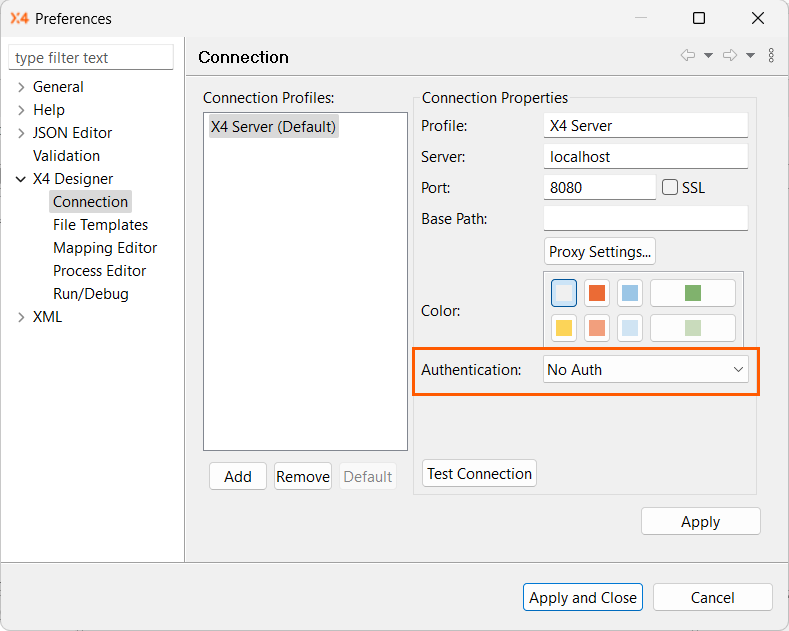
In the X4 Designer, select Manage Connections > X4 Designer > Connections.
-
In the X4 Preferences dialog, select No Auth from the Authentication drop-down list.
HTTP REST Endpoints — Change the structure of <Path> <Parts>
Which projects are affected?
Projects that use HTTP REST endpoints (.wsinc configuration files) with <InputHandler type="HTTP-MetaXml"/> and contain X4 process logic that <Request> <Path> <Parts> reads to extract path segments.
Endpoints with <InputHandler type="HTTP-Content"/> are not affected.
What has changed?
A new <Constant> element is now inserted at position 1 of <Parts> and represents the name of the .wsinc file (the root of the URL path). All subsequent elements move one position.
Action required
Review all X4 processes that read from <Request> <Path> <Parts> on a MetaXml configured endpoint.
The following expression types are affected:
Position-based XPath expressions — all positions move +1:
|
Old (moved by 1) |
New (correct) |
|---|---|
|
|
|
|
|
|
Counting expressions — results increase by 1:
|
Old (moved by 1) |
New (correct) |
|---|---|
|
|
Returns one value more than before |
|
|
Returns one value more than before |
Workaround
If your project has bypassed the missing first segment (for example, by interpreting Parts/*[1] as the first sub-path segment instead of the .wsinc root), these offsets must be corrected.
Note:
Processes that only access path parts via names (e.g. Parts/Variable[@name='ItemID']) and do not rely on position information are not affected.