
XML
 | The XML component includes well-formed XML data in the process. Character encoding is determined from the XML declaration and the MIME type from the file name extension. |
Properties
Document | Path to the linked XML document in the repository |
Label | Label of the symbol within the process diagram |
Operation | Determines if the file is read or written Possible values:
|
Type | Defines the type of the file The file type has no effect on the process execution, it contains meta information of the component. Note: The For files in the TemporaryFiles folder, only the Possible values:
|

Creating and using XML document
XML documents can be created within an ESB project in the Resources folder (for resources) and in the TemporaryFiles folder (for buffer files). Two options are available for this purpose:
- via the Project > Add XML Document menu
- via the New > XML Document context menu
- Within the ESB project, right-click on the folder to access the context menu.
- In the context menu, click New > .
A selection of available templates is displayed.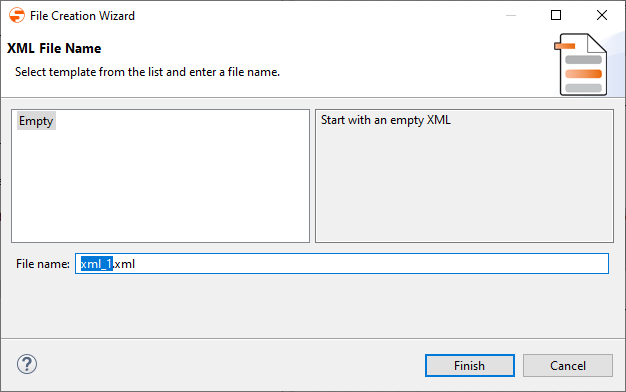
Select a blank template or an existing template.
In File Name, enter the file name.
- To create the XML document, click Finish.
The XML document is created and opened in the XML Editor 2. - Edit the XML document.
Drag and drop the XML document from the Projects view into the process diagram.
Example: Insert between function adapter andstopmodule.In the Properties view, in
Operation, specify if the XML document should be read (Read) or written (Write).