
X4 Designer - Interactive Installation
This installation package contains the X4 Designer, i.e. the graphical user interface of the X4 BPMS, and will be provided for production purposes as an MSI file for the installation under Microsoft Windows. For more information on the installation components, see Installation Components of the X4 BPMS.

Note:
To use the X4 Designer, a connection to an X4 Server and an authentication provider is required.
Note:
With an MSI file, you can use one version of the X4 Designer at a time. The installation package containing the MSI file overwrites existing installations, which may lead to issues and data loss.
If you would like to use several concurrent versions of the X4 Designers, download the X4 Designer - ZIP archive package.
How to install the X4 Designer - Interactive installation package:
Download the X4 Designer - Interactive installation from the SoftProject website from the X4 BPMS > Downloads section.
Note:
When downloading MSI files using Microsoft Edge you may see a message as the following:
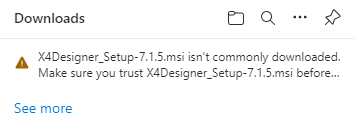
To save and execute the file, perform the following steps:
1. Hover over the text and select the three dots (More actions) displayed to the right of the text.
2. Select Keep.
3. Select Show more in the dialog that opens and select Keep anyway.
- Open the MSI file to execute it.
The setup wizard is opened. - Select Next to proceed to the next step.
- Accept the suggested installation path or select Change... to specify a different path. You can use the Create a shortcut for X4 Designer on the desktop checkbox to create a shortcut on the desktop.
- Select Next to confirm your entries and proceed to the next step.
- Select Install to perform the installation.
The progress of the installation will be displayed. Select Finish to complete the installation.
Note:
If you enable the Launch X4 Designer when setup exits option, the X4 Designer will be started immediately once the installation is complete.The X4 Designer was installed in the specified path.
- Start the X4 Designer to check the installation, unless it has been started automatically already.
Note:
Unattended Installation
You can also install the X4 Designer via an unattended installation.
To do so, enter a suitable command containing the location of the installation path and the desired parameters in the command prompt.
Example: C:\<location of the MSI file> /q/n /L*V C:\temp\test.log.
You need administrator privileges to perform an unattended installation.
Deinstalling the X4 Designer
You can deinstall the X4 Designer via the Windows start menu, the Windows control panel, or by executing the installation file (.msi) again.
How to deinstall the X4 Designer:
- Double-click on the MSI file.
The start screen of the setup wizard is opened. - Select Next to open the Change, repair, or remove installation dialog.
- Select Remove.
- In the next step, select Remove again to start the deinstallation.
The progress of the deinstallation is displayed. Select Finish to complete the deinstallation.
The X4 Designer has been deinstalled.