
Managing Business Process Data
To map processes in X4 BPMS, you need to define the required business data structure for the Business Process. You use Domain Model files (.domainmodel) to create a three-level hierarchy for the business data including corresponding descrptions and thus add them to the process definition.
Structure of business case data
The business data for a process are divided into categories (category), groups (group), and features(feature):
Category | A category groups business data at the highest level and can contain additional groups. Each category has a name, position, and optional description. |
Group | A group summarizes the features of the business data within a category. Each group has a name, position, and optional description. |
Feature | A feature defines the specific properties of the business process data, e.g. an order date within a feature group. Each feature has a unique name in the domain model, a position, an optional description, a data type, and an optional default value. |
Available data types for features
You can define a data type for each feature you create. The selected data type determines the expected range of values for this feature.
Data type | Description |
|---|---|
| Character string |
| Integer |
| Floating point number |
| Boolean value |
| Date and time |
Defining business process data
You can define business process data for individual Business Processes and for entire projects, that is, multiple Business Processes.

If you want to use the business process data for more than one Business Process, you need to create the
.domainmodelfile in the Activities > DomainModel repository folder.If you want to use the business process data for a specific Business Process, you need to create the
.domainmodelfile directly subordinate to the Business Process. After saving, the file is immediately attached to theStartevent of the Business Process.
Right-click the BPM Process for which you want to define the business process data in the Projects view.
Select New > Domain Model from the context menu.
The file is created and opened in the X4 Designer.
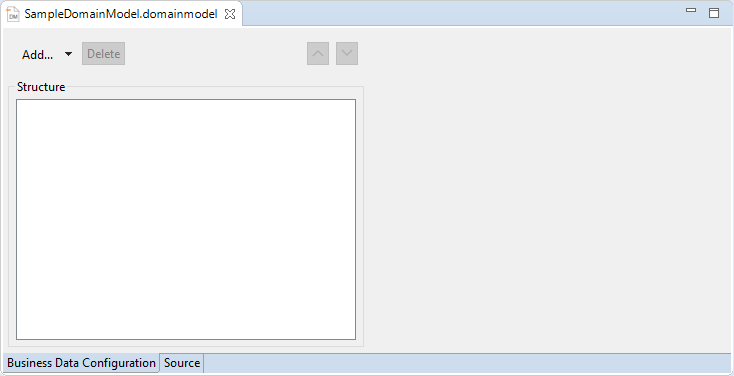
Define the structure of the business data and add corresponding descriptions:
Click Add or select
 Add > Category to create a new feature category and specify a Name and a Description.
Click Add within a category or select Add
> Group to create a feature group and specify a Name and a Description.Click Add within a category or select
Add > Feature to create a feature and specify a Name, a Description, a data Type (Type), and a Default Value.
Example: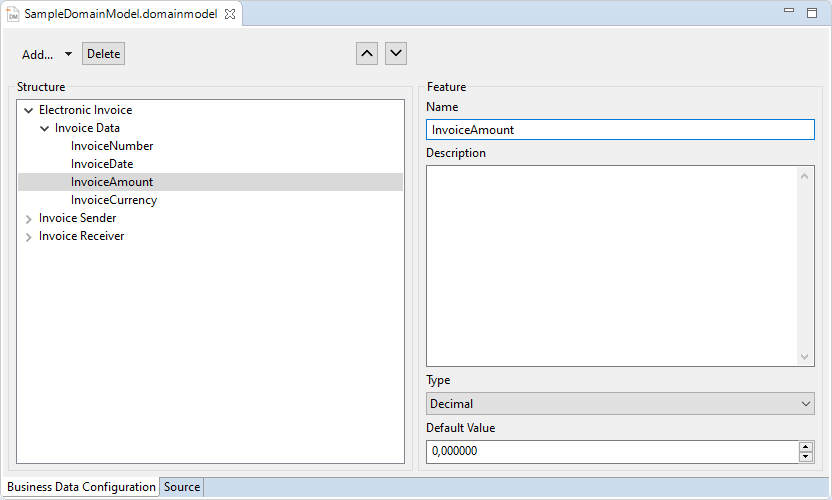
Click  or
or  to change the order of a selected element.
Click the Delete button to delete an entry selected in the tree structure.
Click
 Save in the toolbar to save.
If you have created the business process data in the Activities > DomainModel repository folder, you must drag the file to the desired Business Process at this point.
.domainmodelfiles created subordinate to the Business Process are automatically attachmed to theStartevent. The business data is thus available in the process and the human tasks included in it.