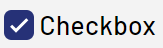
Checkbox
<Checkbox> controls are created using the <Checkbox> element and are used to work with Boolean values, such as obtaining user input in "Yes/No" format.
In addition to the standard attributes listed under Controls, the following attributes can be defined for a <Checkbox> control:
Attribute | Description |
|---|---|
| Required Specifies whether the checkbox is enabled or disabled by default.
Note:The use of data binding for the status of the checkbox is necessary for the checkbox to function properly and to save the initial value of Possible values: |
| Label. Is displayed next to the checkbox.
Possible values: Any string |
| Specifies whether the checkbox is displayed as a slider in the desktop version. Possible values: |

Note:
Checkboxes are displayed differently in the desktop version and in the mobile version.
Display in the desktop version:

Display in mobile version:

The sliderOnDesktop attribu280pxte can also be used to view the mobile version display in the desktop version.
Select action within a checkbox
The Select action is generated via the <SelectAction/> element within <Checkbox> and triggered as soon as the checkbox is activated or deactivated.
Example of <Checkbox>
<DetailComponent name="Example" path="Example" displayName="Example">
	<FlowLayout>
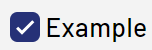
		<Checkbox checked="true" displayName="Example"/>
	</FlowLayout>
</DetailComponent>
The above code creates the following checkbox:
Example of <Checkbox> with a Technical Process
<DetailComponent path="Dashboard"
       displayName="Dashboard" default="true"
       process="/Processes/process_1.wrf">
       <Properties>
             <Property name="boolean" type="Boolean"></Property>
       </Properties>
       <FlowLayout>
             <Checkbox checked="#boolean" displayName="Check box" />
       </FlowLayout>
</DetailComponent>
The above example creates the following checkbox: